Free Shipping on Domestic Orders $75+

Tapwave T2907US Zodiac 2 Analog Stick Replacement

What you need

    1. Tapwave T2907US Zodiac 2 Analog Stick Replacement, Back Cover: step 1, image 1 of 1
      • Remove the four Torx T5 screws from the back panel.

      Ask FixBot

      Add Comment

    2. Tapwave T2907US Zodiac 2 Analog Stick Replacement: step 2, image 1 of 1
      • Wedge a spudger in between the front and back panel.

      • Apply leverage downwards to the spudger in order to remove the back panel.

      Ask FixBot

      Add Comment

    1. Tapwave T2907US Zodiac 2 Analog Stick Replacement, Battery: step 3, image 1 of 1
      • Slide the battery out from under the brown wire-tape.

      • Be careful of the wires still connected to the other end of the battery. Do not pull or damage may occur.

      Ask FixBot

      Add Comment

    2. Tapwave T2907US Zodiac 2 Analog Stick Replacement: step 4, image 1 of 1
      Tool used on this step:
      Tweezers
      $4.99
      Buy
      • Slowly pull the white plug from its receptor. Grasp its sides firmly with a pair of tweezers and gently wiggle from side to side.

      Ask FixBot

      Add Comment

    1. Tapwave T2907US Zodiac 2 Analog Stick Replacement, Motherboard: step 5, image 1 of 1
      • Unscrew the 2 Philips #00 screws on each end of the motherboard.

      Ask FixBot

      Add Comment

    2. Tapwave T2907US Zodiac 2 Analog Stick Replacement: step 6, image 1 of 1
      Tool used on this step:
      Tweezers
      $4.99
      Buy
      • Pull off the black memory card slot piece with tweezers.

      Ask FixBot

      Add Comment

    3. Tapwave T2907US Zodiac 2 Analog Stick Replacement: step 7, image 1 of 1
      • Unscrew the 2 Philips #00 screws on each side of the charging port.

      Ask FixBot

      Add Comment

    4. Tapwave T2907US Zodiac 2 Analog Stick Replacement: step 8, image 1 of 2 Tapwave T2907US Zodiac 2 Analog Stick Replacement: step 8, image 2 of 2
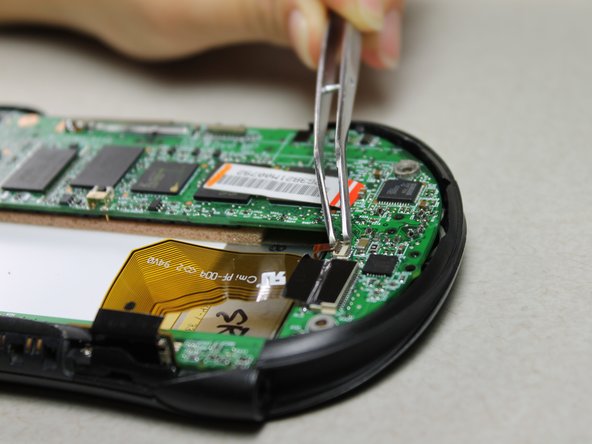
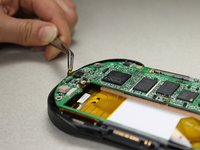
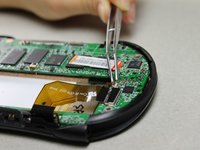
      • Disconnect 2 brown wire-tape ends from each end of the motherboard. Gently pull straight out with tweezers.

      Ask FixBot

      Add Comment

    5. Tapwave T2907US Zodiac 2 Analog Stick Replacement: step 9, image 1 of 1
      • Pull the motherboard and screen component diagonally up and left away from the auxiliary port entrance to remove.

      • Glue connecting the auxiliary port to the casing may make it difficult to remove. Gently apply force as needed.

      Ask FixBot

      Add Comment

    6. Tapwave T2907US Zodiac 2 Analog Stick Replacement: step 10, image 1 of 1
      • Disconnect the 2 brown wire-tape ends from the left side of the battery slot on the motherboard using tweezers.

      Ask FixBot

      Add Comment

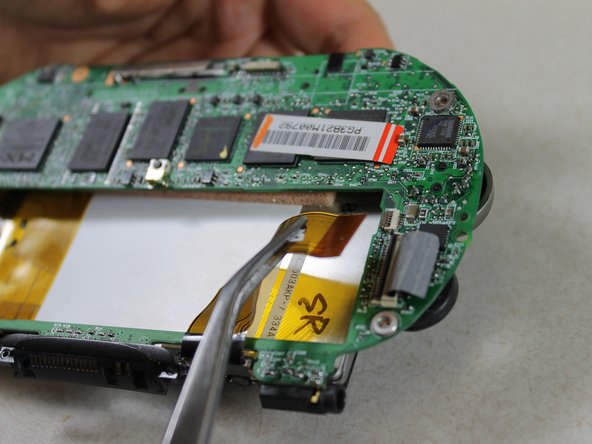
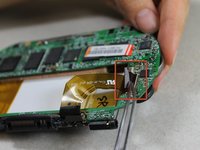
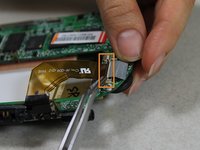
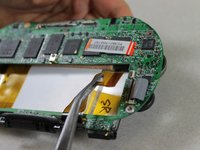
    7. Tapwave T2907US Zodiac 2 Analog Stick Replacement: step 11, image 1 of 3 Tapwave T2907US Zodiac 2 Analog Stick Replacement: step 11, image 2 of 3 Tapwave T2907US Zodiac 2 Analog Stick Replacement: step 11, image 3 of 3
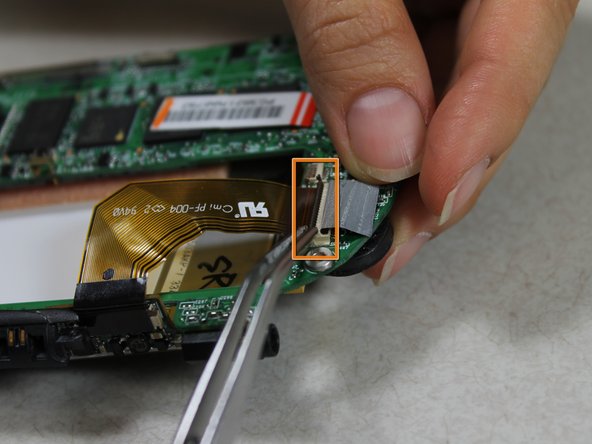
      • Disconnect the large brown wire-tape from the motherboard.

      • Peel the black tape back from the wire-tape using tweezers.

      • Lift the black, hinged, plastic lock with tweezers to release the wire-tape.

      • The screen and motherboard components can now be separated from each other.

      Ask FixBot

      Add Comment

    1. Tapwave T2907US Zodiac 2 Analog Stick Replacement, Analog Stick: step 12, image 1 of 1
      Tool used on this step:
      Tweezers
      $4.99
      Buy
      • Use tweezers to remove analog stick straight upwards from its component on the motherboard.

      • It should lock into place when installing a new one.

      Ask FixBot

      Add Comment

Conclusion

To reassemble your device, follow these instructions in reverse order.

Cancel: I did not complete this guide.

Daniel Wiseman

Member since: 01/20/12

133 Reputation

6 Guides authored

Team

Cal Poly, Team 10-33, Amido Winter 2012 Member of Cal Poly, Team 10-33, Amido Winter 2012

CPSU-AMIDO-W12S10G33

4 Members

66 Guides authored

0 Guide Comments

Add Comment

View Statistics:

Past 24 Hours: 0

Past 7 Days: 6

Past 30 Days: 39

All Time: 1,379