
TMY V08 Speaker Replacement

Wesley and 5 other contributors
Last updated on Jan 3, 2024
Views: 519
View statistics:
- Past 24 Hours:
- 2
- Past 7 Days:
- 10
- Past 30 Days:
- 50
- All Time:
- 519
Comments: 0
No one has left comments on this guide. Will you be first?
Go to guide commentsCompleted: 0 1
No one has marked this guide "completed." Will you be the first?
1 person has marked this guide "completed." It's you — great job!
Favorites: 0 1
No one has favorited (and subscribed to) this guide. Will you be the first?
1 person has favorited (and subscribed to) this guide — and that's you!
Featured Student Guide
This guide has been the hard work of our awesome students and is found to be exceptionally cool by the iFixit staff.
Introduction
Go to step 1 ↓If you need to replace the speakers in the TMY V08, the replacement process can be found in this guide. The speaker may need to be replaced if the sound produced is muffled, or no sound is produced at all. If any of these issues apply to your device, refer to our troubleshooting guide.
In order to keep the motherboard safe, before beginning the replacement, make sure the TMY V08 is on a solid surface. Also make sure the TMY V08 is away from non-hardwood flooring and carpets. This will reduce the risk of static electric shocks that may damage the circuit or other components.
What you need
Tools

-
-
-
Turn the projector upside-down.
-
Remove the six 10.8 mm screws from the bottom of the projector using a Phillips #1 screwdriver.
-
Turn the projector back over and lift the top casing panel off the projector.
 Ask FixBot
-
-
-
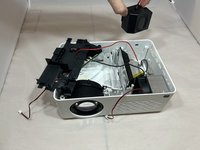
Pinch and pull the bundled cable connector from the top panel.
-
Remove the top panel from the projector.
-
-
-
-
-
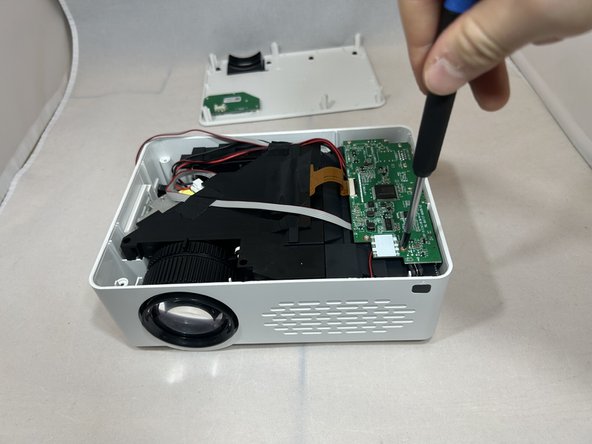
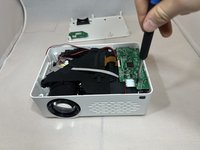
Remove the four 6.4 mm screws from the motherboard using a Phillips #1 screwdriver.
-
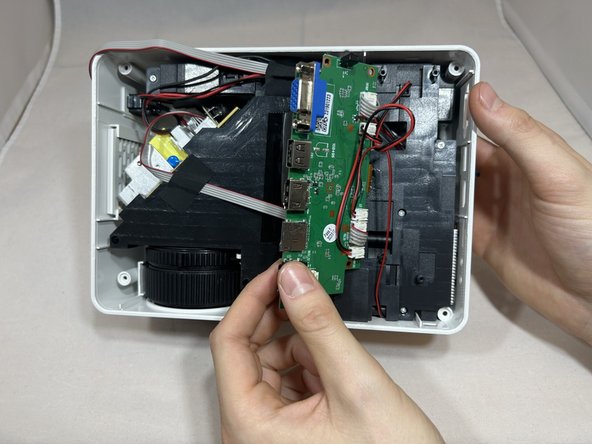
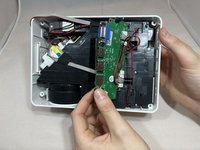
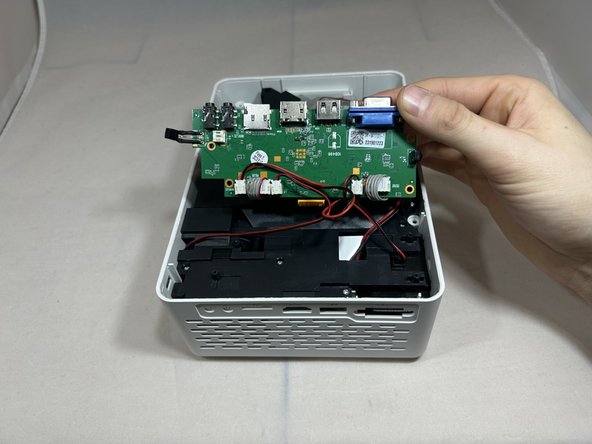
Pull back the motherboard to expose the connectors underneath.
-
-
-
Rotate the projector counterclockwise 90 degrees
-
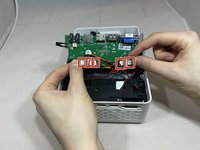
Disconnect the three bundled cable connectors and the two power cable connectors from the motherboard.
-
-
-
Rotate the projector counterclockwise with the front facing you.
-
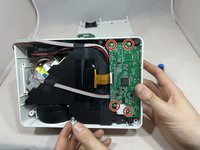
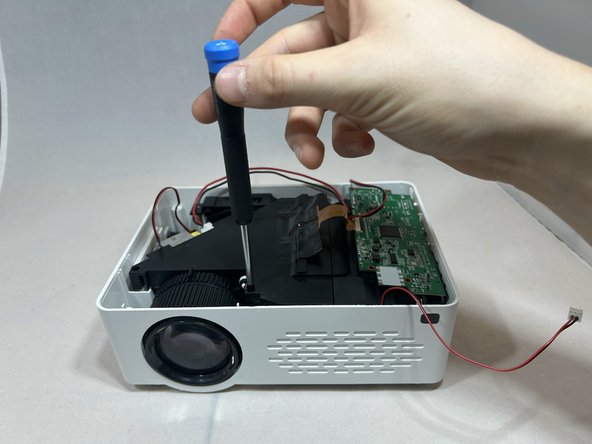
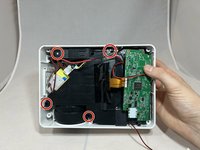
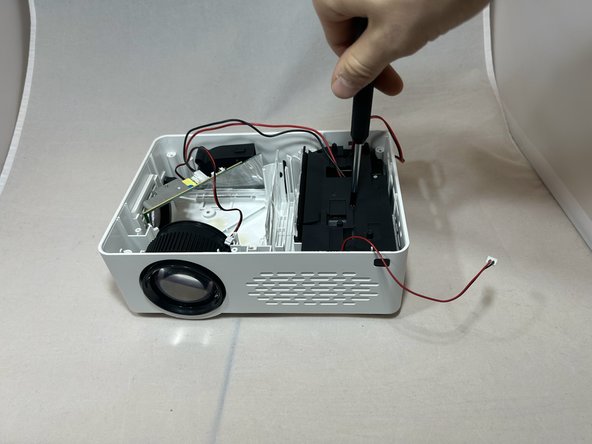
Remove the four 7.3 mm screws from the black cover to the left of the motherboard using a Phillips #1 screwdriver.
-
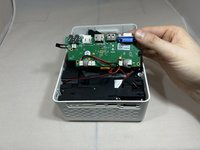
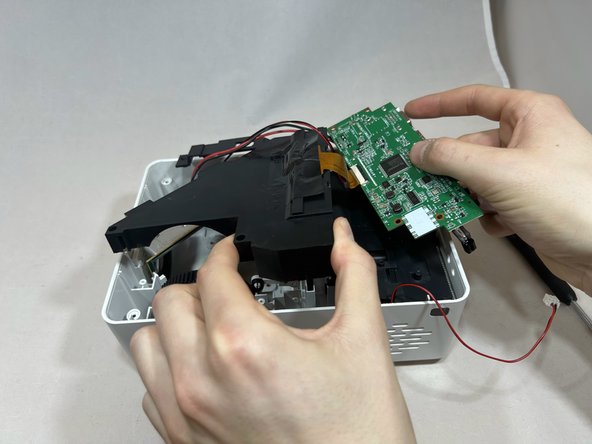
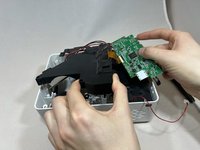
Remove the motherboard and black cover at the same time, being careful not to pull on the gold ribbon.
-
-
-
-
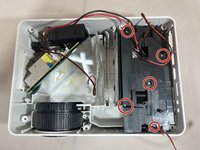
Remove the five 7.3 mm screws from the black cover using a Phillips #1 screwdriver.
-
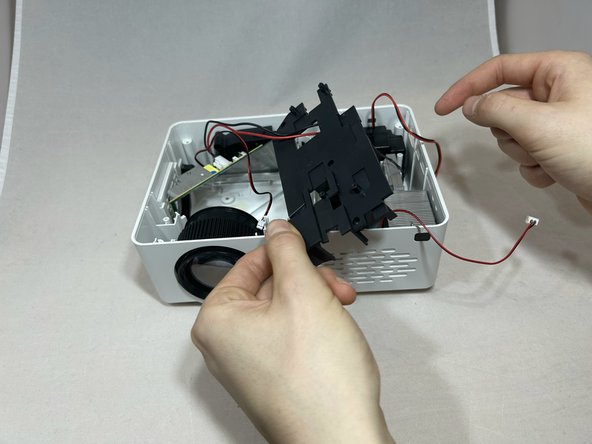
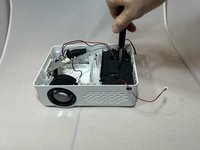
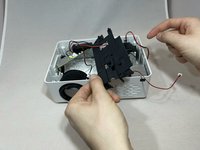
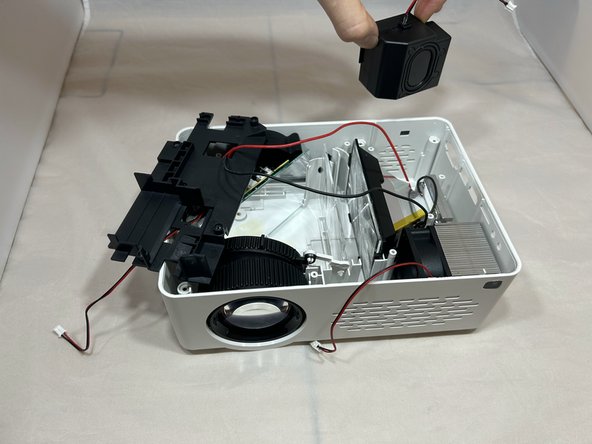
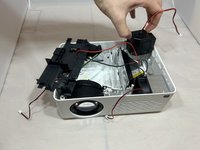
Take off the right black cover, exposing the speaker.
-
-






To reassemble your device, follow these instructions in reverse order.

Team

Eastern Washington University, Team 1-5, Carnegie Fall 2023 Member of Eastern Washington University, Team 1-5, Carnegie Fall 2023
EWU-CARNEGIE-F23S1G5
4 Members
60 Guides authored
