
System76 Serval WS Cooling Fan Replacement

Oliver Anderson and 8 other contributors
Last updated on Dec 27, 2021
Views: 1.5K
View statistics:
- Past 24 Hours:
- 1
- Past 7 Days:
- 11
- Past 30 Days:
- 64
- All Time:
- 1,470
Comments: 1
1 guide comment.
Go to guide commentsCompleted: 0 1
No one has marked this guide "completed." Will you be the first?
1 person has marked this guide "completed." It's you — great job!
Favorites: 0 1
No one has favorited (and subscribed to) this guide. Will you be the first?
1 person has favorited (and subscribed to) this guide — and that's you!
Introduction
Go to step 1 ↓This guide will show how to replace the two cooling fans inside the Sytem76 Serval WS. It will show step by step how to remove the old fans and safely install new fans. You will need to replace the fans if they stop working.
If the fans are working after the repair and your laptop continues to overheat, you may need to clean the fans or replace thermal paste.
What you need
Tools

-
-
-
Unscrew and remove the 4 screws circled in red. Then remove the plastic bottom panel.
 Ask FixBot
-
-
-
Remove the numbered screws in order to safely remove the heatsink
-
Remove the heatsink to access the cooling fans.
-
-
-
Unscrew and remove the screws circled in red, 3 screws per fan.
-
Next unplug the 4-pin power connectors, marked in orange squares.
-
Remove the cooling fans by lifting them up and out of the casing.
-
-
-
Plug in the 4-pin power connectors of the new fans.
-
Insert and tighten 3 screws per fan.
-
-
-
-
If needed, clean off the old thermal paste from the CPU, GPU, and heatsink using isopropyl alcohol and a microfiber cloth. Apply new thermal paste before reassembly.
-
Clean the dust from the heatsink fins.
-
-


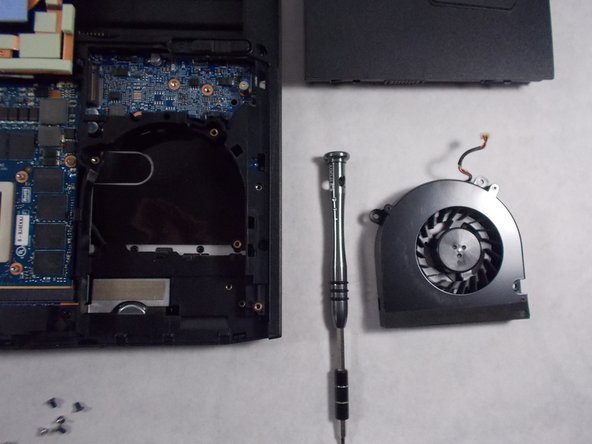
To reassemble your device, follow these instructions in reverse order.

Team

UMass Dartmouth, Team S1-G4, Valliere Spring 2019 Member of UMass Dartmouth, Team S1-G4, Valliere Spring 2019
UMASSD-VALLIERE-S19S1G4
4 Members
36 Guides authored
