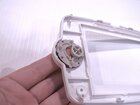
Summer LookOut Duo Navigation Buttons Replacement

Jordyn Looney and 3 other contributors
Last updated on May 16, 2025
Views: 272
View statistics:
- Past 24 Hours:
- 1
- Past 7 Days:
- 12
- Past 30 Days:
- 65
- All Time:
- 272
Comments: 0
No one has left comments on this guide. Will you be first?
Go to guide commentsCompleted: 0 1
No one has marked this guide "completed." Will you be the first?
1 person has marked this guide "completed." It's you — great job!
Favorites: 0 1
No one has favorited (and subscribed to) this guide. Will you be the first?
1 person has favorited (and subscribed to) this guide — and that's you!
Introduction
Go to step 1 ↓If the navigation buttons on your Summer LookOut Duo baby monitor are refusing to function or need cleaning, this guide is a step-by-step on how to access the navigation buttons for cleaning or repair.
Before proceeding, make sure the device is powered off and dry to avoid internal damage to the device or potential shock hazards. Some electrical components will need to be removed in order to get to the navigation buttons.
CHOKING HAZARD: This device contains small screws. If possible, use a magnetic mat or small container within eyesight to keep track of the screws to prevent possible ingestion or misplacement.
What you need
Tools


-
-
-
Flip the device over so the back is facing up.
-
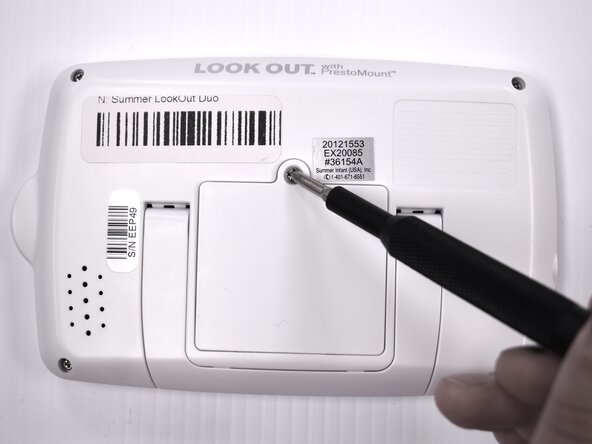
Remove the 9 mm screw using a Phillips #1 screwdriver.
-
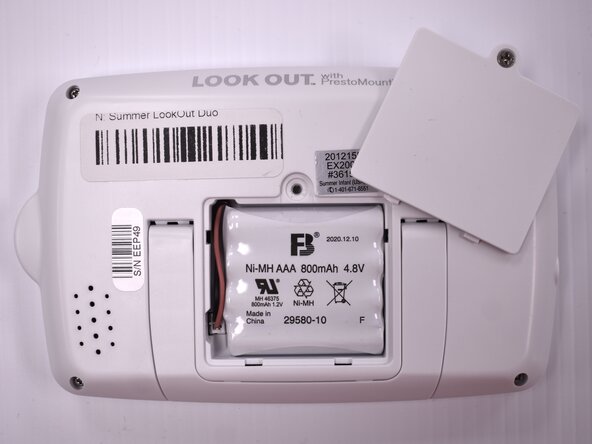
Lift the battery panel away from the device.
 Ask FixBot
-
-
-
Flip the handheld monitor over and let the battery fall out into your hand.
-
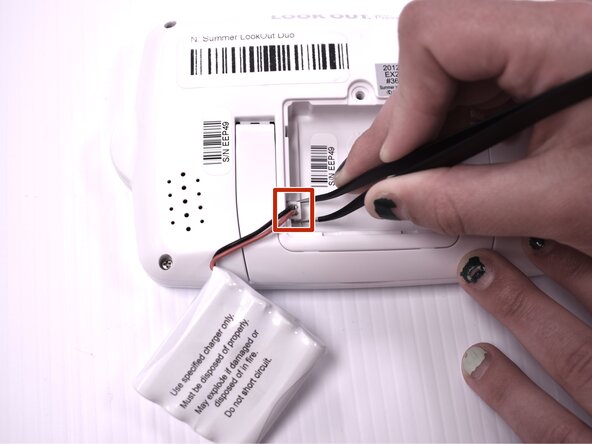
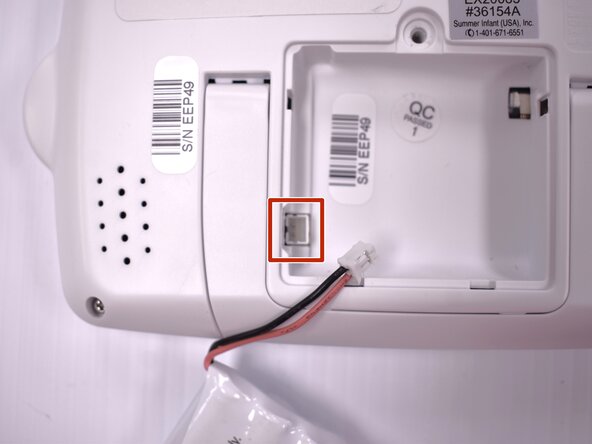
Using angled tweezers, gently remove the plastic wire coupling from the side of the open battery compartment.
-
Remove the battery from the device.
-
-
-
-
-
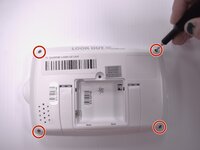
Using the Phillips #00 screwdriver, remove the four 7mm screws from each corner on the back of the handheld monitor.
-
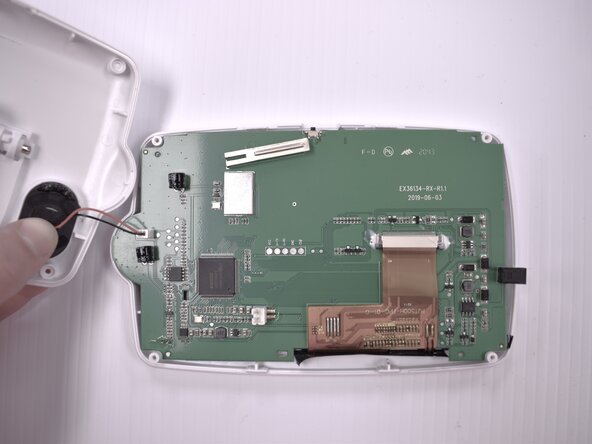
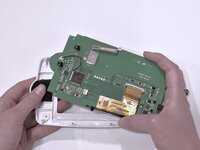
Remove the casing from the back of the handheld monitor.
-
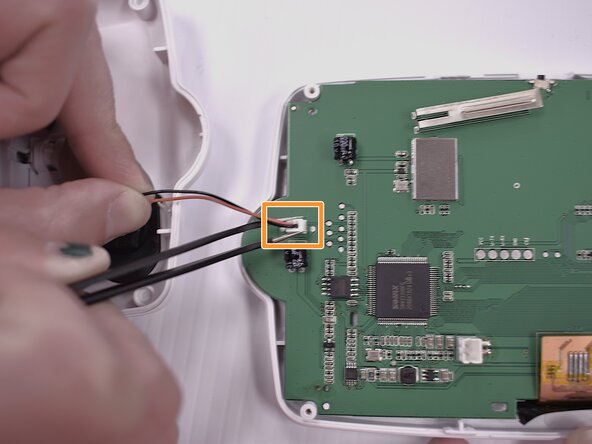
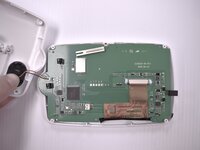
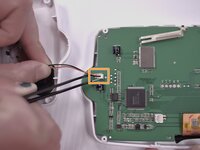
Using the angled tweezers, gently remove the plastic wire coupling connecting the speaker to the motherboard.
-
-
-
-
-
-
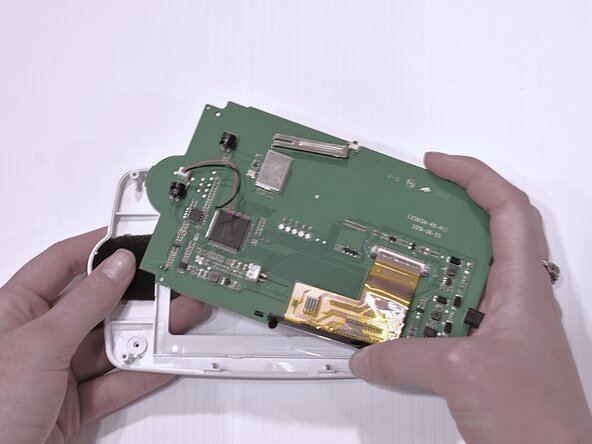
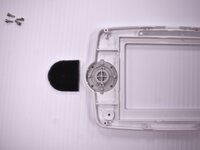
Gently remove the black foam padding from the back of the buttons.
-
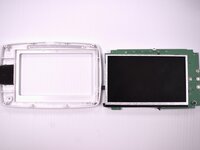
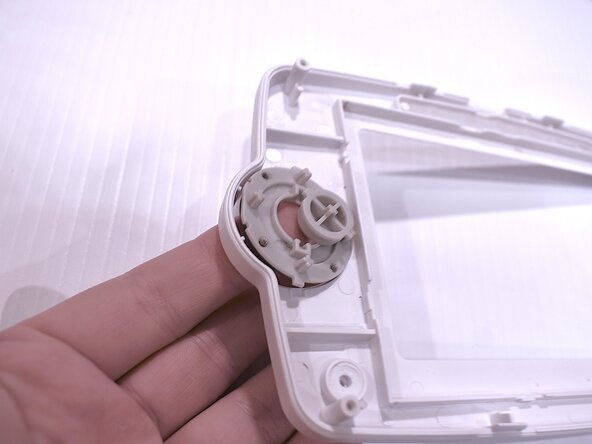
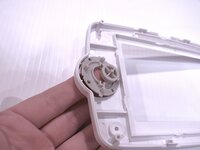
Using your fingers, gently lift the navigation buttons from the front monitor casing.
-
-







To reassemble your device, follow these instructions in reverse order.

Team

Idaho State University, Team 1-4, Watkins Spring 2025 Member of Idaho State University, Team 1-4, Watkins Spring 2025
ISU-WATKINS-S25S1G4
4 Members
60 Guides authored
