Introduction
If your cursor does not move smoothly, jumps unpredictably, or fails to track movement entirely, the optical sensor may be the cause. The optical sensor is responsible for translating physical movement into cursor motion, and it can degrade over time due to dust, scratches, or internal failure. If the optical sensor in your SteelSeries Rival 3 Wireless mouse is no longer functioning correctly, it may need to be replaced.
Before beginning, check the Troubleshooting pages to confirm your SteelSeries Rival 3 wireless mouse needs a new optical sensor.
Warning: To access the optical sensor, you’ll need to carefully open the mouse and locate the sensor assembly on the circuit board.
Make sure to power off the mouse and remove the batteries before beginning the replacement or working with any internal components.
What you need
-
-
-
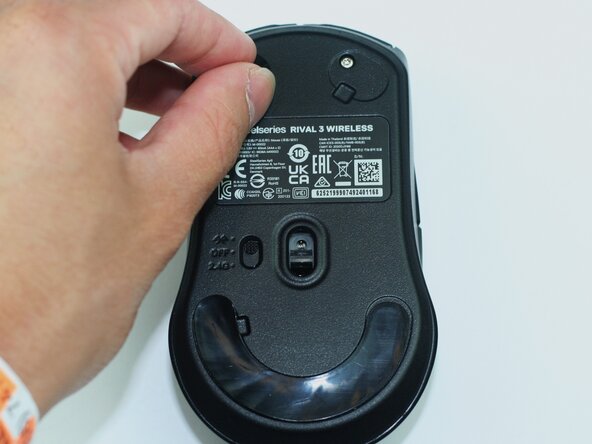
Flip the mouse upside down.
-
Locate the wireless mode switch on the bottom.
-
Slide it to the OFF position.
 Ask FixBot
-
-
-
Place two fingers on the rear top section of the mouse shell.
-
Apply light pressure and slide the battery cover downward (toward you).
-
Slide off the cover and lift away.
-
Remove the two AA batteries.
-
-
-
-
-
Carefully peel off the mouse feet (skates) from the bottom.
-
Remove the four 5 mm screws with a T6 Torx screwdriver.
-
-
-
-
Insert an opening pick into the seam between the lower and upper case.
-
Pry around the perimeter until the cases separate.
-
Lift off and remove the upper case.
-
-
-
Remove the three 5 mm screws securing the motherboard with a Phillips screwdriver.
-
-
-
Disconnect any additional connectors attached to the motherboard.
-
Gently lift the motherboard out of the housing.
-
-
-
-
-
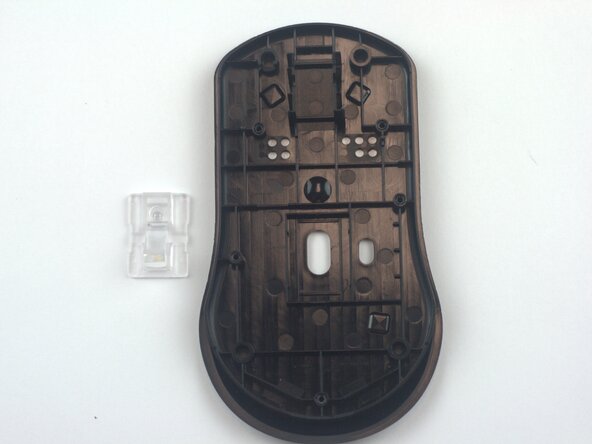
Use tweezers to carefully lift the optical sensor lens out of the mouse housing.
-
-






To reassemble your device, follow these instructions in reverse order.

Team

Texas Tech, Team 41-1, Johansen Spring 2026 Member of Texas Tech, Team 41-1, Johansen Spring 2026
TTU-JOHANSEN-S26S41G1
4 Members
60 Guides authored
