Free Shipping on Domestic Orders $75+

Sony Xperia XA LCD Screen Replacement

What you need

  1. Sony Xperia XA LCD Screen Replacement, Back Cover: step 1, image 1 of 1
    • Apply heat on the back surface of the phone.

    • Continue to heat the device as needed throughout the replacement process.

    • The device can get very hot, so be careful when handling it.

    Ask FixBot

    Add Comment

  2. Sony Xperia XA LCD Screen Replacement: step 2, image 1 of 1
    • Stick the small suction cup on the bottom half of the back surface of the phone.

    Ask FixBot

    Add Comment

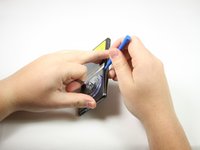
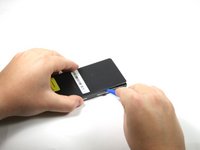
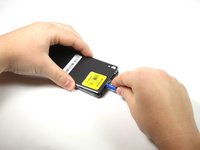
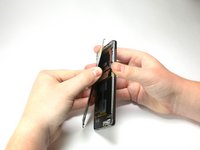
  3. Sony Xperia XA LCD Screen Replacement: step 3, image 1 of 3 Sony Xperia XA LCD Screen Replacement: step 3, image 2 of 3 Sony Xperia XA LCD Screen Replacement: step 3, image 3 of 3
    • With the bottom of the device facing you, lift up on the suction cup handle.

    • Use the plastic opening tool around all sides to pry off the back cover.

    Ask FixBot

    Add Comment

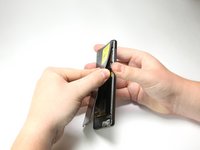
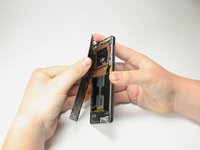
  4. Sony Xperia XA LCD Screen Replacement: step 4, image 1 of 3 Sony Xperia XA LCD Screen Replacement: step 4, image 2 of 3 Sony Xperia XA LCD Screen Replacement: step 4, image 3 of 3
    • Pull the back of the phone case away from the device.

    • You will hear popping sounds of glue being ripped from the phone.

    • You will hear the sound of the back unlatching from the device.

    • You will need to apply adhesive or glue along the device to have maximum seal in reassembly.

    • RAF antenna may be attached to the back cover upon removal.

    Ask FixBot

    Add Comment

  5. Sony Xperia XA LCD Screen Replacement: step 5, image 1 of 1
    • Apply heat to the copper RAF antenna.

    • This step and the following step only apply if the RAF antenna does not come off when taking the back cover off.

    Ask FixBot

    Add Comment

  6. Sony Xperia XA LCD Screen Replacement: step 6, image 1 of 1
    • Peel back the RAF antenna.

    Ask FixBot

    Add Comment

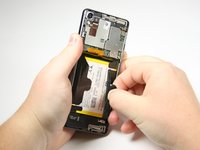
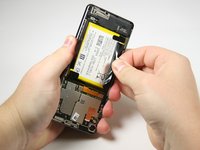
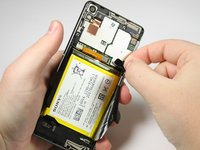
  7. Sony Xperia XA LCD Screen Replacement, Battery: step 7, image 1 of 3 Sony Xperia XA LCD Screen Replacement, Battery: step 7, image 2 of 3 Sony Xperia XA LCD Screen Replacement, Battery: step 7, image 3 of 3
    • Peel back the black tabs on the battery.

    • This may require some force as you are breaking the adhesive seal.

    • You will need to apply more adhesive for the reassembly.

    Ask FixBot

    Add Comment

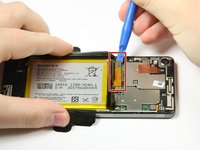
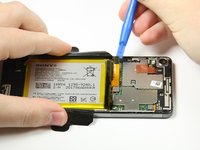
  8. Sony Xperia XA LCD Screen Replacement: step 8, image 1 of 2 Sony Xperia XA LCD Screen Replacement: step 8, image 2 of 2
    • Use a plastic opening tool to pry up the orange battery connector that is directly above the battery in the center of the phone.

    Ask FixBot

    Add Comment

  9. Sony Xperia XA LCD Screen Replacement: step 9, image 1 of 1
    • Use a plastic opening tool to get under the battery and pry it up.

    Ask FixBot

    Add Comment

  10. Sony Xperia XA LCD Screen Replacement: step 10, image 1 of 1
    • Lift the battery out with your hands.

    Ask FixBot

    Add Comment

  11. Sony Xperia XA LCD Screen Replacement, LCD Screen: step 11, image 1 of 2 Sony Xperia XA LCD Screen Replacement, LCD Screen: step 11, image 2 of 2
    • Remove the four 4mm screws holding the loudspeaker in place with a Phillips #00 screwdriver.

    Ask FixBot

    Add Comment

  12. Sony Xperia XA LCD Screen Replacement: step 12, image 1 of 2 Sony Xperia XA LCD Screen Replacement: step 12, image 2 of 2
    • Push back the two retaining tabs on the top of the loudspeaker with the spudger.

    Ask FixBot

    Add Comment

  13. Sony Xperia XA LCD Screen Replacement: step 13, image 1 of 1
    • Pry the loudspeaker up with the spudger.

    Ask FixBot

    Add Comment

  14. Sony Xperia XA LCD Screen Replacement: step 14, image 1 of 1
    • Remove the loudspeaker with your hands.

    Ask FixBot

    Add Comment

  15. Sony Xperia XA LCD Screen Replacement: step 15, image 1 of 1
    • With a spudger, pry up the orange connector that is directly underneath where the loud speaker was just removed.

    Ask FixBot

    Add Comment

  16. Sony Xperia XA LCD Screen Replacement: step 16, image 1 of 2 Sony Xperia XA LCD Screen Replacement: step 16, image 2 of 2
    • Pry up the small silver connector on the right side of the bottom of the phone with a spudger.

    Ask FixBot

    Add Comment

  17. Sony Xperia XA LCD Screen Replacement: step 17, image 1 of 2 Sony Xperia XA LCD Screen Replacement: step 17, image 2 of 2
    • Pry up the charging port using a spudger.

    Ask FixBot

    Add Comment

  18. Sony Xperia XA LCD Screen Replacement: step 18, image 1 of 2 Sony Xperia XA LCD Screen Replacement: step 18, image 2 of 2
    • Remove the five black 4mm screws with a Phillips #00 screwdriver.

    Ask FixBot

    Add Comment

  19. Sony Xperia XA LCD Screen Replacement: step 19, image 1 of 1
    • Pry up the black camera case with a nylon spudger, and then remove the case.

    Ask FixBot

    Add Comment

  20. Sony Xperia XA LCD Screen Replacement: step 20, image 1 of 3 Sony Xperia XA LCD Screen Replacement: step 20, image 2 of 3 Sony Xperia XA LCD Screen Replacement: step 20, image 3 of 3
    • Use a spudger to pry up the six motherboard connectors.

    Ask FixBot

    Add Comment

  21. Sony Xperia XA LCD Screen Replacement: step 21, image 1 of 1
    • Use the flat end of the nylon spudger to lift the camera out of the phone.

    Ask FixBot

    Add Comment

  22. Sony Xperia XA LCD Screen Replacement: step 22, image 1 of 1
    • Pull out the front camera using your fingers.

    Ask FixBot

    Add Comment

  23. Sony Xperia XA LCD Screen Replacement: step 23, image 1 of 1
    • Use the spudger to separate the motherboard from the frame.

    Ask FixBot

    Add Comment

  24. Sony Xperia XA LCD Screen Replacement: step 24, image 1 of 2 Sony Xperia XA LCD Screen Replacement: step 24, image 2 of 2
    • Pry up the headphone jack using a spudger.

    Ask FixBot

    Add Comment

  25. Sony Xperia XA LCD Screen Replacement: step 25, image 1 of 2 Sony Xperia XA LCD Screen Replacement: step 25, image 2 of 2
    • Peel back the black tabs that were holding the battery in place.

    • You may hear loud sounds as you pull the tabs because they are stuck with adhesive.

    Ask FixBot

    Add Comment

  26. Sony Xperia XA LCD Screen Replacement: step 26, image 1 of 2 Sony Xperia XA LCD Screen Replacement: step 26, image 2 of 2
    • Remove the two 4 mm screws with a Phillips #000 screwdriver from the left side of the back of the screen.

    Ask FixBot

    Add Comment

  27. Sony Xperia XA LCD Screen Replacement: step 27, image 1 of 2 Sony Xperia XA LCD Screen Replacement: step 27, image 2 of 2
    • Remove the three 3mm screws with a T5 screwdriver along the side of the device where the volume buttons are.

    Ask FixBot

    Add Comment

  28. Sony Xperia XA LCD Screen Replacement: step 28, image 1 of 2 Sony Xperia XA LCD Screen Replacement: step 28, image 2 of 2
    • Push down the side of the screen that you just removed screws from.

    Ask FixBot

    Add Comment

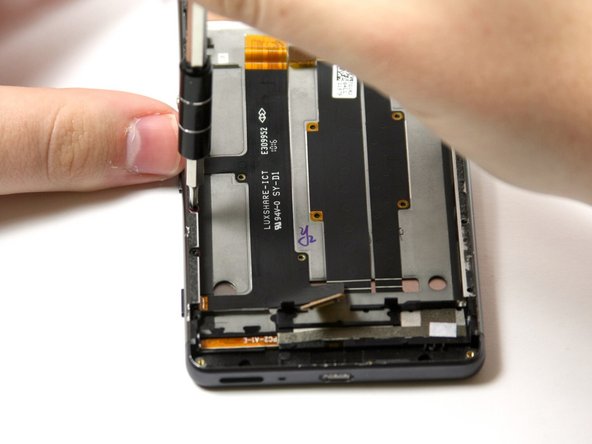
  29. Sony Xperia XA LCD Screen Replacement: step 29, image 1 of 3 Sony Xperia XA LCD Screen Replacement: step 29, image 2 of 3 Sony Xperia XA LCD Screen Replacement: step 29, image 3 of 3
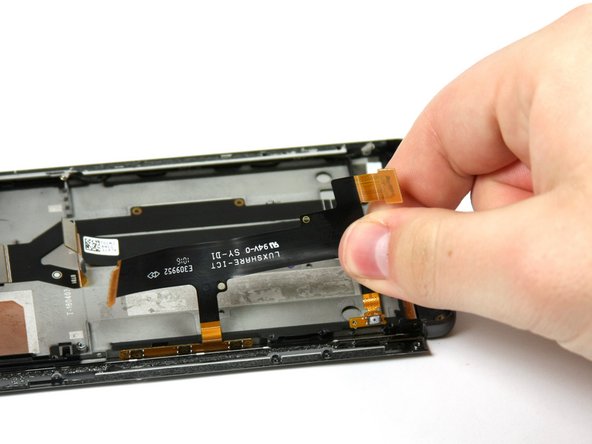
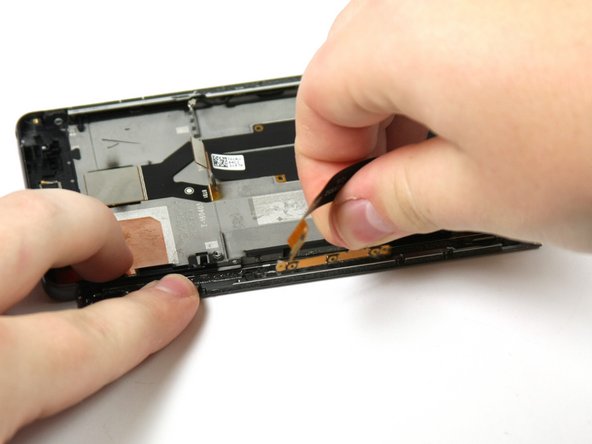
    • Pull up the orange and black tab that is on the left half of the middle of the screen.

    Ask FixBot

    Add Comment

  30. Sony Xperia XA LCD Screen Replacement: step 30, image 1 of 2 Sony Xperia XA LCD Screen Replacement: step 30, image 2 of 2
    • Remove the Wifi antenna.

    Ask FixBot

    Add Comment

  31. Sony Xperia XA LCD Screen Replacement: step 31, image 1 of 2 Sony Xperia XA LCD Screen Replacement: step 31, image 2 of 2
    • Remove the three 3 mm screws with a Star Bit T5 Screwdriver on the opposite side of the phone.

    Ask FixBot

    Add Comment

  32. Sony Xperia XA LCD Screen Replacement: step 32, image 1 of 2 Sony Xperia XA LCD Screen Replacement: step 32, image 2 of 2
    Tool used on this step:
    Tweezers
    $4.99
    Buy
    Ask FixBot

    Add Comment

Conclusion

To reassemble your device, follow these instructions in reverse order.

Cancel: I did not complete this guide.

8 other people completed this guide.

Anthony Hernandez

Member since: 04/18/18

733 Reputation

3 Guides authored

Team

Cal Poly, Team S17-G2, Livingston Spring 2018 Member of Cal Poly, Team S17-G2, Livingston Spring 2018

CPSU-LIVINGSTON-S18S17G2

4 Members

8 Guides authored

0 Guide Comments

Add Comment

View Statistics:

Past 24 Hours: 1

Past 7 Days: 12

Past 30 Days: 39

All Time: 4,772