Introduction
This is a guide showing the steps required to remove and replace the screen of a Sony Walkman D-EJ360. The screen relays important information about device usage such as track number, battery life, device modes, and more.
Damage to the screen can make the device difficult to use. Failure can cause illegibility, missing characters, or no display. Before attempting this repair, be sure to refer to the troubleshooting guides to determine if the screen needs to be replaced. Some issues can be worked around without screen replacement.
Replacement of the display is quite difficult. This repair requires soldering to remove the display. Soldering releases toxic fumes. Completion of this replacement requires proper PPE and a well ventilated space.
What you need
-
-
-
Grip the thin end of each spring using a pair of tweezers, slide it out of the lid notch, then press down on the main coil to release and remove it.
-
-
-
Insert the metal spudger in the crevice between the blue lid and the white body of the Walkman.
-
There is a notch where the lid is held under to stay in place. With the spudger, push the blue lid portion down and out.
-
Repeat the same tactic on the other side. The other side should become easier to pop off.
-
Remove the lid.
-
-
-
-
Remove the eight 6.1 mm screws using a Phillips #00 screwdriver.
-
Open the battery cover to reveal the last screw.
-
Remove the ninth 6.1 mm screw using a Phillips #00 screwdriver.
-
-
-
Insert a Jimmy into the seam between the upper and lower cases and pry apart.
-
Avoid initially prying near buttons, or the laser assembly.
-
Pry until the there is an audible click. The halves should visibly separate roughly 1/4 in.
-
Work around the seam in a circular path, separating the halves completely.
-
-
-
-
Using tweezers, gently lift the the locking flap on the laser module ribbon connector.
-
Gently remove the ribbon cable from the connector.
-
-
-
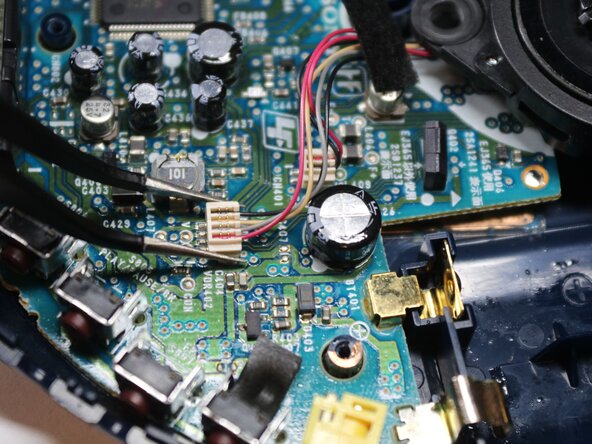
Using tweezers, squeeze the upper half of the four wire connector, and lift straight up to remove the connector.
-
Repeat the step for the two wire connector.
-
-
-
-
-
Lift the board on the same side as the battery terminals, and slide the board out diagonally.
-
-
-
-
-
Apply flux to the solder joints of the damaged screen. Do not forget the ground strap on the top side of the PCB.
-
Heat the solder joint one at a time using a soldering iron until liquified. Use a desoldering pump to suck the solder away from the trace. There should be a visible void between the pin and the motherboard trace.
-
Repeat for 20 joints on the bottom of the PCB and copper strip on top of the PCB.
-
-
-
Press the plastic retainer on the end of the LCD while gently pulling the LCD away from the board. Repeat for the retainer on both sides of the LCD.
-
-
-
Apply flux to traces, place solder wick on traces, and press soldering iron against the solder wick and carefully scrub the traces for about 3-5 seconds.
-
-
-
Press the new LCD into the motherboard until there is an audible click from the plastic retainer, and the guide pins line up.
-
Apply flux to the 20 traces of the LCD, and the copper strip on the top side of the motherboard.
-
Apply a small amount of solder to the hot end of the soldering iron until a small drop of solder is on the iron.
-
Press said drop of solder against the traces. If the solder flows, the the trace will have no gaps around the terminal pin. You may need to add additional solder to the trace to make a full connection.
-
Clean the soldering iron hot end, and repeat for all traces and the copper strip.
-
Make sure to not bridge any traces, and to not bump any adjacent electronics to the LCD.
-
-

 Ask FixBot




To reassemble your device, follow these instructions in reverse order.

Team

Purdue University Northwest, Team 3-1, Dieterle Fall 2025 Member of Purdue University Northwest, Team 3-1, Dieterle Fall 2025
PNW-DIETERLE-F25S3G1
5 Members
60 Guides authored
