Introduction
In this guide, you will learn how to remove and replace the RAM Memory Chips from your laptop. If you have this exact laptop, follow the below steps. If you have another laptop, that is still okay, these steps will give you a basic understanding on how to remove the RAM Memory Chips and you can adapt them to your own computer.
What you need
-
-
-
Turn the device over onto its back, where the battery is at the top of the device. Slide the "lock" switch to the right.
 Ask FixBot
-
-
-
Slide the "release" switch to the left and gently lift the battery up to remove it.
-
Completely remove the battery from the device.
-
-
-
-
-
-
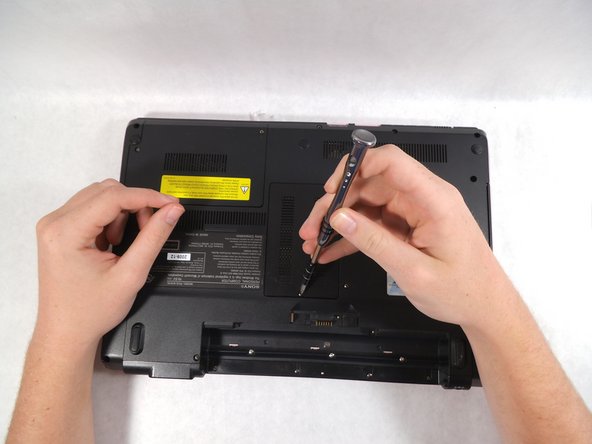
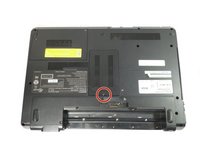
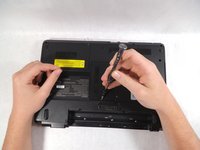
Loosen but do not remove the screw over RAM cover panel.
-
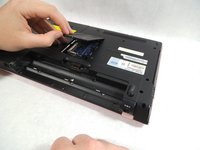
With the screw loosened but not removed, lift up and remove the panel.
-
-
-
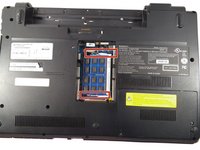
Locate the mounting bracket holding the RAM Chips in the computer.
-
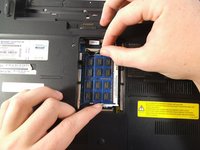
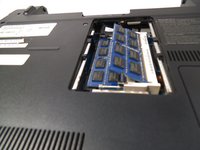
Pull silver tabs away from the chip.
-
-
-
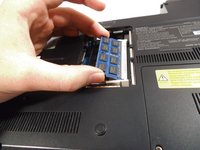
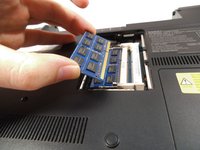
Slide RAM chip out by holding the sides of the chip and pull away from the computer.
-
Repeat previous steps for second RAM chip.
-
-







To reassemble your device, follow these instructions in reverse order.

Team

UMass Dartmouth, Team S2-G5, Isaacson Spring 2017 Member of UMass Dartmouth, Team S2-G5, Isaacson Spring 2017
UMASSD-ISAACSON-S17S2G5
2 Members
48 Guides authored
