Free Shipping on Domestic Orders $75+

Sony Vaio VPCW21FX Fan Replacement

Archived Guide
This guide is retained solely for historical purposes. Use the updated version of the guide to perform your repair.

What you need

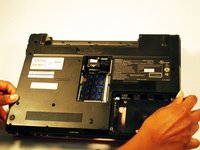
  1. Sony Vaio VPCW21FX Fan Replacement, Battery: step 1, image 1 of 1
    • Make sure your device is powered off and unplugged to avoid electric shock.

    • Place your device upside down with the bottom panel facing upwards.

    • Orient the device so the battery is away from you as shown

    Ask FixBot

    Add Comment

  2. Sony Vaio VPCW21FX Fan Replacement: step 2, image 1 of 2 Sony Vaio VPCW21FX Fan Replacement: step 2, image 2 of 2
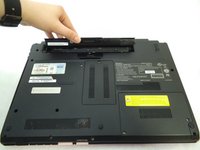
    • Unlock the battery by sliding the lock switch to the right.

    • Locate the release latch. Slide the latch to the left to remove the battery from your laptop.

    • Be sure to lift up on the battery while you slide the latch to the left.

    Ask FixBot

    Add Comment

  3. Sony Vaio VPCW21FX Fan Replacement: step 3, image 1 of 2 Sony Vaio VPCW21FX Fan Replacement: step 3, image 2 of 2
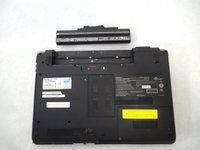
    • Remove the battery from your laptop.

    Ask FixBot

    Add Comment

  4. Sony Vaio VPCW21FX Fan Replacement, Headphone Jack: step 4, image 1 of 2 Sony Vaio VPCW21FX Fan Replacement, Headphone Jack: step 4, image 2 of 2
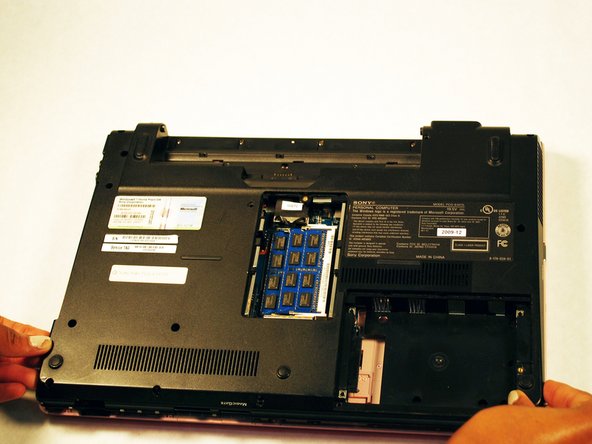
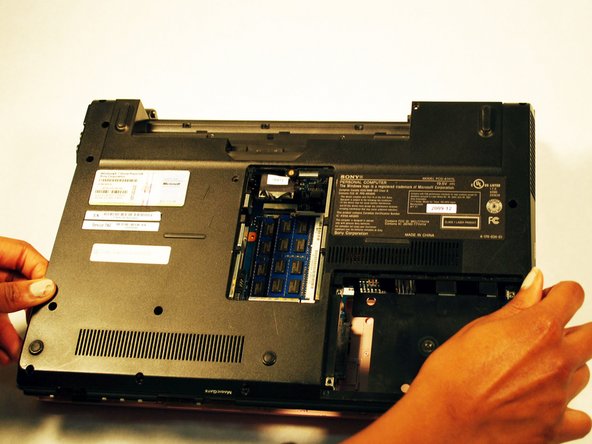
    • Place the laptop upside down with the bottom panel facing upwards.

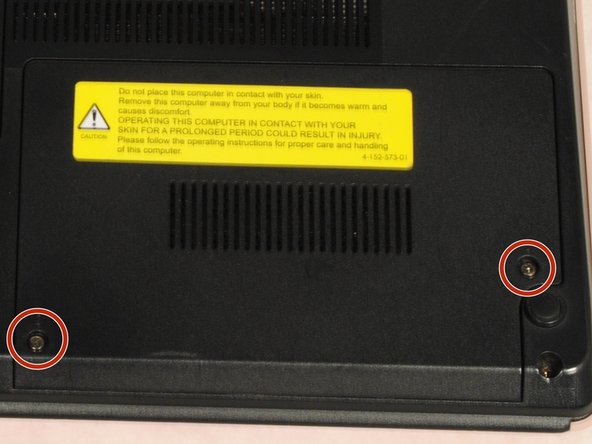
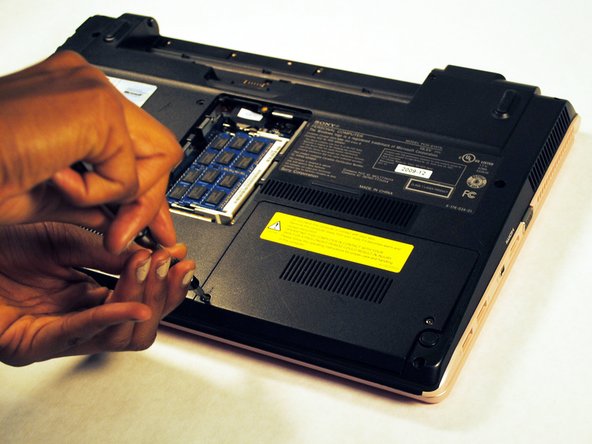
    • Locate the screw that holds the small panel covering your laptop's Ram. This panel should be in the dead center of your laptop.

    • Unscrew the screw and remove the panel.

    Ask FixBot

    Add Comment

  5. Sony Vaio VPCW21FX Fan Replacement: step 5, image 1 of 1
    • Before you move away from where your RAM is located, be sure to unplug the wire labeled To MB. If you do not unplug this, the back panel you are trying to remove will not come off.

    Ask FixBot

    Add Comment

  6. Sony Vaio VPCW21FX Fan Replacement: step 6, image 1 of 3 Sony Vaio VPCW21FX Fan Replacement: step 6, image 2 of 3 Sony Vaio VPCW21FX Fan Replacement: step 6, image 3 of 3
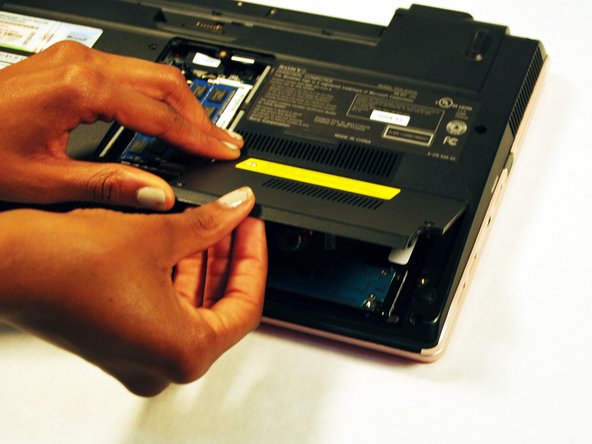
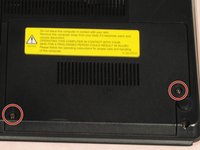
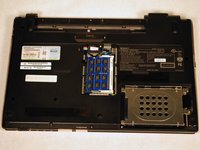
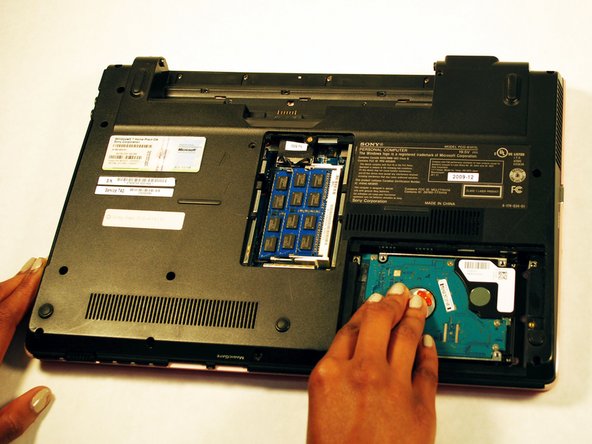
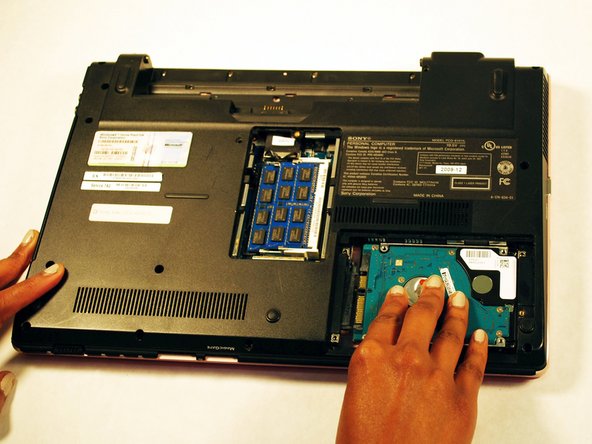
    • Next, locate the panel covering your laptop's hard drive. This panel should be located on the lower right hand side of your laptop.

    • Unscrew the cover on the hard drive.

    • Remove the hard drive cover.

    Ask FixBot

    Add Comment

  7. Sony Vaio VPCW21FX Fan Replacement: step 7, image 1 of 3 Sony Vaio VPCW21FX Fan Replacement: step 7, image 2 of 3 Sony Vaio VPCW21FX Fan Replacement: step 7, image 3 of 3
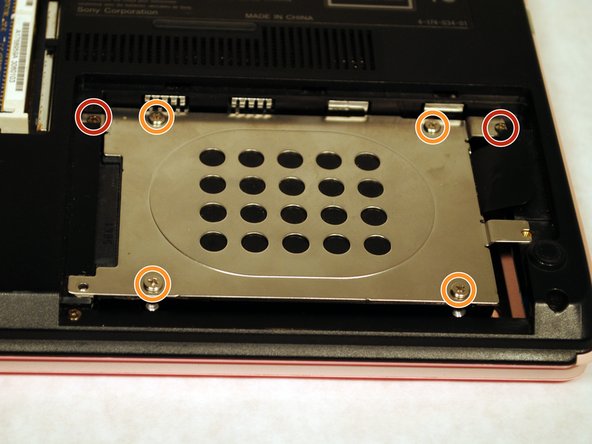
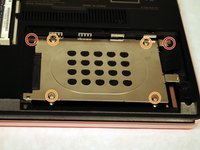
    • Remove screws.

    • Remove screws and remove panel.

    Ask FixBot

    Add Comment

  8. Sony Vaio VPCW21FX Fan Replacement: step 8, image 1 of 3 Sony Vaio VPCW21FX Fan Replacement: step 8, image 2 of 3 Sony Vaio VPCW21FX Fan Replacement: step 8, image 3 of 3
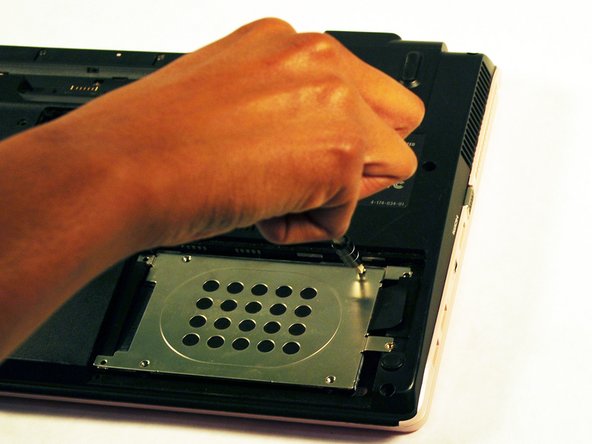
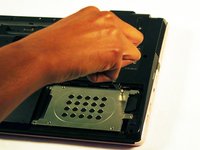
    • Remove the hard drive by gently pressing down on it and sliding it to the right.

    • Remember to have a clean work space to place the parts you take off your laptop. It'd be embarrassing to forget to reassemble a part or have a screw or two left over.

    Ask FixBot

    Add Comment

  9. Sony Vaio VPCW21FX Fan Replacement: step 9, image 1 of 3 Sony Vaio VPCW21FX Fan Replacement: step 9, image 2 of 3 Sony Vaio VPCW21FX Fan Replacement: step 9, image 3 of 3
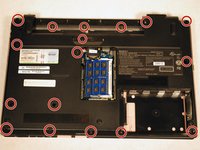
    • Remove the screws holding the rest of the outside panel down.

    • Gently lift the panel up to remove it once all the screws have been removed.

    Ask FixBot

    Add Comment

  10. Sony Vaio VPCW21FX Fan Replacement: step 10, image 1 of 3 Sony Vaio VPCW21FX Fan Replacement: step 10, image 2 of 3 Sony Vaio VPCW21FX Fan Replacement: step 10, image 3 of 3
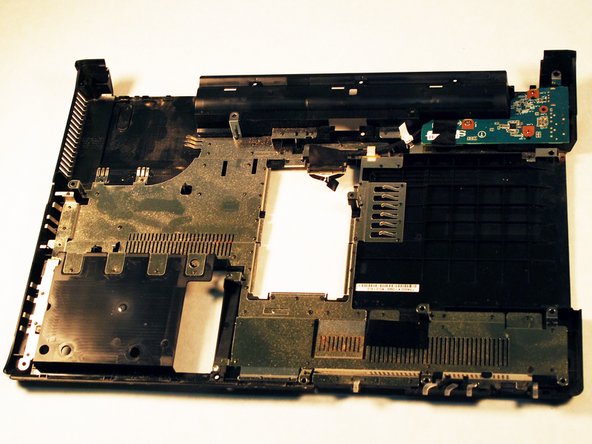
    • Once the back panel has been removed, set the rest of your laptop to the side and place the panel you just removed in front of you.

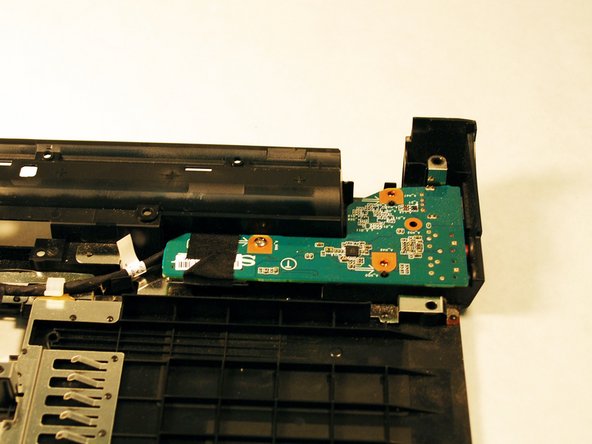
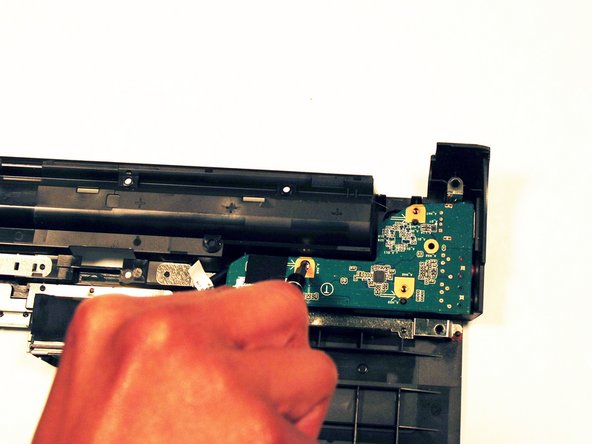
    • Locate the headphone jack, which will be in the top right hand corner of the panel. The headphone jack board is a bright green, you can't miss it.

    Ask FixBot

    Add Comment

  11. Sony Vaio VPCW21FX Fan Replacement: step 11, image 1 of 2 Sony Vaio VPCW21FX Fan Replacement: step 11, image 2 of 2
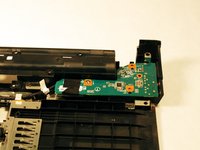
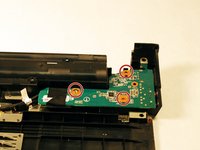
    • Remove the screws holding the headphone jack board down.

    Ask FixBot

    Add Comment

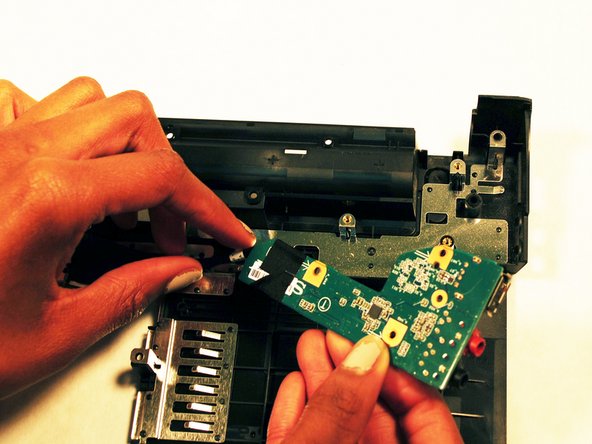
  12. Sony Vaio VPCW21FX Fan Replacement: step 12, image 1 of 2 Sony Vaio VPCW21FX Fan Replacement: step 12, image 2 of 2
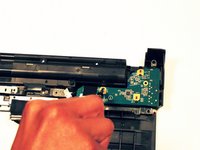
    • Gently pull the board to remove it.

    Ask FixBot

    Add Comment

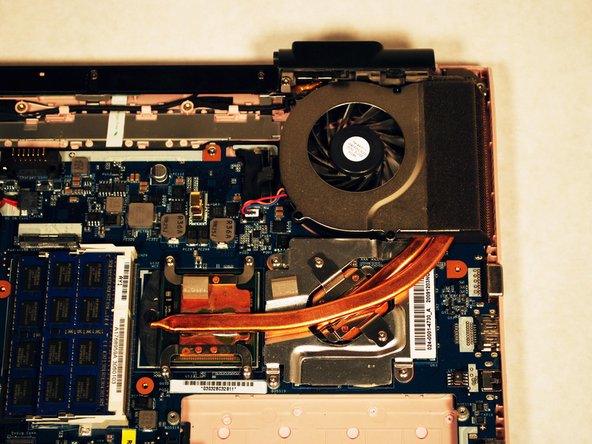
  13. Sony Vaio VPCW21FX Fan Replacement, Fan: step 13, image 1 of 2 Sony Vaio VPCW21FX Fan Replacement, Fan: step 13, image 2 of 2
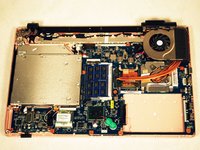
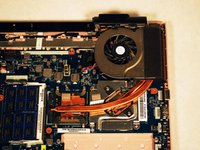
    • Locate the fan on the top right hand corner of your laptop.

    Ask FixBot

    Add Comment

  14. Sony Vaio VPCW21FX Fan Replacement: step 14, image 1 of 2 Sony Vaio VPCW21FX Fan Replacement: step 14, image 2 of 2
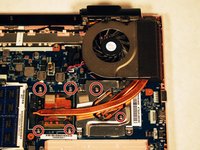
    • Remove screws.

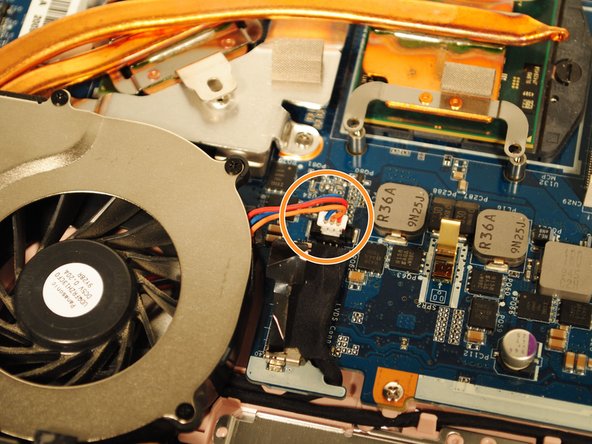
    • Unplug the wires connecting the fan and the motherboard.

    Ask FixBot

    Add Comment

  15. Sony Vaio VPCW21FX Fan Replacement: step 15, image 1 of 1
    • Gently pick up the fan to remove it.

    Ask FixBot

    Add Comment

Conclusion

To reassemble your device, follow these instructions in reverse order.

Cancel: I did not complete this guide.

One other person completed this guide.

Summer

Member since: 10/10/16

250 Reputation

2 Guides authored

1 Guide Comment

thank you, sir!!!

Robin Watson - Reply Share
Add Comment

View Statistics:

Past 24 Hours: 2

Past 7 Days: 14

Past 30 Days: 60

All Time: 1,904