Introduction
This guide demonstrates how to access the wifi card successfully in order to replace or repair the wifi card if necessary.
What you need
-
-
-
Remove the battery by pinching the two lock tabs towards the center.
-
Next, lift up on the battery to remove it.
-
-
-
Using a Phillips #00 screwdriver, remove the twenty-two 5.6 mm screws from the back of the laptop.
-
-
-
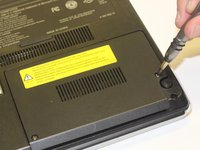
Now, remove the small covers from the back of the case.
-
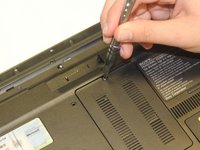
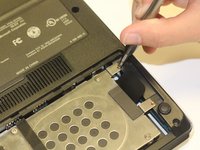
Using a Phillips #00 screwdriver, unscrew the three 5.6 mm screws from the covers (one screw on the RAM cover [middle] and two screws on the Hard Drive cover [bottom right]).
-
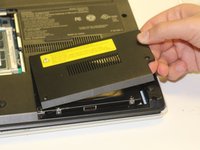
Then, lift up on and remove these covers as shown in the third image.
-
-
-
-
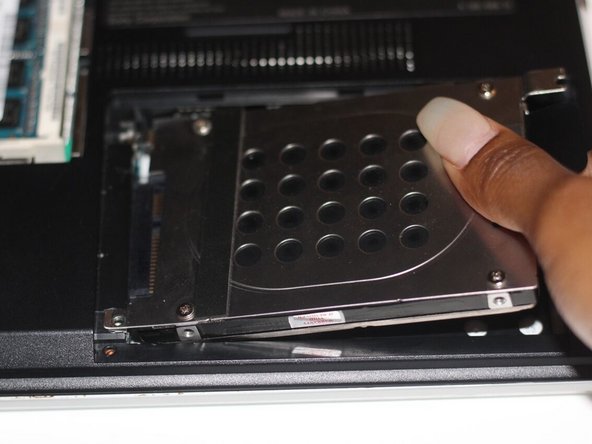
Remove the hard drive.
-
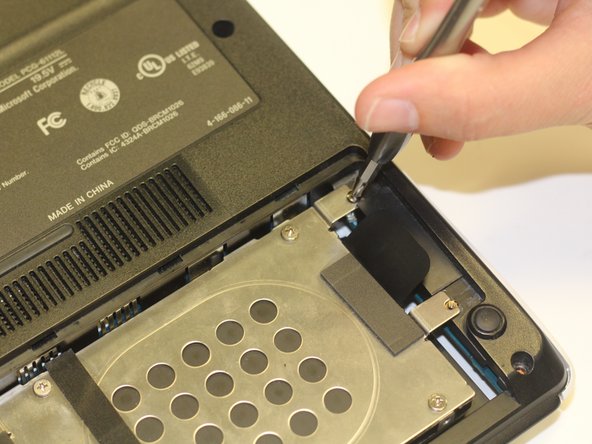
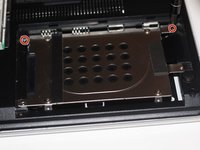
Using a Phillips #00 screwdriver, unscrew the two remaining 4.9 mm screws holding the hard drive into place.
-
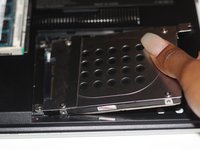
Next, lift up and pull outwards to release the hard drive from its socket.
-
-
-
Using your fingers, grasp the black tab and lightly pull up on the ribbon cable to detach it from the motherboard.
-
-
-
After proper removal of all necessary screws, gently lift up on the back case to remove it.
-
-
-
-
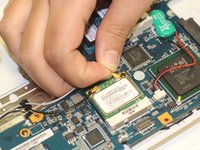
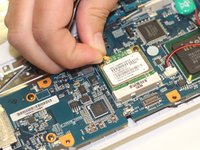
Using your fingers, grasp the white and black wires connected to the wifi card. Pull up on these wires until they release from the card. Do not be afraid to use some force.
-
-
-
Using the Phillips #00 screwdriver, unscrew the two 4.9 mm screws that connect the WiFi card to the motherboard.
-
-
-
Using your fingers, lightly grasp the wifi card and firmly pull up and out on the card in order to release the wifi card from its socket.
-
-

 Ask FixBot







To reassemble your device, follow these instructions in reverse order.

Team

University of Alabama, Team S3-G9, Bedsole Spring 2018 Member of University of Alabama, Team S3-G9, Bedsole Spring 2018
UA-BEDSOLE-S18S3G9
3 Members
72 Guides authored
