Introduction
In order to remove the webcam safely, be sure to take out the battery first. The webcam is located under the plastic screen cover of the laptop.
What you need
-
-
-
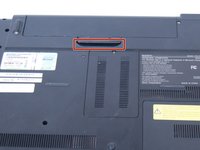
Slide both latches to the center of the laptop in order to release the battery.
-
-
-
-
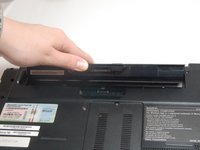
Use your fingernail or a plastic tool to lift the battery. Rotate the battery up and away to remove from the laptop.
-
-
-
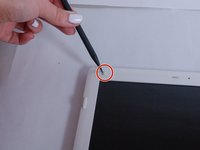
Remove the four rubber circles using the spudger located on each corner of the laptop.
-
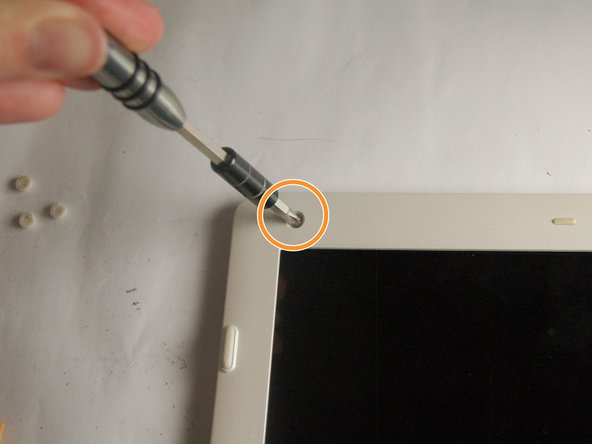
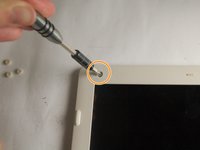
Remove the four screws (Length: 7.7 mm) using the Phillips #0 screwdriver that are located under each rubber circle.
-
-
-
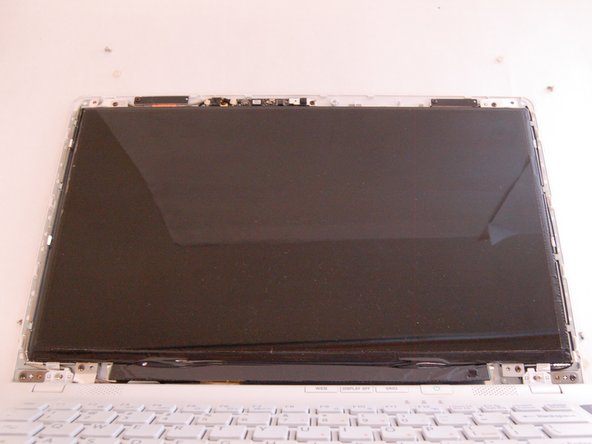
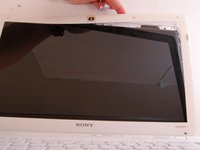
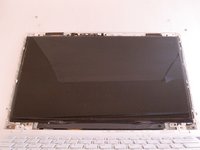
Slowly peel off the plastic covering around the screen.
-
Place it to the side once it is completely disconnected.
-
-
-
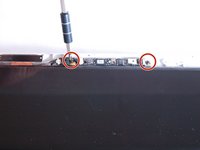
Remove the two screws (Length: 7.7 mm) using the Phillips #0 screwdriver that hold the Webcam in place.
-
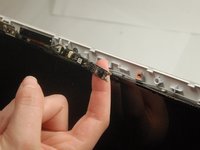
Gently pull the webcam away from the laptop.
-
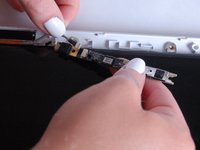
Slowly disconnect the two ribbon cable connectors by sliding them towards the wire to disconnect the webcam from the laptop.
-

 Ask FixBot






To reassemble your device, follow these instructions in reverse order.

Team

Texas Tech, Team S8-G5, Bennett Spring 2017 Member of Texas Tech, Team S8-G5, Bennett Spring 2017
TTU-BENNETT-S17S8G5
4 Members
60 Guides authored
