Free Shipping on Domestic Orders $75+

Sony Vaio VGN-FW21Z Power Adapter Replacement

What you need

    1. Sony Vaio VGN-FW21Z Power Adapter Replacement, Battery: step 1, image 1 of 3 Sony Vaio VGN-FW21Z Power Adapter Replacement, Battery: step 1, image 2 of 3 Sony Vaio VGN-FW21Z Power Adapter Replacement, Battery: step 1, image 3 of 3
      • Flip the laptop over so the Vaio logo is facing down.

      • Locate the battery at the top and Find the release and unlock slides on the battery.

      • Slide the unlock tab to the unlock position.

      • Slide the release tab in the direction of the arrow, i.e. towards the unlock tab.

      Ask FixBot

      Add Comment

    2. Sony Vaio VGN-FW21Z Power Adapter Replacement: step 2, image 1 of 2 Sony Vaio VGN-FW21Z Power Adapter Replacement: step 2, image 2 of 2
      • With the tabs still in the unlock position, slide the battery away from the main case.

      Ask FixBot

      Add Comment

    1. Sony Vaio VGN-FW21Z Power Adapter Replacement, Keyboard: step 3, image 1 of 2 Sony Vaio VGN-FW21Z Power Adapter Replacement, Keyboard: step 3, image 2 of 2
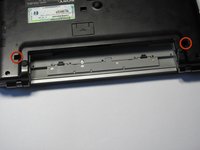
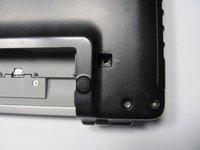
      • Flip the computer over so the Vaio logo is facedown.

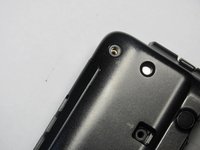
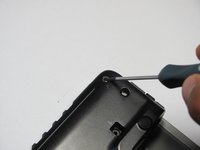
      • Unscrew the 2 screws next to the battery.

      Ask FixBot

      Add Comment

    2. Sony Vaio VGN-FW21Z Power Adapter Replacement: step 4, image 1 of 1
      • Flip the computer over again so the Vaio logo is face up.

      • Open the lid.

      Ask FixBot

      Add Comment

    3. Sony Vaio VGN-FW21Z Power Adapter Replacement: step 5, image 1 of 2 Sony Vaio VGN-FW21Z Power Adapter Replacement: step 5, image 2 of 2
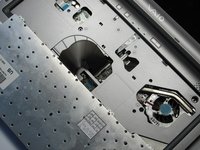
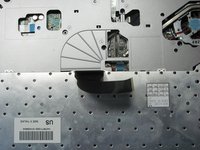
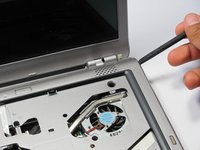
      • Press down on the outer gray shell around the keyboard.

      • Use the spudger to gently lift keyboard.

      • Do not pull up the keyboard too far as it is attached to a ribbon underneath.

      Ask FixBot

      Add Comment

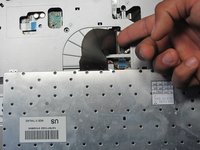
    4. Sony Vaio VGN-FW21Z Power Adapter Replacement: step 6, image 1 of 2 Sony Vaio VGN-FW21Z Power Adapter Replacement: step 6, image 2 of 2
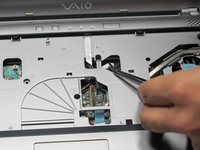
      • Lift up lever underneath the ribbon to detach the keyboard.

      Ask FixBot

      Add Comment

    1. Sony Vaio VGN-FW21Z Power Adapter Replacement, Upper Casing: step 7, image 1 of 1
      • Remove memory/wireless compartment cover.

      Ask FixBot

      Add Comment

    2. Sony Vaio VGN-FW21Z Power Adapter Replacement: step 8, image 1 of 3 Sony Vaio VGN-FW21Z Power Adapter Replacement: step 8, image 2 of 3 Sony Vaio VGN-FW21Z Power Adapter Replacement: step 8, image 3 of 3
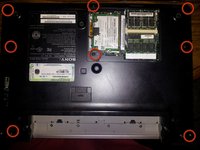
      • Flip so the Vaio Logo is face down.

      • Locate and remove a total of 8 screws on the bottom.

      Ask FixBot

      Add Comment

    3. Sony Vaio VGN-FW21Z Power Adapter Replacement: step 9, image 1 of 1
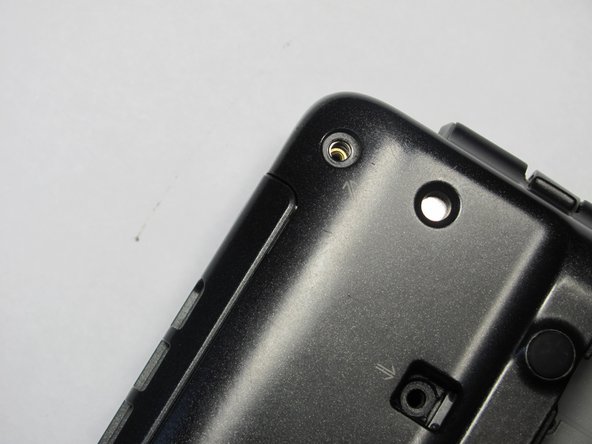
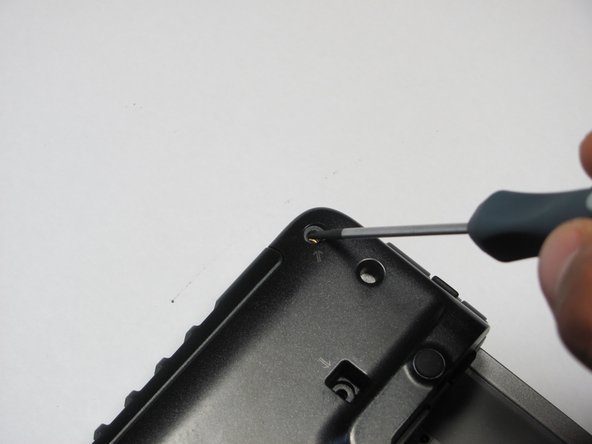
      • Find and remove 5 screws (they all have arrows next to them) from cover.

      Ask FixBot

      Add Comment

    4. Sony Vaio VGN-FW21Z Power Adapter Replacement: step 10, image 1 of 3 Sony Vaio VGN-FW21Z Power Adapter Replacement: step 10, image 2 of 3 Sony Vaio VGN-FW21Z Power Adapter Replacement: step 10, image 3 of 3
      • Flip the laptop over so the Vaio logo is face up.

      • Use the spudger to pop up the upper casing.

      • Do not lift too much as the upper casing is attached to wires underneath.

      • Remove the wires that are attaching the upper casing to the motherboard.

      Ask FixBot

      Add Comment

    5. Sony Vaio VGN-FW21Z Power Adapter Replacement: step 11, image 1 of 1
      • Remove the upper casing.

      Ask FixBot

      Add Comment

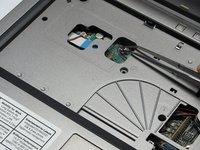
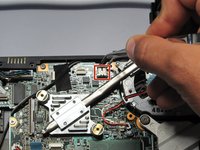
    1. Sony Vaio VGN-FW21Z Power Adapter Replacement, Power Adapter: step 12, image 1 of 2 Sony Vaio VGN-FW21Z Power Adapter Replacement, Power Adapter: step 12, image 2 of 2
      • Locate the yellow power adapter.

      • Follow its wire to white logic board connector.

      • Pull out the wire from white logic board connector.

      Ask FixBot

      Add Comment

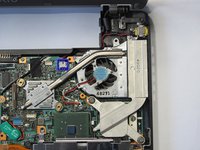
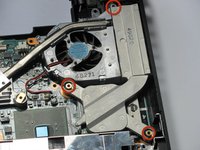
    2. Sony Vaio VGN-FW21Z Power Adapter Replacement: step 13, image 1 of 3 Sony Vaio VGN-FW21Z Power Adapter Replacement: step 13, image 2 of 3 Sony Vaio VGN-FW21Z Power Adapter Replacement: step 13, image 3 of 3
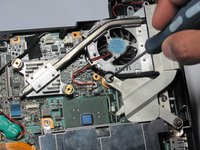
      • Locate the screws on the fan filter casing.

      • Remove these screws.

      Ask FixBot

      Add Comment

    3. Sony Vaio VGN-FW21Z Power Adapter Replacement: step 14, image 1 of 2 Sony Vaio VGN-FW21Z Power Adapter Replacement: step 14, image 2 of 2
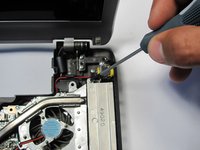
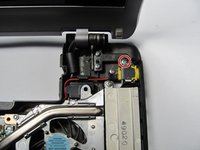
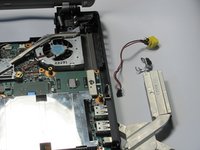
      • Remove the screw next to the yellow power adapter.

      • Lift out power adapter and fan filter.

      Ask FixBot

      Add Comment

Conclusion

To reassemble your device, follow these instructions in reverse order.

Cancel: I did not complete this guide.

2 other people completed this guide.

Jeffrey Bryan

Member since: 04/20/10

570 Reputation

11 Guides authored

Team

Cal Poly, Team 16-4, Maness Spring 2010 Member of Cal Poly, Team 16-4, Maness Spring 2010

CPSU-MANESS-S10S16G4

4 Members

132 Guides authored

1 Guide Comment

Nice guide, sir. I am trying to replace this same part on my VJZ12A...I believe the power socket is the same. Any idea what the part number is??

David Gerick - Reply Share

Add Comment

View Statistics:

Past 24 Hours: 0

Past 7 Days: 6

Past 30 Days: 42

All Time: 9,208