Free Shipping on Domestic Orders $75+

Sony Vaio Tap 11 Solid State Disk Replacement

What you need

  1. Sony Vaio Tap 11 Solid State Disk Replacement, Screen Assembly: step 1, image 1 of 1
    • Begin by opening the HDMI/USB port cover on the left edge.

    • Remove the three #000 headed, 3 mm long screws located underneath the port cover.

    Ask FixBot

    Add Comment

  2. Sony Vaio Tap 11 Solid State Disk Replacement: step 2, image 1 of 1
    • Locate and open the Micro SD slot on the top side of the device.

    • Remove the two screws located beneath the cover.

    Ask FixBot

    Add Comment

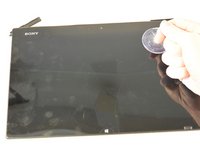
  3. Sony Vaio Tap 11 Solid State Disk Replacement: step 3, image 1 of 2 Sony Vaio Tap 11 Solid State Disk Replacement: step 3, image 2 of 2
    • Attach the suction cup to the top right area of the screen.

    • Pull to separate the screen from the rest of the device.

    • Be aware of the front camera cable that is still connected to the rest of the device.

    • Detach the display ribbon cable.

    Ask FixBot

    Add Comment

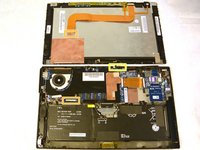
  4. Sony Vaio Tap 11 Solid State Disk Replacement, Solid State Disk: step 4, image 1 of 1
    • Unplug the battery connector located beside the fan.

    • Locate the SSD on the right side of the device, above the battery and beneath the WiFi chip.

    Ask FixBot

    Add Comment

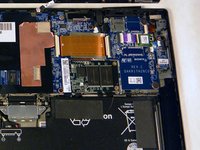
  5. Sony Vaio Tap 11 Solid State Disk Replacement: step 5, image 1 of 1
    • Remove the two 3 mm Phillips #000 screws from the right edge of the SSD.

    Ask FixBot

    Add Comment

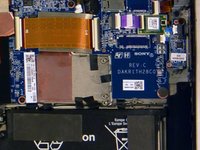
  6. Sony Vaio Tap 11 Solid State Disk Replacement: step 6, image 1 of 2 Sony Vaio Tap 11 Solid State Disk Replacement: step 6, image 2 of 2
    • Pull the SSD towards the right and slightly up, removing it from the back assembly.

    Ask FixBot

    Add Comment

Conclusion

To reassemble your device, follow these instructions in reverse order.

Cancel: I did not complete this guide.

4 other people completed this guide.

Alexander Bridges

Member since: 09/16/15

1,241 Reputation

7 Guides authored

Team

IUPUI, Team 1-2, Harley Fall 2015 Member of IUPUI, Team 1-2, Harley Fall 2015

IUPUI-HARLEY-F15S1G2

4 Members

20 Guides authored

3 Guide Comments

What kind of M2 Type? SSD is needed for replacement/upgrade?

Marius - Reply Share

OK, found the answer, it's mSATA, like the Samsung 840 EVO Series:

http://www.samsung.com/us/business/suppo...

Marius - Reply Share

I did the same without pulling out the battery jack. As i tried to turn the tablet on it didn’t work. Even the fan stopped working. I inserted the power cable but no response .. nothing at all ! Please help!

ib_1990_ib - Reply Share

Add Comment

View Statistics:

Past 24 Hours: 1

Past 7 Days: 6

Past 30 Days: 54

All Time: 7,003