
Sony Vaio SVE171C11L Display Replacement

Edward Briseno and 4 other contributors
Last updated on Dec 28, 2022
Views: 768
View statistics:
- Past 24 Hours:
- 2
- Past 7 Days:
- 20
- Past 30 Days:
- 71
- All Time:
- 768
Comments: 0
No one has left comments on this guide. Will you be first?
Go to guide commentsCompleted: 0 1
No one has marked this guide "completed." Will you be the first?
1 person has marked this guide "completed." It's you — great job!
Favorites: 0 1
No one has favorited (and subscribed to) this guide. Will you be the first?
1 person has favorited (and subscribed to) this guide — and that's you!
Needs Better Images
Better photos will improve this guide. Help out by taking, editing, or uploading new ones!
Introduction
Go to step 1 ↓If you need to new the display screen, use this guide to properly take out the old screen and install the new screen. This guide will have moderate difficultly and will take around 30 minutes. You will need a plastic opening tool and a Phillips #0 screwdriver head to complete this guide.
What you need
Parts

Tools


-
-
-
Once you flip the laptop over, make sure the right tab is pushed upwards to unlock it.
-
Use your left hand to push up the left tab to release the battery.
-
-
-
After the battery is released, locate the small gap where the battery and the shell meet. Then lift the gap up and rotate the battery up and away from yourself.
-
-
-
-
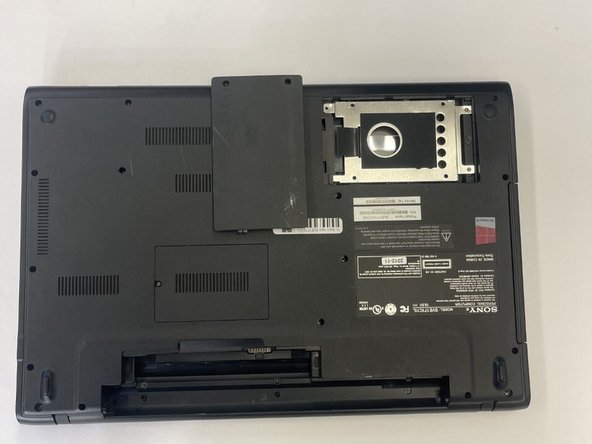
Use a Phillips #00 screwdriver to remove the two screws that secure the hard drive cover.
-
-
-
Use a Phillips #00 screwdriver to remove the 3 screws that secure the hard drive.
-
-
-
When finished removing the screws, use your fingers to hold the blue ribbon attached from the hard drive to remove it from laptop
-
-
-
-
-
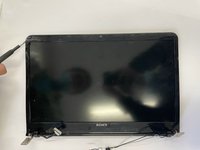
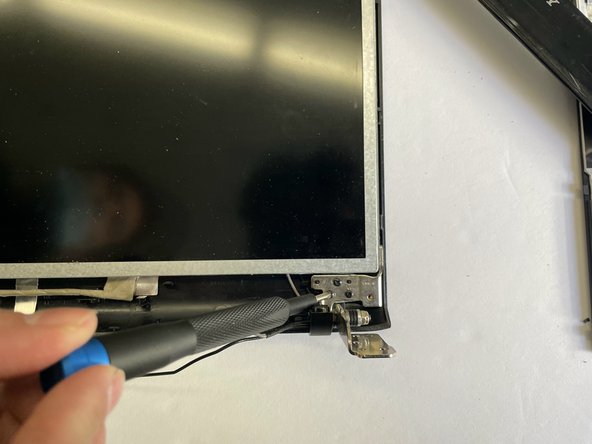
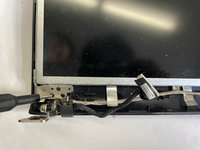
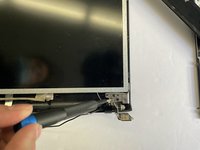
There are two hinges that connect the display to the body of the laptop
-
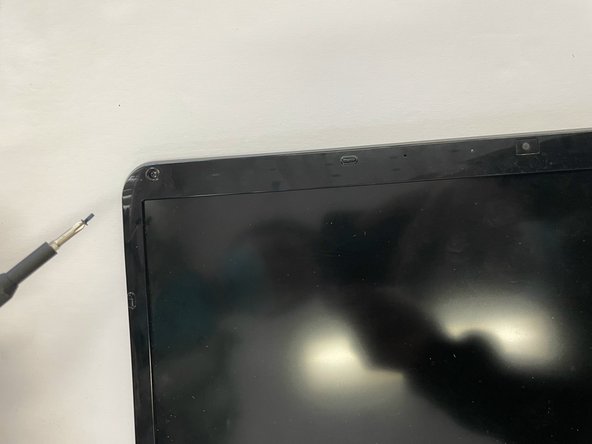
Unscrew two 9mm screws and two 4mm screws that are on both hinges.
-
-
-

 Ask FixBot







To reassemble your device, follow these instructions in reverse order.

Team

CSU Los Angeles, Team 6-3, Adachi Fall 2022 Member of CSU Los Angeles, Team 6-3, Adachi Fall 2022
CSULA-ADACHI-F22S6G3
3 Members
72 Guides authored
