
Sony Vaio PCG-F420 CD/DVD Drive Replacement

Andrew Quayle and 7 other contributors
Last updated on May 7, 2024
Views: 4.8K
View statistics:
- Past 24 Hours:
- 3
- Past 7 Days:
- 26
- Past 30 Days:
- 94
- All Time:
- 4,815
Comments: 0
No one has left comments on this guide. Will you be first?
Go to guide commentsCompleted: 0 1
No one has marked this guide "completed." Will you be the first?
1 person has marked this guide "completed." It's you — great job!
Favorites: 0 1
No one has favorited (and subscribed to) this guide. Will you be the first?
1 person has favorited (and subscribed to) this guide — and that's you!
Missing Prerequisites
This guide is missing information on how to start the process. Make a prerequisite guide!
Introduction
Go to step 1 ↓Replacing the CD/DVD drive involves first removing the keyboard, then a screw will free it from the frame. Then, simply unplug the ribbon cable and pull it out.
CAUTION: Static electricity in your body can ruin you computer. Use an anti-static wristband.
What you need
Tools


-
-
-
The battery is located on the left side of the laptop, as shown by the red circle.
-
Make sure the laptop is disconnected and turned completely off.
 Ask FixBot
-
-
-
Pull the plastic cover down (indicated by the arrow on the cover) and then swing it upwards to reveal the battery compartment.
-
The battery can now be removed by pulling it.
-
-
-
-
-
Use your Philips #00 screwdriver to unscrew the small screw counterclockwise. This screw is for the audio/visual jacks on the left side of the laptop.
-
-
-
Unlock the cover between the keyboard and screen.
-
Gently slide it to the right and lift it up.
-
Exercise caution to avoid excessive force, as wires are connected.
-
-
-
Lift up the cover and lean it against the display so it is out of the way for the rest of the process.
-
Remove the small screw above the F6 key on the keyboard. Place screw in container to ensure it wont be lost.
-
-
-
Find the green ribbon as indicated in the picture by the red circle. This is what connects the keyboard to the motherboard.
-
-
Tool used on this step:Tweezers$4.99
-
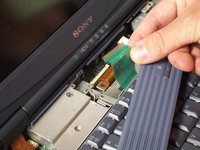
Carefully unplug the ribbon cable using a pair of tweezers.
-
Lift up the white bar near the connection to the motherboard, and lightly lift the ribbon to release it from the motherboard.
-
-
-
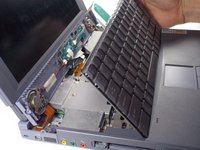
Your keyboard is now safety detached. Necessary repairs or replacements can be made from here.
-
-
-
-
-
-
After removing the keyboard, unscrew (using Phillips #00) the circled screw securing the CD/DVD drive.
-
-
-
After unscrewing the CD/DVD drive, gently slide the drive slightly out of the main computer case, as shown. Be careful not to rip off the harness.
-
-
Tool used on this step:Tweezers$4.99
-
Carefully detach the harness from the CD/DVD drive. Use your fingers if possible, but if not carefully use a pair of tweezers to detach the harness. Take care in not bending any of the pin connections.
-
-
-
After disconnecting the harness you can now slide the CD/DVD drive fully out of the computer. You can now repair or replace your CD/DVD drive.
-
-




To reassemble your device, follow these instructions in reverse order.

Team

Cal Poly, Team 29-77, Johann Spring 2010 Member of Cal Poly, Team 29-77, Johann Spring 2010
CPSU-JOHANN-S10S29G77
5 Members
72 Guides authored
