Free Shipping on Domestic Orders $75+

Sony Vaio PCG-4121GL SD Card Board Replacement

What you need

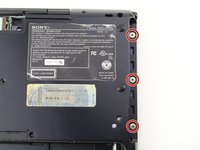
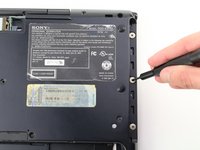
    1. Sony Vaio PCG-4121GL SD Card Board Replacement, Battery: step 1, image 1 of 2 Sony Vaio PCG-4121GL SD Card Board Replacement, Battery: step 1, image 2 of 2
      • Remove the two 3mm Phillips #0 screws on the bottom of the computer that secure the plastic backing.

      Ask FixBot

      Add Comment

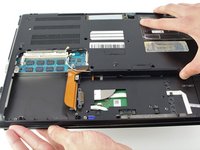
    2. Sony Vaio PCG-4121GL SD Card Board Replacement: step 2, image 1 of 3 Sony Vaio PCG-4121GL SD Card Board Replacement: step 2, image 2 of 3 Sony Vaio PCG-4121GL SD Card Board Replacement: step 2, image 3 of 3
      • Pull the bottom plate towards yourself until it unhinges fully.

      • Once the plate is free from the backing remove it completely.

      Ask FixBot

      Add Comment

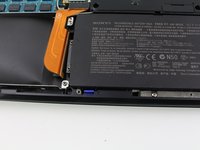
    3. Sony Vaio PCG-4121GL SD Card Board Replacement: step 3, image 1 of 1
      • Look for the blue tab that is located to the bottom left of the battery.

      Ask FixBot

      Add Comment

    4. Sony Vaio PCG-4121GL SD Card Board Replacement: step 4, image 1 of 3 Sony Vaio PCG-4121GL SD Card Board Replacement: step 4, image 2 of 3 Sony Vaio PCG-4121GL SD Card Board Replacement: step 4, image 3 of 3
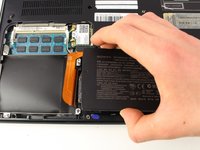
      • Pull the blue tab towards yourself until you hear a click.

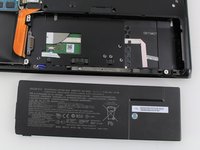
      • Once the blue tab is released, pull up on the battery.

      • Once the battery can move freely, take it out completely.

      • It may be helpful to have a spudger to make it easier to release the blue tab.

      Ask FixBot

      Add Comment

    1. Sony Vaio PCG-4121GL SD Card Board Replacement, SD Card Board: step 5, image 1 of 2 Sony Vaio PCG-4121GL SD Card Board Replacement, SD Card Board: step 5, image 2 of 2
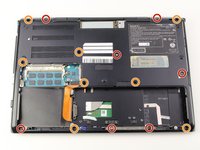
      • Remove seven 3mm Phillips #0 screws from the bottom of the computer.

      • Remove eight 5mm Phillips #0 screws.

      Ask FixBot

      Add Comment

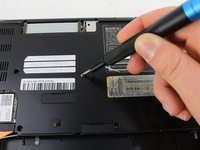
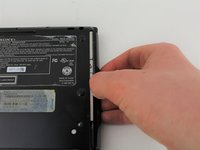
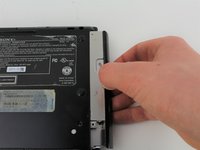
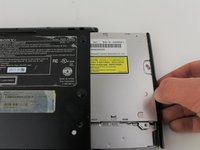
    2. Sony Vaio PCG-4121GL SD Card Board Replacement: step 6, image 1 of 3 Sony Vaio PCG-4121GL SD Card Board Replacement: step 6, image 2 of 3 Sony Vaio PCG-4121GL SD Card Board Replacement: step 6, image 3 of 3
      • Carefully remove the disk drive from its compartment.

      Ask FixBot

      Add Comment

    3. Sony Vaio PCG-4121GL SD Card Board Replacement: step 7, image 1 of 2 Sony Vaio PCG-4121GL SD Card Board Replacement: step 7, image 2 of 2
      • Remove the three 2mm Phillips #00 screws located on the top right edge.

      Ask FixBot

      Add Comment

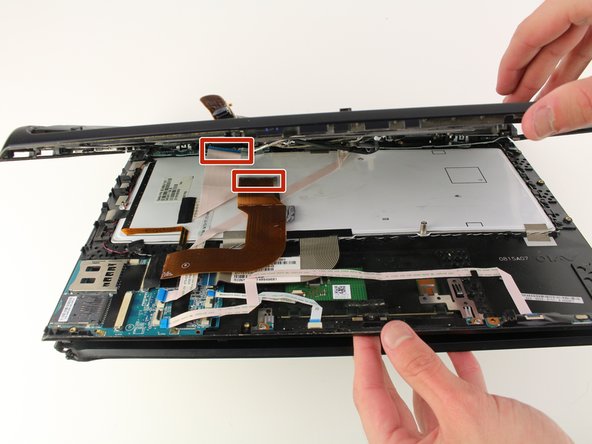
    4. Sony Vaio PCG-4121GL SD Card Board Replacement: step 8, image 1 of 2 Sony Vaio PCG-4121GL SD Card Board Replacement: step 8, image 2 of 2
      • Gently pull apart the top and bottom plastic bodies.

      • Carefully remove the cable connectors.

      • Slowly detach bottom component to avoid tearing wires/connectors.

      Ask FixBot

      Add Comment

    5. Sony Vaio PCG-4121GL SD Card Board Replacement: step 9, image 1 of 3 Sony Vaio PCG-4121GL SD Card Board Replacement: step 9, image 2 of 3 Sony Vaio PCG-4121GL SD Card Board Replacement: step 9, image 3 of 3
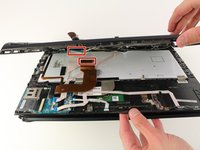
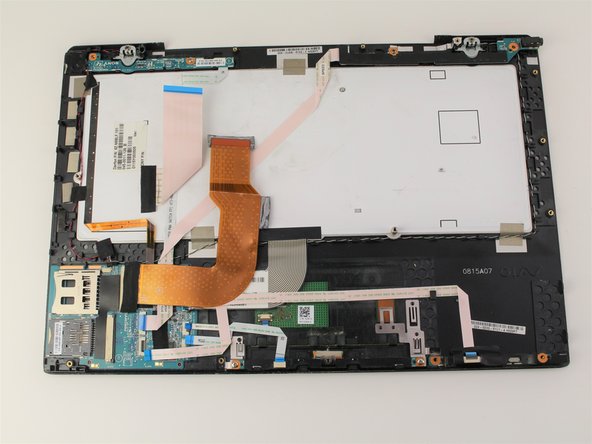
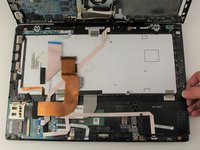
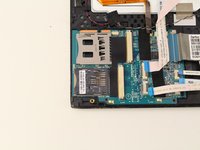
      • Pull apart your device and set aside the screen of your laptop.

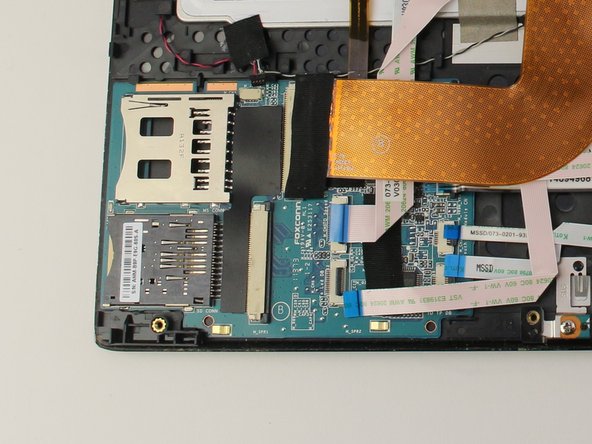
      • Locate the SD Card Board in the bottom left of the computer body.

      Ask FixBot

      Add Comment

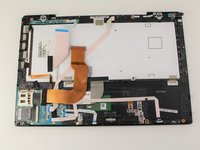
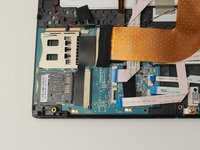
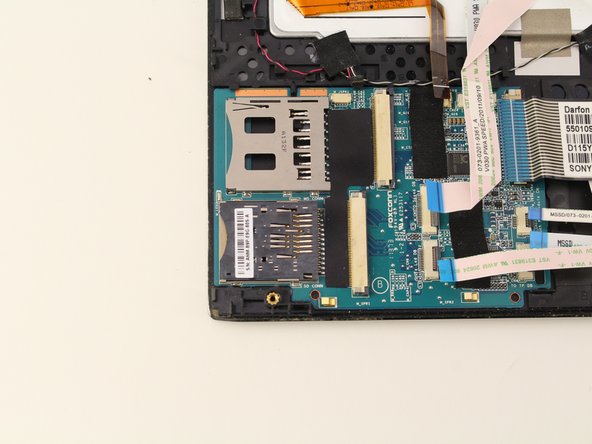
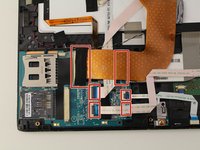
    6. Sony Vaio PCG-4121GL SD Card Board Replacement: step 10, image 1 of 2 Sony Vaio PCG-4121GL SD Card Board Replacement: step 10, image 2 of 2
      • Remove the cables from their connectors.

      • Do not apply too much force to the cable connectors or they may tear.

      Ask FixBot

      Add Comment

    7. Sony Vaio PCG-4121GL SD Card Board Replacement: step 11, image 1 of 2 Sony Vaio PCG-4121GL SD Card Board Replacement: step 11, image 2 of 2
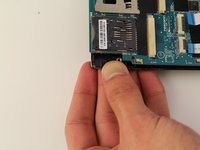
      • Lightly press down on the bottom left corner of the plastic frame.

      • Pull SD Board out towards you once it feels loose.

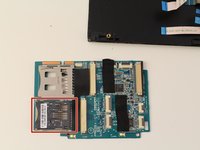
      • Once the SD Board is free from the plastic, remove completely

      • The SD Card slot is shown.

      Ask FixBot

      Add Comment

Conclusion

To reassemble your device, follow these instructions in reverse order.

Cancel: I did not complete this guide.

One other person completed this guide.

Bryce McNeil

Member since: 01/24/19

421 Reputation

1 Guide authored

Team

Cal Poly, Team S2-G2, White Winter 2019 Member of Cal Poly, Team S2-G2, White Winter 2019

CPSU-WHITE-W19S2G2

4 Members

60 Guides authored

0 Guide Comments

Add Comment

View Statistics:

Past 24 Hours: 1

Past 7 Days: 7

Past 30 Days: 31

All Time: 1,692