
Sony Vaio Duo 11 SSD Replacement

Zero and 11 other contributors
Last updated on Jun 26, 2024
Views: 44K
View statistics:
- Past 24 Hours:
- 5
- Past 7 Days:
- 46
- Past 30 Days:
- 208
- All Time:
- 43,606
Comments: 16
2 comments on steps, 14 guide comments.
Go to guide commentsCompleted: 26 27
26 people have marked this guide "completed." Will you be next?
27 people have marked this guide "completed." Including you — great job!
Favorites: 8 9
8 people have favorited (and subscribed to) this guide. Will you be next?
9 people have favorited (and subscribed to) this guide — including you!
Inconsistent Images
Updating the images on this guide to be more consistent with the prerequisites would increase its awesomeness.
Confusing Text
Some of this guide's text is confusing, duplicated, or off-topic. Clarify it by editing!
Needs Better Images
Better photos will improve this guide. Help out by taking, editing, or uploading new ones!
Markup Mishap
This guide needs better markups. Help out by correcting or making some markup annotations.
Community-Contributed Guide
An awesome member of our community made this guide. It was not created by iFixit staff.
Introduction
Go to step 1 ↓Before start the procedure, make a system backup (I use ToDo Backup Free).
Some pictures were found in:
http://henjinkutsu.com/text/pc/svd1121aj...
What you need
Tools

-
-
-
Using a spudger, remove the rubber screw covers.
-
Gently remove the speaker covers.
-
-
-
-
Remove the cover carefully. One side is attached with a short, flat, white cable. (Attention: Don't detach the white cable.)
-
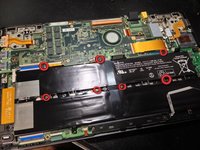
Remove the screws (circled in red) and remove the battery.
-
When reassembling : Remember to hide the piece of plastic beside the battery (circled in the second picture) behind the plastic. Otherwise you will not be able to press the right mouse button.
-
-
-
Detach flat cable. To do so, you have to lift the black plastic bar, then release the orange ribbon.
-
-
-
The remove of the ssd
-
Remove the SSD (gently)
-
Replace the SSD ( it is a mSATA SSD )
-
Put back the screws and close the unit
-

 Ask FixBot




To reassemble your device, follow these instructions in reverse order.
Cancel: I did not complete this guide.
26 other people completed this guide.

14 Guide Comments
It worked! Can't believe it. I exchanged my 128GB one with a Crucial 500 GB one. Used the Acronis True Image that came with the new SSD. Still getting used to having so much free space :D
Thanks for this tutorial. I typically avoid working on my laptops and gadgets due to overwhelming hidden gotchas. This made swapping out my broken hard drive quick and painless. Thanks again!
