Free Shipping on Domestic Orders $75+

Sony VAIO VPCEE26FX Keyboard Replacement

What you need

  1. Sony VAIO VPCEE26FX Keyboard Replacement, Battery: step 1, image 1 of 2 Sony VAIO VPCEE26FX Keyboard Replacement, Battery: step 1, image 2 of 2
    • Ensure that the laptop is powered off before disconnecting the battery.

    • Flip the laptop over so the underside of the laptop is facing up.

    Ask FixBot

    Add Comment

  2. Sony VAIO VPCEE26FX Keyboard Replacement: step 2, image 1 of 2 Sony VAIO VPCEE26FX Keyboard Replacement: step 2, image 2 of 2
    • Slide the two tabs towards each other until the battery disconnects slightly from its position.

    • Carefully lift the battery out of its position away from the laptop.

    • The battery is not pictured here, since it is missing from this particular device.

    Ask FixBot

    Add Comment

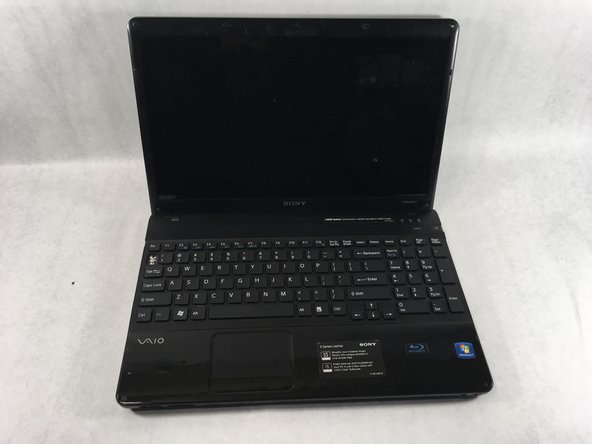
  3. Sony VAIO VPCEE26FX Keyboard Replacement, Keyboard: step 3, image 1 of 2 Sony VAIO VPCEE26FX Keyboard Replacement, Keyboard: step 3, image 2 of 2
    • Flip the laptop back over so it is face up.

    • Open up the laptop.

    Ask FixBot

    Add Comment

  4. Sony VAIO VPCEE26FX Keyboard Replacement: step 4, image 1 of 1
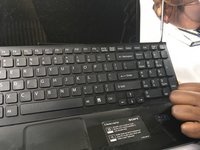
    • Using a plastic opening tool, pry along the seam between the keyboard and case to help in separating the two.

    • Continue to lift up gently using the plastic opening tool until the keyboard begins to separate from the case.

    Ask FixBot

    Add Comment

  5. Sony VAIO VPCEE26FX Keyboard Replacement: step 5, image 1 of 2 Sony VAIO VPCEE26FX Keyboard Replacement: step 5, image 2 of 2
    • Continue lifting up and moving down starting on the left side of the keyboard moving towards the right side of the computer.

    Ask FixBot

    Add Comment

  6. Sony VAIO VPCEE26FX Keyboard Replacement: step 6, image 1 of 2 Sony VAIO VPCEE26FX Keyboard Replacement: step 6, image 2 of 2
    Tool used on this step:
    Tweezers
    $4.99
    Buy
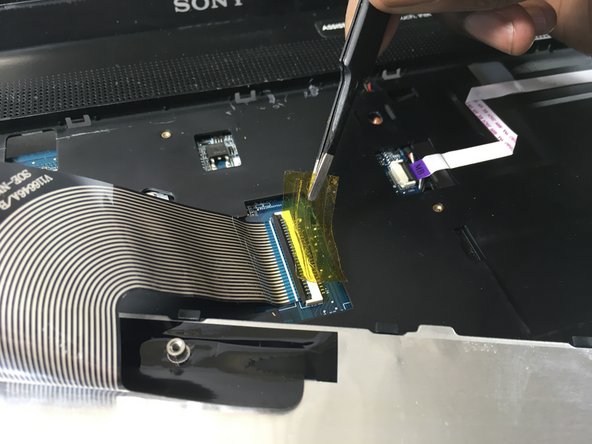
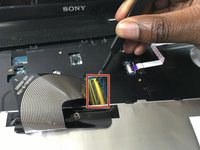
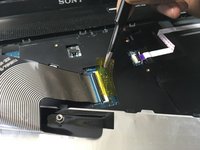
    • Carefully tilt the top of the keyboard towards you ensuring the ribbon cable is not under too much tension.

    • Use a pair of tweezers to help remove the plastic adhesive film covering the adapter/port for the ribbon cable.

    Ask FixBot

    Add Comment

  7. Sony VAIO VPCEE26FX Keyboard Replacement: step 7, image 1 of 1
    Ask FixBot

    Add Comment

  8. Sony VAIO VPCEE26FX Keyboard Replacement: step 8, image 1 of 1
    • Lift the keyboard up and away from the computer.

    Ask FixBot

    Add Comment

Conclusion

To reassemble your device, follow these instructions in reverse order.

Cancel: I did not complete this guide.

Christopher Hover

Member since: 03/21/19

679 Reputation

5 Guides authored

Team

0 Guide Comments

Add Comment

View Statistics:

Past 24 Hours: 2

Past 7 Days: 8

Past 30 Days: 26

All Time: 1,577