
Sony VAIO PCG-F580 IDE Hard Drive Replacement

CI S and one other contributor
Last updated on Feb 12, 2025
Views: 423
View statistics:
- Past 24 Hours:
- 3
- Past 7 Days:
- 17
- Past 30 Days:
- 69
- All Time:
- 423
Comments: 1
1 guide comment.
Go to guide commentsCompleted: 1 2
1 person has marked this guide "completed." Will you be next?
2 people have marked this guide "completed." Including you — great job!
Favorites: 0 1
No one has favorited (and subscribed to) this guide. Will you be the first?
1 person has favorited (and subscribed to) this guide — and that's you!
Community-Contributed Guide
An awesome member of our community made this guide. It was not created by iFixit staff.
What you need
Parts
Tools

-
-
-
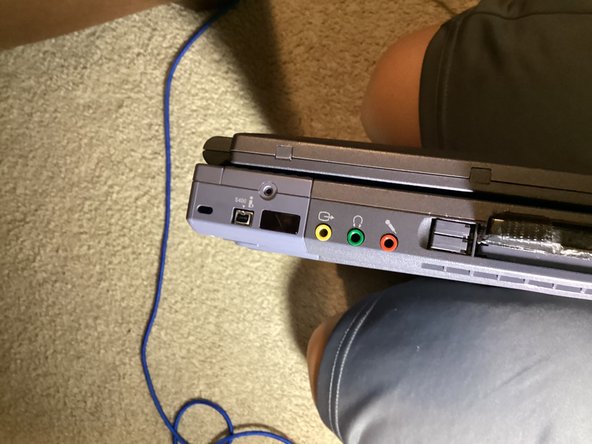
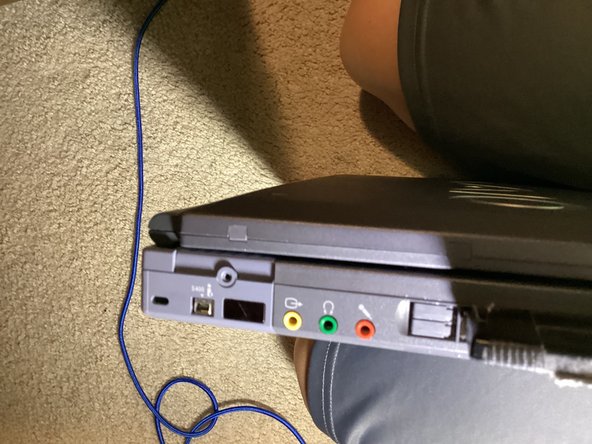
On the side with the audio ports, there is a Philips screw. Unscrew it.
-
Push the loose plastic piece, this will loosen the daughterboard from the main case.
 Ask FixBot
-
-
-
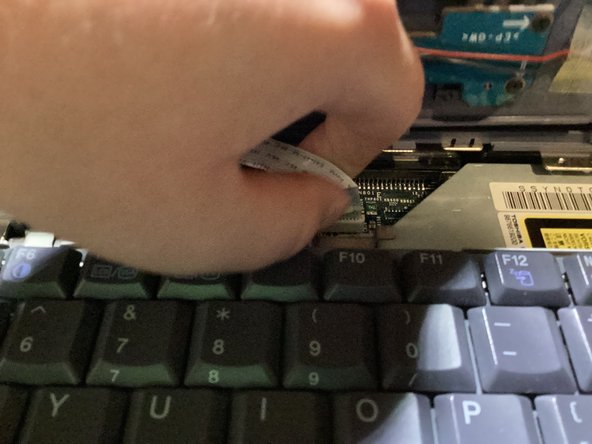
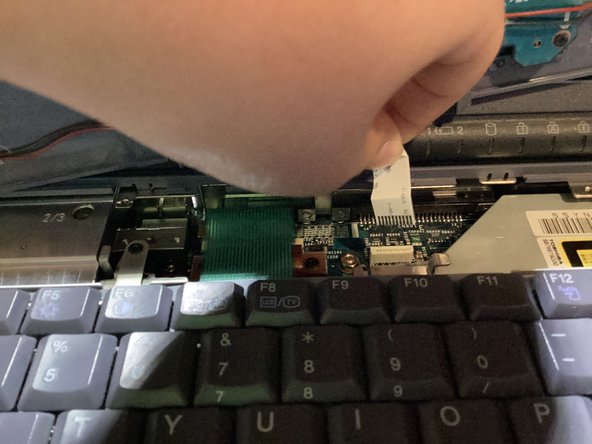
Open the lid, and pull up on the daughterboard enough to see the ribbon cable.
-
Pull up on the ribbon cable to release it. Don't worry, if you pull it straight up, there will be no damage.
-
Set the daughterboard to the side for now.
-
-
-
Unscrew the Philips screw at the top of the keyboard.
-
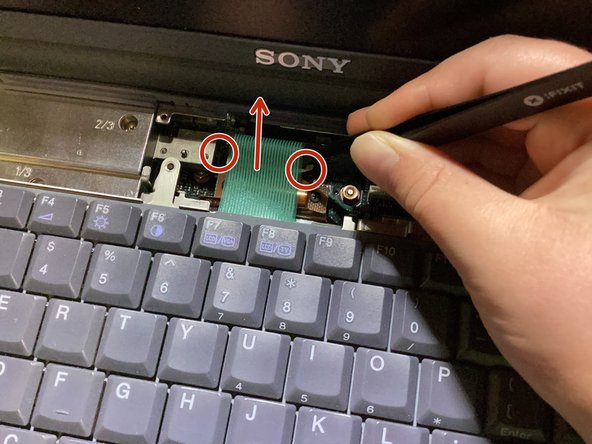
Remove the ribbon cable by pulling up on the plastic tabs on either sides of the socket with tweezers, then lifting it straight out.
-
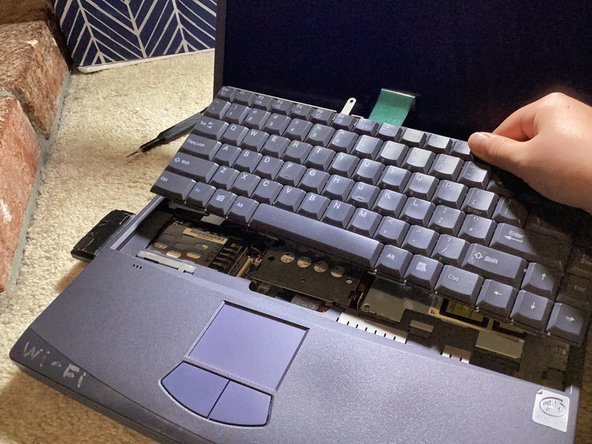
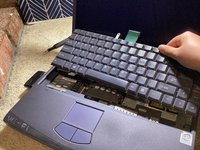
Lift the keyboard up at an angle, towards the screen.
-
Note: If you hear what sounds like peeling, that's normal.
-
-
-
-
-
Unscrew the Philips screws holding the cable into the socket.
-
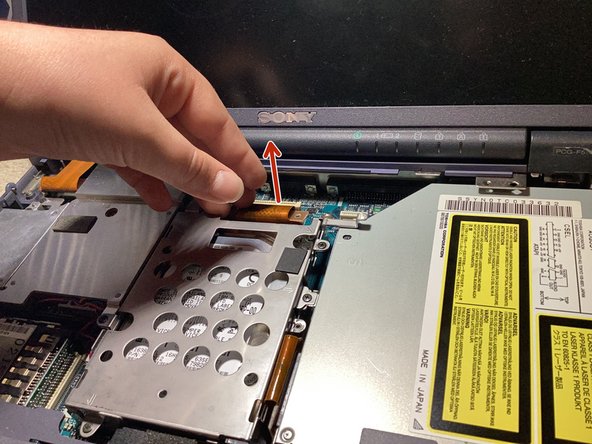
Pull up on the end of the cable with two fingers.
-
-
-
-
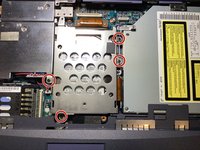
Unscrew the Philips screws holding the drive in place.
-
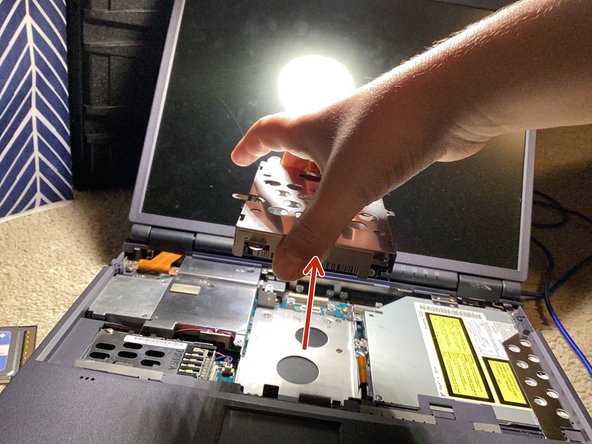
Lift the drive straight up and out of the laptop.
-
-
-
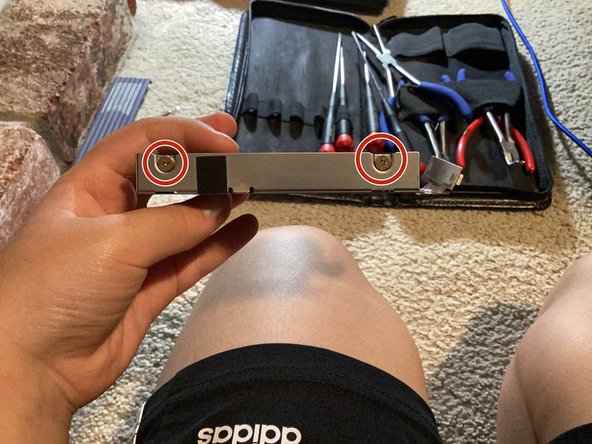
Unscrew the Phillips screws holding the hard drive itself into place.
-
-








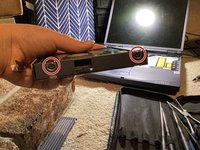
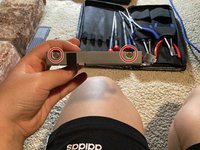
To reassemble your device, follow these instructions in reverse order.
Cancel: I did not complete this guide.
One other person completed this guide.

