Free Shipping on Domestic Orders $75+

Sony VAIO PCG-F360 Speaker Replacement

What you need

    1. Sony VAIO PCG-F360 Speaker Replacement, Battery: step 1, image 1 of 1
      • Position the laptop screen-side down as shown.

      • In this position the battery housing will be located on the right hand side.

      Ask FixBot

      Add Comment

    2. Sony VAIO PCG-F360 Speaker Replacement: step 2, image 1 of 1
      • Lift the panel up and then out to gain access to the battery.

      Ask FixBot

      Add Comment

    3. Sony VAIO PCG-F360 Speaker Replacement: step 3, image 1 of 1
      • Use the indentations to pull the old battery out.

      Ask FixBot

      Add Comment

    4. Sony VAIO PCG-F360 Speaker Replacement: step 4, image 1 of 1
      • The battery is now removed and it is safe to move on to uninstalling other components.

      Ask FixBot

      Add Comment

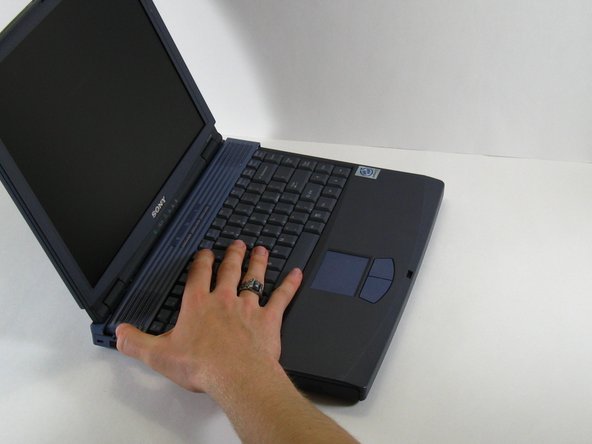
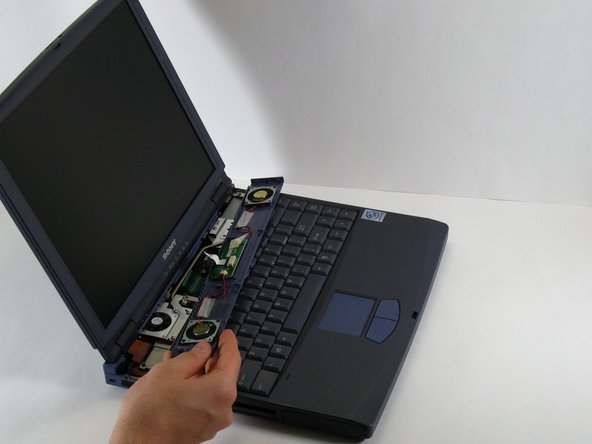
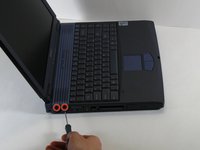
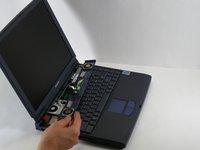
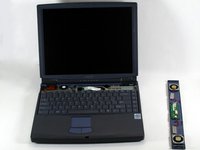
    1. Sony VAIO PCG-F360 Speaker Replacement, Speaker Panel: step 5, image 1 of 3 Sony VAIO PCG-F360 Speaker Replacement, Speaker Panel: step 5, image 2 of 3 Sony VAIO PCG-F360 Speaker Replacement, Speaker Panel: step 5, image 3 of 3
      • There are two screws on the left hand side of the laptop near the IR receiver. remove them using a #00 Philips head screwdriver.

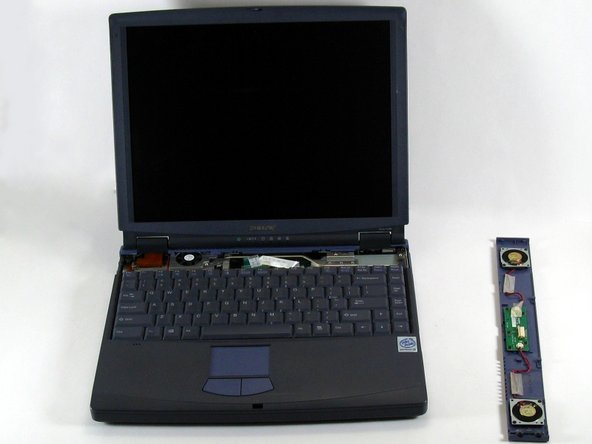
      • Slide the speaker panel towards the left, then carefully flip it over onto the keyboard.

      • Make sure not to pull the speaker panel away from the computer just yet - it is still connected!

      Ask FixBot

      Add Comment

    2. Sony VAIO PCG-F360 Speaker Replacement: step 6, image 1 of 3 Sony VAIO PCG-F360 Speaker Replacement: step 6, image 2 of 3 Sony VAIO PCG-F360 Speaker Replacement: step 6, image 3 of 3
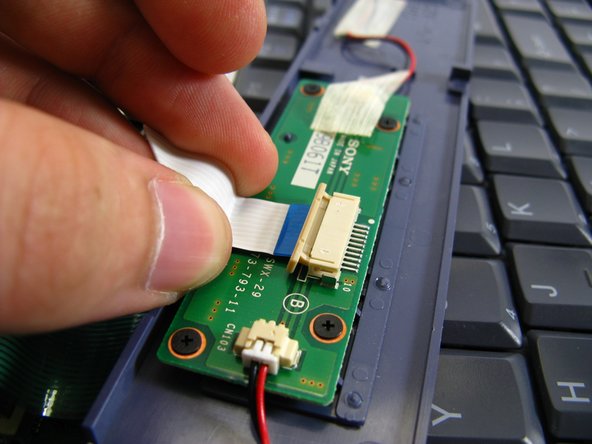
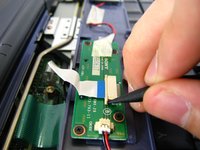
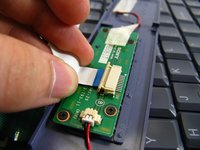
      • Push the beige tab in the direction of the ribbon. it should only move a small amount

      • Remove the ribbon by gently pulling on it, there should be little or no resistance.

      • Now the speaker panel can be set aside.

      Ask FixBot

      Add Comment

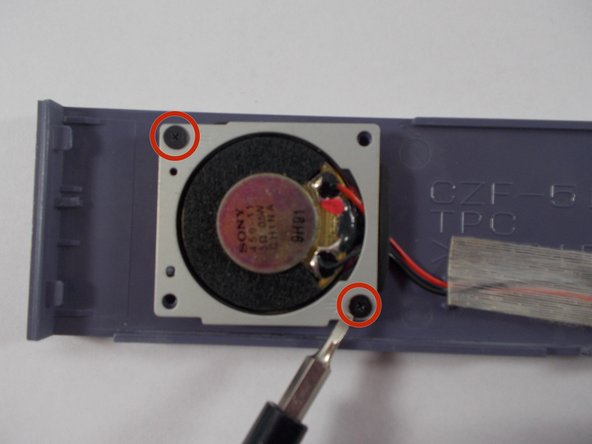
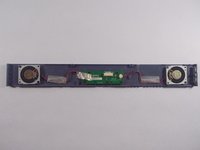
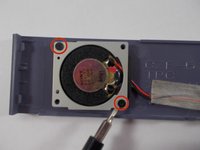
    1. Sony VAIO PCG-F360 Speaker Replacement, Speaker: step 7, image 1 of 2 Sony VAIO PCG-F360 Speaker Replacement, Speaker: step 7, image 2 of 2
      • The two speakers are located on the ends of the panel.

      • There are two screws holding each speaker. Remove them using a #00 Philips head screw driver.

      Ask FixBot

      Add Comment

    2. Sony VAIO PCG-F360 Speaker Replacement: step 8, image 1 of 1
      • Carefully flip the speaker over and replace or clean the needed parts.

      Ask FixBot

      Add Comment

Conclusion

To reassemble your device, follow these instructions in reverse order.

Cancel: I did not complete this guide.

Hannah Millea

Member since: 03/11/14

401 Reputation

4 Guides authored

Team

0 Guide Comments

Add Comment

View Statistics:

Past 24 Hours: 2

Past 7 Days: 28

Past 30 Days: 113

All Time: 655