Free Shipping on Domestic Orders $75+

Sony Cyber-shot DSC-P9 Lens Replacement

Views: 2.1K

View statistics:

Past 24 Hours:
2
Past 7 Days:
17
Past 30 Days:
79
All Time:
2,123
Comments: 0

No one has left comments on this guide. Will you be first?

Go to guide comments
Completed: 1

1 person has marked this guide "completed." Will you be next?

Favorites: 1

1 person has favorited (and subscribed to) this guide. Will you be next?

Time Required: 20 - 30 minutes
Difficulty: Moderate
Needs Better Images

Better photos will improve this guide. Help out by taking, editing, or uploading new ones!

Sony Cyber-shot DSC-P9 Lens Replacement

What you need

Tools

  • Phillips #000 Screwdriver
    4.9
  • Spudger
    4.9
    1. Sony Cyber-shot DSC-P9 Lens Replacement, Battery: step 1, image 1 of 1
      • Slide the battery latch down the side of the camera with your hands.

      • The latch will automatically pop open.

      Ask FixBot

      Add Comment

    2. Sony Cyber-shot DSC-P9 Lens Replacement: step 2, image 1 of 1
      • Unlatch the clip over the battery.

      • The battery will partially pop out.

      Ask FixBot

      Add Comment

    3. Sony Cyber-shot DSC-P9 Lens Replacement: step 3, image 1 of 2 Sony Cyber-shot DSC-P9 Lens Replacement: step 3, image 2 of 2
      • Remove the battery from the camera.

      Ask FixBot

      Add Comment

    1. Sony Cyber-shot DSC-P9 Lens Replacement, Outer Casing: step 4, image 1 of 2 Sony Cyber-shot DSC-P9 Lens Replacement, Outer Casing: step 4, image 2 of 2
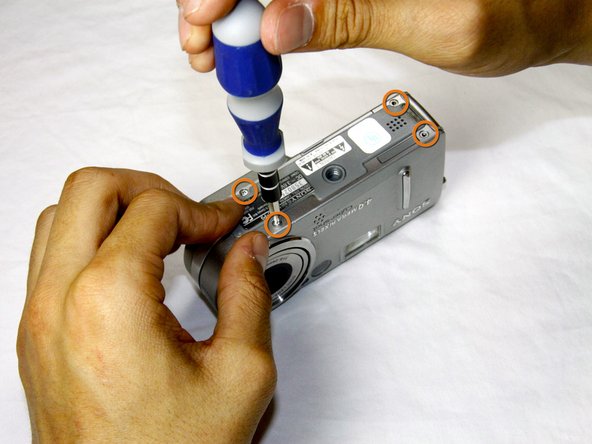
      • Remove the four 3.0mm Phillips #000 screws on the top of the camera with the phillips screwdriver.

      • Remove the additional four 3.0mm Phillips #000 screws on the bottom of the camera.

      Ask FixBot

      Add Comment

    2. Sony Cyber-shot DSC-P9 Lens Replacement: step 5, image 1 of 2 Sony Cyber-shot DSC-P9 Lens Replacement: step 5, image 2 of 2
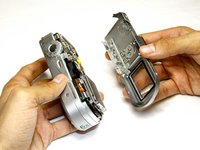
      • Once the screws are removed, slowly remove the back casing from the rest of the camera.

      Ask FixBot

      Add Comment

    3. Sony Cyber-shot DSC-P9 Lens Replacement: step 6, image 1 of 2 Sony Cyber-shot DSC-P9 Lens Replacement: step 6, image 2 of 2
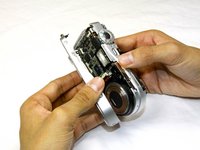
      • Then, pull the front case away from the rest of the camera.

      Ask FixBot

      Add Comment

    4. Sony Cyber-shot DSC-P9 Lens Replacement: step 7, image 1 of 1
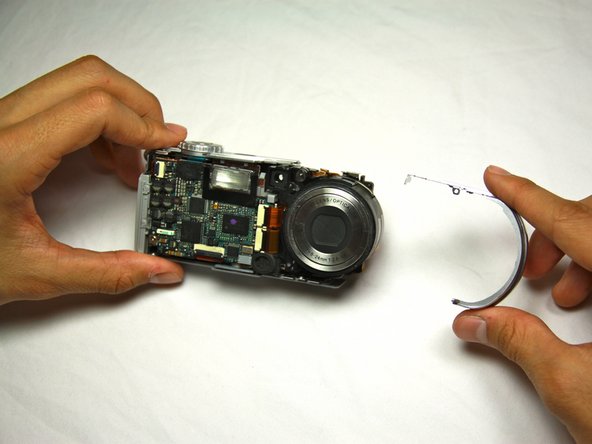
      • After the casing is removed, the camera should look as shown.

      Ask FixBot

      Add Comment

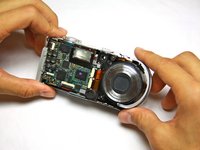
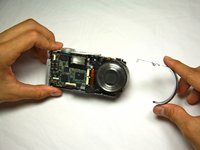
    1. Sony Cyber-shot DSC-P9 Lens Replacement, Lens: step 8, image 1 of 2 Sony Cyber-shot DSC-P9 Lens Replacement, Lens: step 8, image 2 of 2
      • Dislodge the round casing from the lens.

      • Pull it away from the rest of the camera.

      Ask FixBot

      Add Comment

    2. Sony Cyber-shot DSC-P9 Lens Replacement: step 9, image 1 of 1
      • Unscrew the two 4.0mm Phillips #000 screws from the display.

      Ask FixBot

      Add Comment

    3. Sony Cyber-shot DSC-P9 Lens Replacement: step 10, image 1 of 1
      • Pull the two ribbon cables out of their slots on the back circuit board.

      Ask FixBot

      Add Comment

    4. Sony Cyber-shot DSC-P9 Lens Replacement: step 11, image 1 of 1
      • Remove the three 4.0mm Phillips #000 screws holding the back panel in place.

      Ask FixBot

      Add Comment

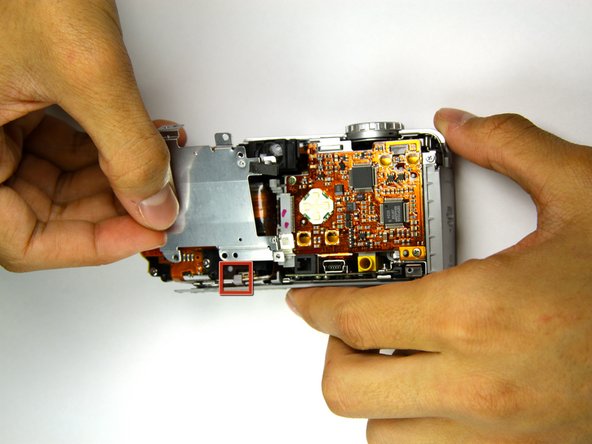
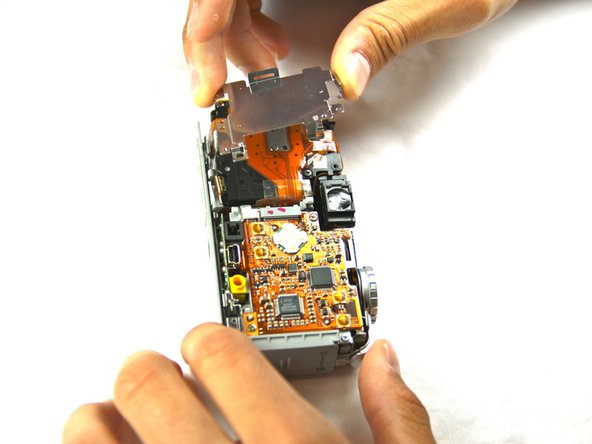
    5. Sony Cyber-shot DSC-P9 Lens Replacement: step 12, image 1 of 3 Sony Cyber-shot DSC-P9 Lens Replacement: step 12, image 2 of 3 Sony Cyber-shot DSC-P9 Lens Replacement: step 12, image 3 of 3
      • Work the back panel out from under the small grey clip.

      • Slide the back panel off of the camera by dislodging it from the remaining clips.

      • Below is a flat, orange cable connecting the lens to the motherboard.

      • Be careful not to bend the back plate during this process.

      Ask FixBot

      Add Comment

    6. Sony Cyber-shot DSC-P9 Lens Replacement: step 13, image 1 of 1
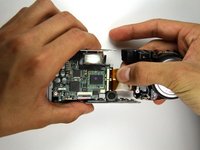
      • Turn the camera over so that you can see the front of the lens.

      • Two connectors link the lens to the motherboard.

      • Gently bring the lens away from the camera.

      Ask FixBot

      Add Comment

    7. Sony Cyber-shot DSC-P9 Lens Replacement: step 14, image 1 of 1
      • Using the flat end of the plastic spudger tool, flip up the black tabs on the connectors.

      • Be careful not to exert too much force, as the connectors are delicate.

      Ask FixBot

      Add Comment

    8. Sony Cyber-shot DSC-P9 Lens Replacement: step 15, image 1 of 3 Sony Cyber-shot DSC-P9 Lens Replacement: step 15, image 2 of 3 Sony Cyber-shot DSC-P9 Lens Replacement: step 15, image 3 of 3
      • Gently pull out the cables and move the lens away from the rest of the camera.

      • You should now have two distinct, separate components.

      Ask FixBot

      Add Comment

Conclusion

To reassemble your device, follow these instructions in reverse order.

Cancel: I did not complete this guide.

One other person completed this guide.

Sean Sayles

Member since: 05/09/12

7 Reputation

1 Guide authored

Team

Cal Poly, Team 17-25, Amido Spring 2012 Member of Cal Poly, Team 17-25, Amido Spring 2012

CPSU-AMIDO-S12S17G25

4 Members

84 Guides authored

0 Guide Comments

Add Comment

View Statistics:

Past 24 Hours: 2

Past 7 Days: 17

Past 30 Days: 79

All Time: 2,123