Free Shipping on Domestic Orders $75+

Sony Cyber-Shot DSC-S90 Flash Replacement

What you need

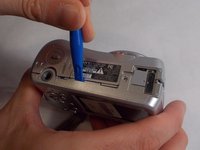
  1. Sony Cyber-Shot DSC-S90 Flash Replacement, Batteries: step 1, image 1 of 2 Sony Cyber-Shot DSC-S90 Flash Replacement, Batteries: step 1, image 2 of 2
    • Hold down the "open"button (gray oval with arrow pointing upwards) on the battery port door.

    • While holding the button downwards, slide the door upwards to unlock and open the door.

    Ask FixBot

    Add Comment

  2. Sony Cyber-Shot DSC-S90 Flash Replacement: step 2, image 1 of 1
    • Pull open the door and allow the batteries to fall out.

    Ask FixBot

    Add Comment

  3. Sony Cyber-Shot DSC-S90 Flash Replacement, Back Case: step 3, image 1 of 2 Sony Cyber-Shot DSC-S90 Flash Replacement, Back Case: step 3, image 2 of 2
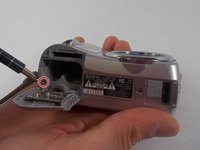
    • Remove the 2mm Phillips #00 screw under the battery port door.

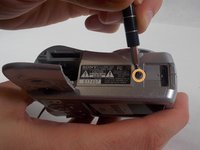
    • Remove the 2mm Phillips #00 screw towards the right of the bottom-side of the camera.

    Ask FixBot

    Add Comment

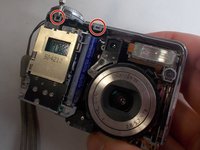
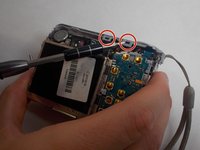
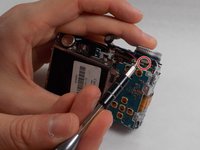
  4. Sony Cyber-Shot DSC-S90 Flash Replacement: step 4, image 1 of 2 Sony Cyber-Shot DSC-S90 Flash Replacement: step 4, image 2 of 2
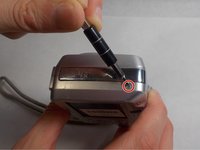
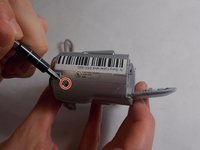
    • Remove the two 2mm Phillips #00 screws (one on each side of the camera).

    Ask FixBot

    Add Comment

  5. Sony Cyber-Shot DSC-S90 Flash Replacement: step 5, image 1 of 2 Sony Cyber-Shot DSC-S90 Flash Replacement: step 5, image 2 of 2
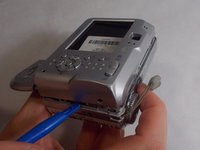
    • Use an opening tool to unlock the front case from the main body of the camera. Use the tool on the right side and bottom of the camera with the LCD screen facing you.

    Ask FixBot

    Add Comment

  6. Sony Cyber-Shot DSC-S90 Flash Replacement: step 6, image 1 of 1
    • Pull apart the back case from the main body of the camera.

    Ask FixBot

    Add Comment

  7. Sony Cyber-Shot DSC-S90 Flash Replacement, Front Case: step 7, image 1 of 1
    • Use an opening tool to unlock the front case from the main body of the camera. Use the tool on the top of the camera.

    Ask FixBot

    Add Comment

  8. Sony Cyber-Shot DSC-S90 Flash Replacement: step 8, image 1 of 1
    • Pull apart the front case from the main body of the camera.

    Ask FixBot

    Add Comment

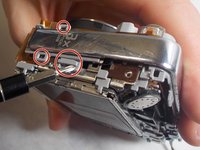
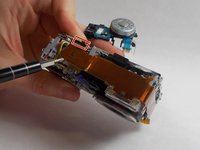
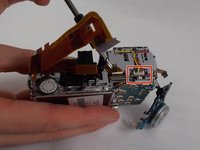
  9. Sony Cyber-Shot DSC-S90 Flash Replacement, Top/Side Case: step 9, image 1 of 3 Sony Cyber-Shot DSC-S90 Flash Replacement, Top/Side Case: step 9, image 2 of 3 Sony Cyber-Shot DSC-S90 Flash Replacement, Top/Side Case: step 9, image 3 of 3
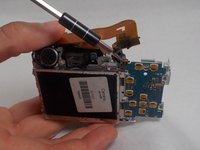
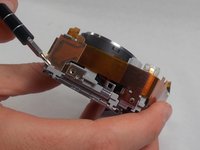
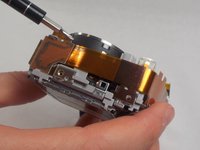
    • Release all clips and latches keeping the casing in place using a spudger, opening tool, or screwdriver.

    Ask FixBot

    Add Comment

  10. Sony Cyber-Shot DSC-S90 Flash Replacement: step 10, image 1 of 1
    • Now the casing can be removed after all latches have been undone.

    Ask FixBot

    Add Comment

  11. Sony Cyber-Shot DSC-S90 Flash Replacement, Battery Terminal: step 11, image 1 of 3 Sony Cyber-Shot DSC-S90 Flash Replacement, Battery Terminal: step 11, image 2 of 3 Sony Cyber-Shot DSC-S90 Flash Replacement, Battery Terminal: step 11, image 3 of 3
    • Disconnect the ribbon cables on top of the battery terminal using a spudger or screwdriver.

    Ask FixBot

    Add Comment

  12. Sony Cyber-Shot DSC-S90 Flash Replacement: step 12, image 1 of 1
    • Disconnect the remaining ribbon cable on the side of the camera using a spudger or screwdriver.

    Ask FixBot

    Add Comment

  13. Sony Cyber-Shot DSC-S90 Flash Replacement: step 13, image 1 of 1
    • Use a spudger or screwdriver to unhinge the clips. This releases the battery terminal.

    Ask FixBot

    Add Comment

  14. Sony Cyber-Shot DSC-S90 Flash Replacement: step 14, image 1 of 1
    • Once the battery terminal is unclipped, pull this ribbon cable out with a spudger or screwdriver to finish freeing the battery terminal.

    Ask FixBot

    Add Comment

  15. Sony Cyber-Shot DSC-S90 Flash Replacement: step 15, image 1 of 1
    • Now the battery terminal can be separated from the main body of the camera.

    Ask FixBot

    Add Comment

  16. Sony Cyber-Shot DSC-S90 Flash Replacement, Motherboard: step 16, image 1 of 3 Sony Cyber-Shot DSC-S90 Flash Replacement, Motherboard: step 16, image 2 of 3 Sony Cyber-Shot DSC-S90 Flash Replacement, Motherboard: step 16, image 3 of 3
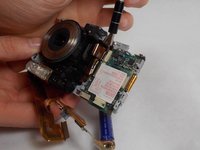
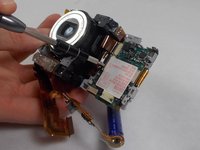
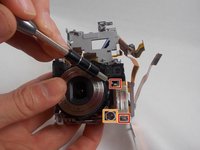
    • Disconnect the three pictured ribbon cables using a spudger or screwdriver.

    Ask FixBot

    Add Comment

  17. Sony Cyber-Shot DSC-S90 Flash Replacement: step 17, image 1 of 1
    • Push the clip to the left and lift the motherboard upwards and away from the camera.

    Ask FixBot

    Add Comment

  18. Sony Cyber-Shot DSC-S90 Flash Replacement: step 18, image 1 of 2 Sony Cyber-Shot DSC-S90 Flash Replacement: step 18, image 2 of 2
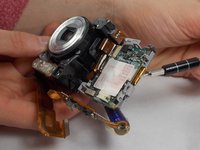
    • Disconnect the two ribbon cables using a spudger or screwdriver.

    Ask FixBot

    Add Comment

  19. Sony Cyber-Shot DSC-S90 Flash Replacement: step 19, image 1 of 1
    • Unlatch the clip and lift the motherboard upwards and away from the camera.

    Ask FixBot

    Add Comment

  20. Sony Cyber-Shot DSC-S90 Flash Replacement, Flash: step 20, image 1 of 2 Sony Cyber-Shot DSC-S90 Flash Replacement, Flash: step 20, image 2 of 2
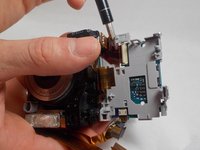
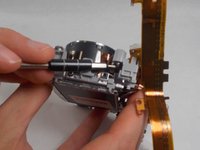
    • Release the clips on either side of the connector/ribbon cable using a spudger or screwdriver.

    Ask FixBot

    Add Comment

  21. Sony Cyber-Shot DSC-S90 Flash Replacement: step 21, image 1 of 2 Sony Cyber-Shot DSC-S90 Flash Replacement: step 21, image 2 of 2
    • Release the two clips next to the flash using a spudger or screwdriver.

    • Release the clip holding the LED indicator in place using a spudger or screwdriver.

    • Push the LED indicator upwards from below using a spudger or screwdriver.

    Ask FixBot

    Add Comment

  22. Sony Cyber-Shot DSC-S90 Flash Replacement: step 22, image 1 of 1
    • After all clips have been undone the flash is free to be removed/replaced.

    Ask FixBot

    Add Comment

Conclusion

To reassemble your device, follow these instructions in reverse order.

Cancel: I did not complete this guide.

Jonathan Arns

Member since: 10/28/19

769 Reputation

8 Guides authored

Team

0 Guide Comments

Add Comment

View Statistics:

Past 24 Hours: 2

Past 7 Days: 6

Past 30 Days: 27

All Time: 567