Free Shipping on Domestic Orders $75+

Sony Alpha ILCE-6000 Screen Replacement

What you need

  1. Sony Alpha ILCE-6000 Screen Replacement, Battery Replacement: step 1, image 1 of 1
    • Turn off the camera by sliding the power switch to OFF.

    Ask FixBot
    Add Comment

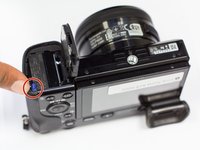
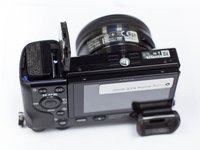
  2. Sony Alpha ILCE-6000 Screen Replacement: step 2, image 1 of 3 Sony Alpha ILCE-6000 Screen Replacement: step 2, image 2 of 3 Sony Alpha ILCE-6000 Screen Replacement: step 2, image 3 of 3
    • Flip the camera upside down and locate the battery compartment.

    • Slide the compartment lock to OPEN to unlock it.

    Ask FixBot
    Add Comment

  3. Sony Alpha ILCE-6000 Screen Replacement: step 3, image 1 of 2 Sony Alpha ILCE-6000 Screen Replacement: step 3, image 2 of 2
    • Locate the blue lever that keeps the battery in place.

    • Push the blue lever back to release battery.

    Ask FixBot
    Add Comment

  4. Sony Alpha ILCE-6000 Screen Replacement: step 4, image 1 of 1
    • Once the battery is free, you are able to take the battery out of the compartment.

    Ask FixBot
    Add Comment

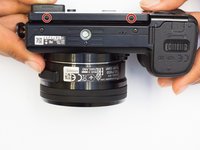
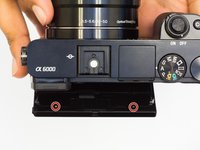
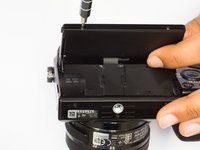
  5. Sony Alpha ILCE-6000 Screen Replacement, Screen: step 5, image 1 of 3 Sony Alpha ILCE-6000 Screen Replacement, Screen: step 5, image 2 of 3 Sony Alpha ILCE-6000 Screen Replacement, Screen: step 5, image 3 of 3
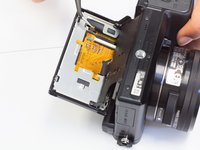
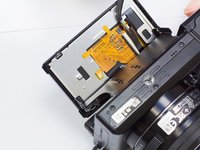
    • Flip the camera to the bottom side. Using screwdriver, remove the two screws located on the bottom of camera screen.

    • Flip the camera back over, locate the two other 3mm screws behind the screen and remove them.

    Ask FixBot
    Add Comment

  6. Sony Alpha ILCE-6000 Screen Replacement: step 6, image 1 of 1
    • Gently pry open the screen backplate.

    Ask FixBot

    Add Comment

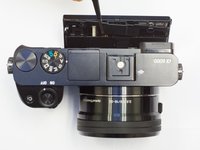
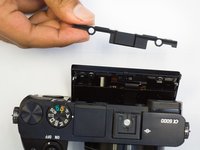
  7. Sony Alpha ILCE-6000 Screen Replacement: step 7, image 1 of 2 Sony Alpha ILCE-6000 Screen Replacement: step 7, image 2 of 2
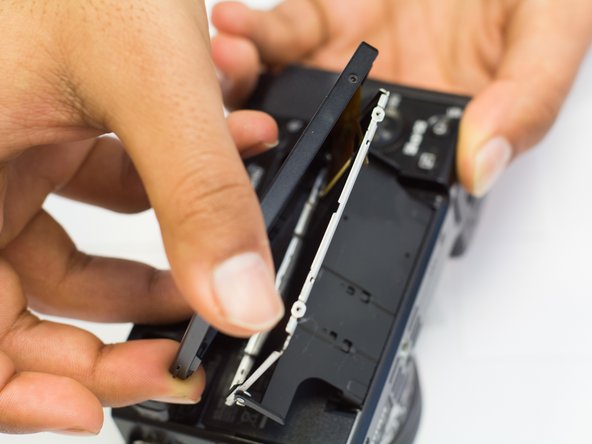
    • Gently pry off the plastic cover at the top of the screen.

    Ask FixBot
    Add Comment

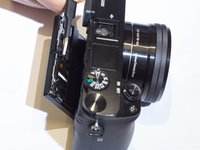
  8. Sony Alpha ILCE-6000 Screen Replacement: step 8, image 1 of 2 Sony Alpha ILCE-6000 Screen Replacement: step 8, image 2 of 2
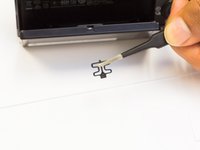
    • Carefully remove the clip located at the top of the screen.

    Ask FixBot

    Add Comment

  9. Sony Alpha ILCE-6000 Screen Replacement: step 9, image 1 of 1
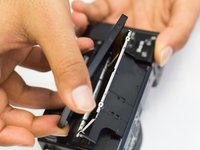
    • Flip the camera so that it is bottom side up. Pry off the inner support plate.

    Ask FixBot
    Add Comment

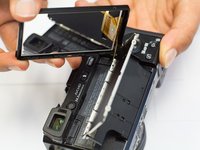
  10. Sony Alpha ILCE-6000 Screen Replacement: step 10, image 1 of 3 Sony Alpha ILCE-6000 Screen Replacement: step 10, image 2 of 3 Sony Alpha ILCE-6000 Screen Replacement: step 10, image 3 of 3
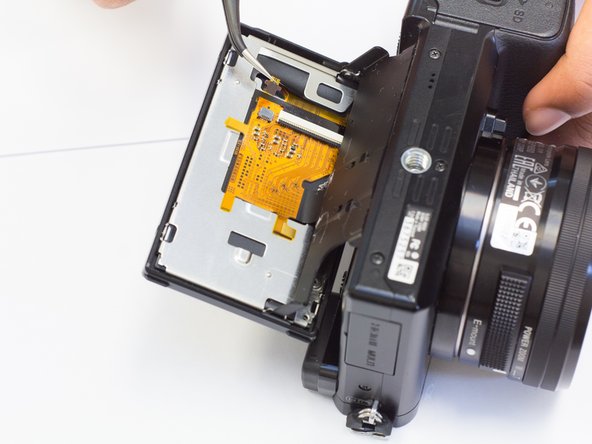
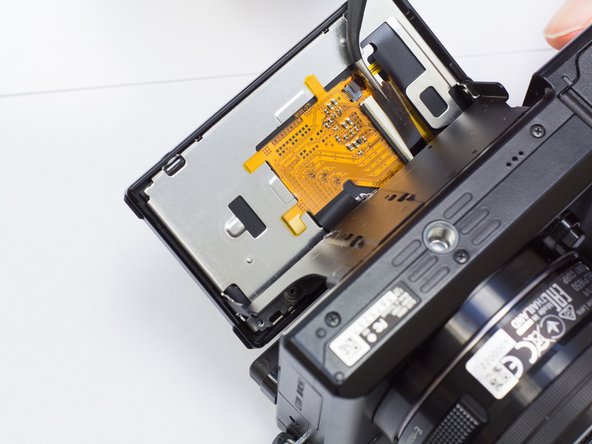
    • Gently wiggle the screen's ribbon cable until it comes free from the white slot.

    Ask FixBot
    Add Comment

  11. Sony Alpha ILCE-6000 Screen Replacement: step 11, image 1 of 1
    • Pry apart the metal backplate and remove it.

    Ask FixBot

    Add Comment

  12. Sony Alpha ILCE-6000 Screen Replacement: step 12, image 1 of 2 Sony Alpha ILCE-6000 Screen Replacement: step 12, image 2 of 2
    • Gently remove the old screen, and replace it with the new one.

    Ask FixBot

    Add Comment

Conclusion

To reassemble your device, follow these instructions in reverse order.

Cancel: I did not complete this guide.

7 other people completed this guide.

Tony Au

Member since: 02/02/17

423 Reputation

2 Guides authored

Team

UW Tacoma, Team 1-4, Rose Winter 2017 Member of UW Tacoma, Team 1-4, Rose Winter 2017

UWT-ROSE-W17S1G4

4 Members

10 Guides authored

4 Guide Comments

This is super helpful! Where did you purchase your replacement part from?

Claire Sweet - Reply Share

The white connector opens by prying up the black part. What about the little black connector?

Christopher St.Louis - Reply Share

Just comes out when you pull on it gently

Kevin Ketelaars - Reply Share

Top left screw on back plate is a pain to put back in at an angle with magnetized JIS driver. Non magnetized or slightly loose fitting driver might help.

Trick is to get the screw fit in the thread at the right angle, then drive it in with the driver at an angle.

Kevin Ketelaars - Reply Share

Add Comment

View Statistics:

Past 24 Hours: 1

Past 7 Days: 21

Past 30 Days: 89

All Time: 12,927