Free Shipping on Domestic Orders $75+

Sonos Roam Battery Replacement

Views: 36K

View statistics:

Past 24 Hours:
24
Past 7 Days:
209
Past 30 Days:
957
All Time:
35,617
Comments: 39

22 comments on steps, 17 guide comments.

Go to guide comments
Completed: 26

26 people have marked this guide "completed." Will you be next?

Favorites: 0

No one has favorited (and subscribed to) this guide. Will you be the first?

Time Required: 30 minutes
Difficulty: Moderate
Sonos Roam Battery Replacement

Introduction

Go to step 1 ↓

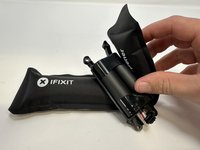
If your Sonos Roam is having battery issues such as not being able to hold a charge or not charging at all, then use this guide to replace the battery.

The battery is responsible for providing the energy that the speaker uses to function. It can be charged, store the energy, and provide energy when needed.

Before using this guide, make sure your current charger is compatible and you have the right USB cable. Also try rebooting the device.

There are steps that recommend (not require) the use of the iOpener. This will help with carefully removing the adhesive used to keep this device together. Refer to this link on how to properly use the iOpener.

What you need

Tools

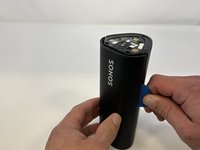
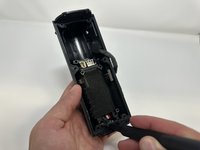
    1. Sonos Roam Battery Replacement, End Caps: step 1, image 1 of 3 Sonos Roam Battery Replacement, End Caps: step 1, image 2 of 3 Sonos Roam Battery Replacement, End Caps: step 1, image 3 of 3
      • Power off your Sonos Roam before beginning disassembly.

      • Use the metal spudger to pry the end cap with the buttons.

      • Pry from all sides to loosen the adhesive.

      • Use the iOpener, a blowdryer, or a similar heating device to loosen the adhesive if having difficulty.

      Ask FixBot

      Add Comment

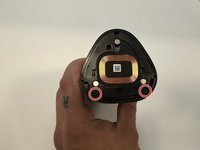
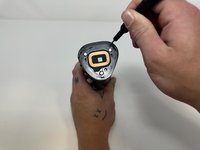
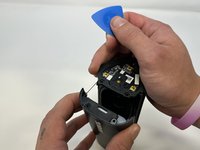
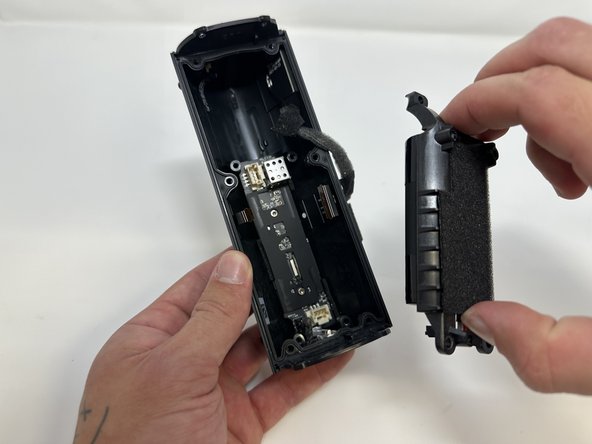
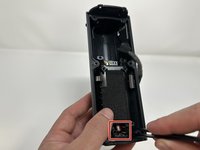
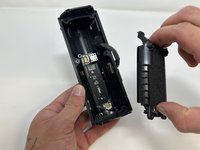
    2. Sonos Roam Battery Replacement: step 2, image 1 of 2 Sonos Roam Battery Replacement: step 2, image 2 of 2
      • Flip the device to the other end cap.

      • Use the metal spudger to loosen the adhesive.

      • Use the iOpener, a blowdryer, or a similar heating device to loosen the adhesive if having difficulty.

      Ask FixBot

      Add Comment

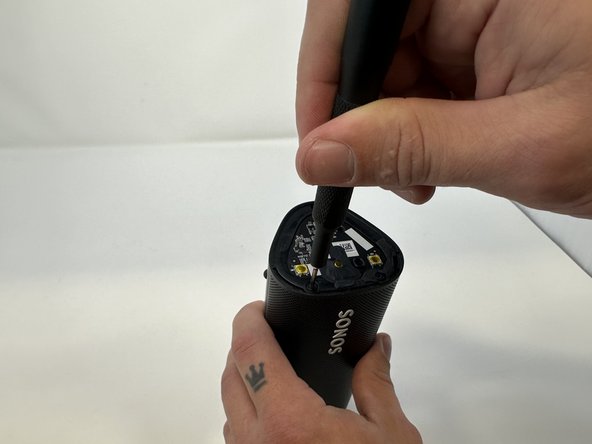
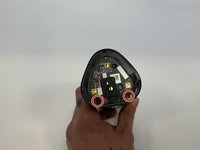
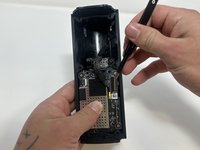
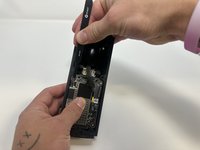
    1. Sonos Roam Battery Replacement, Speaker Grille: step 3, image 1 of 2 Sonos Roam Battery Replacement, Speaker Grille: step 3, image 2 of 2
      • Flip the device so that the Sonos logo is on the top.

      • Use the Torx T6 screwdriver to remove the two 6 mm screws.

      Ask FixBot

      Add Comment

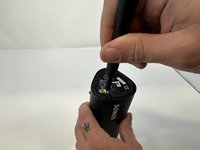
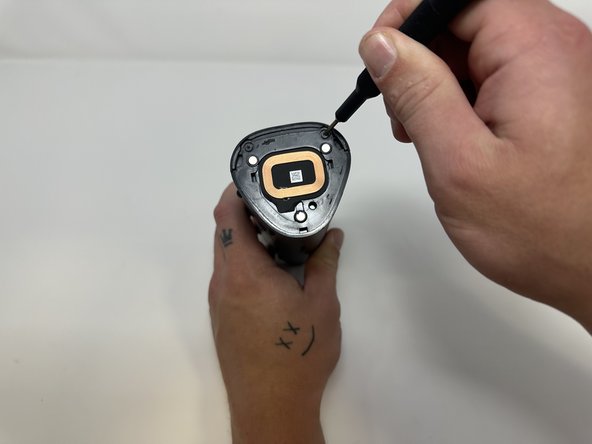
    2. Sonos Roam Battery Replacement: step 4, image 1 of 2 Sonos Roam Battery Replacement: step 4, image 2 of 2
      • Flip the device.

      • Use the Torx T6 screwdriver to remove the two 6 mm screws.

      Ask FixBot

      Add Comment

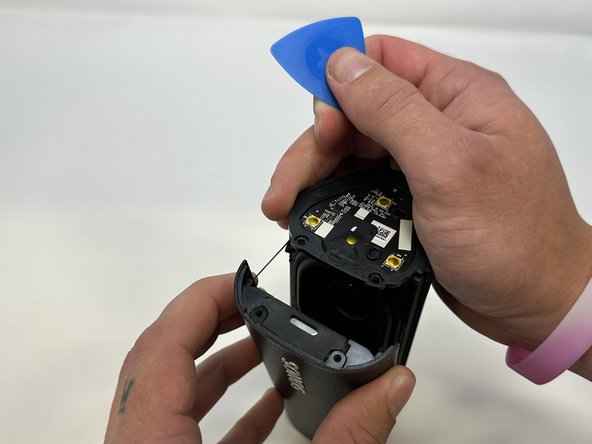
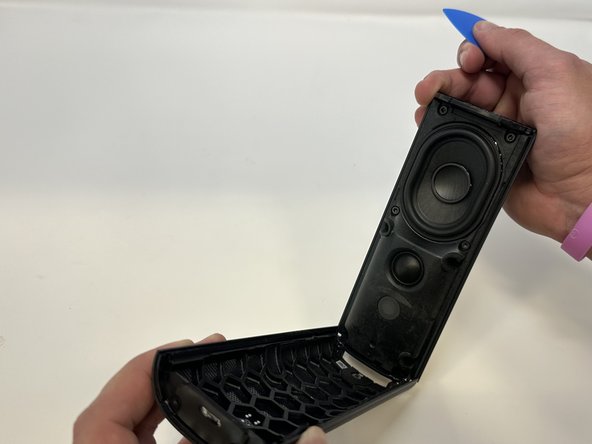
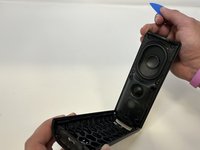
    3. Sonos Roam Battery Replacement: step 5, image 1 of 3 Sonos Roam Battery Replacement: step 5, image 2 of 3 Sonos Roam Battery Replacement: step 5, image 3 of 3
      • Flip the device so the Sonos logo is on the top.

      • Use the iFixit opening picks to wedge between the split of the grille and the back of the speaker to pry the grille apart.

      • Use the iOpener, a blowdryer, or a similar heating device to loosen the adhesive if having difficulty.

      Ask FixBot

      Add Comment

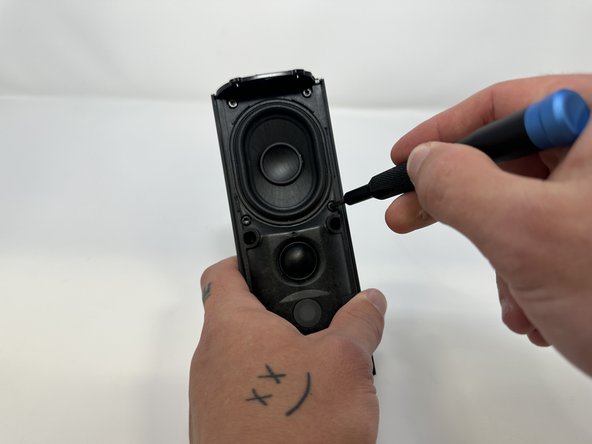
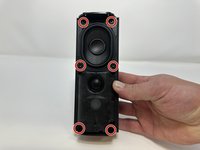
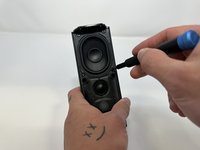
    1. Sonos Roam Battery Replacement, Speaker Module: step 6, image 1 of 2 Sonos Roam Battery Replacement, Speaker Module: step 6, image 2 of 2
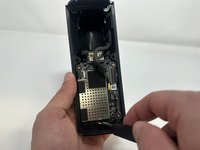
      • Use the TR10 Torx screwdriver to remove the six 7 mm screws.

      Ask FixBot

      Add Comment

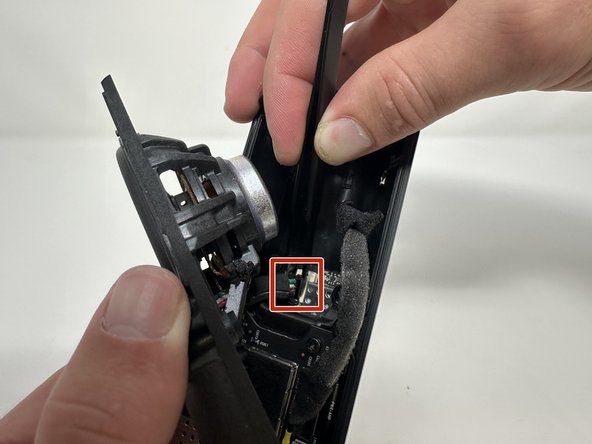
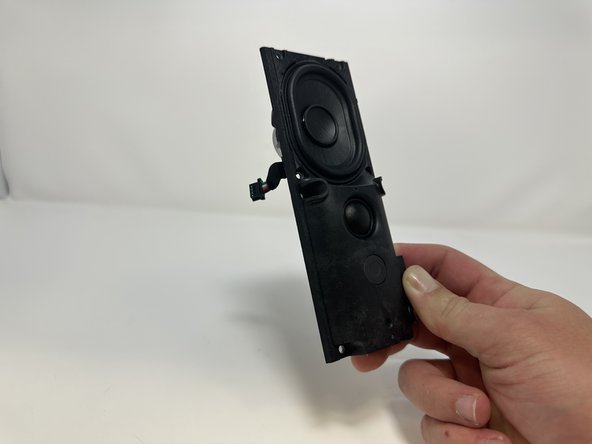
    2. Sonos Roam Battery Replacement: step 7, image 1 of 3 Sonos Roam Battery Replacement: step 7, image 2 of 3 Sonos Roam Battery Replacement: step 7, image 3 of 3
      Tool used on this step:
      Tweezers
      $4.99
      Buy
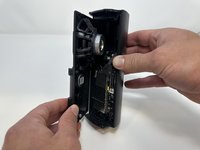
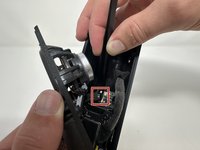
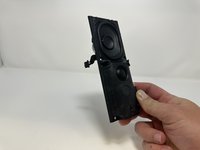
      • Begin to carefully separate the speaker module from the device.

      • Firmly squeeze the middle of the plug using the tweezers to pull it out of the socket.

      • Separate the speaker module from the device.

      Ask FixBot

      Add Comment

    1. Sonos Roam Battery Replacement, Outer Circuit Board: step 8, image 1 of 2 Sonos Roam Battery Replacement, Outer Circuit Board: step 8, image 2 of 2
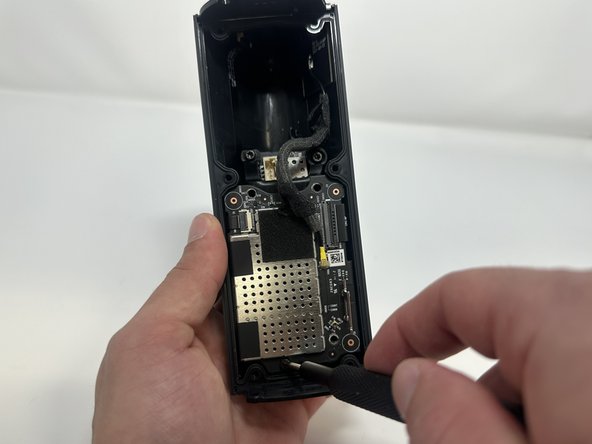
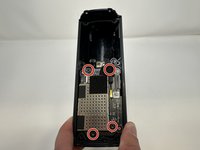
      • Use the TR10 Torx screwdriver to remove the four 7 mm screws.

      Ask FixBot

      Add Comment

    2. Sonos Roam Battery Replacement: step 9, image 1 of 3 Sonos Roam Battery Replacement: step 9, image 2 of 3 Sonos Roam Battery Replacement: step 9, image 3 of 3
      Tool used on this step:
      Tweezers
      $4.99
      Buy
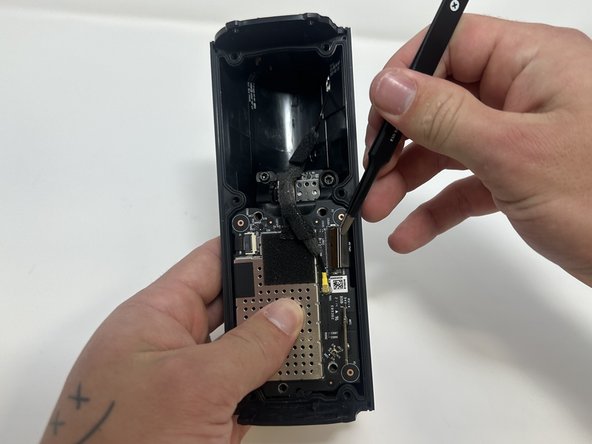
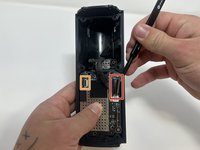
      • Use the tweezers to flip the latch holding the large ribbon in place.

      • Grab the large ribbon with the tweezers and pull upwards to remove it.

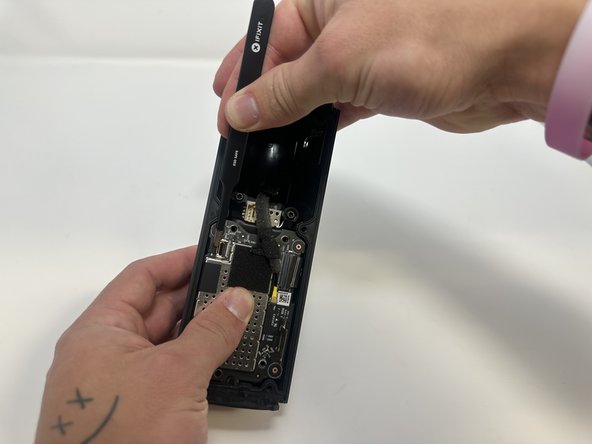
      • Use the tweezers to flip the latch holding the small ribbon in place.

      • Grab the small ribbon with the tweezers and pull upwards to remove it.

      Ask FixBot

      Add Comment

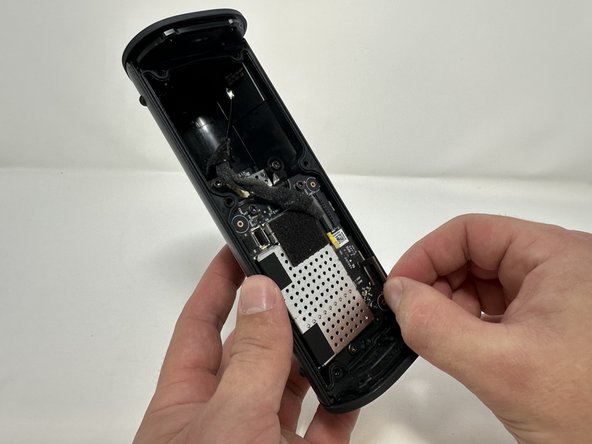
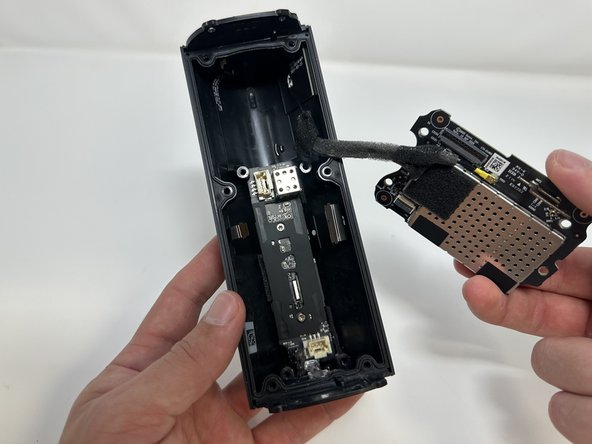
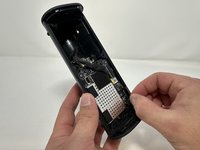
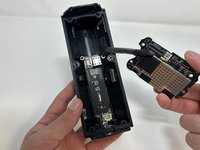
    3. Sonos Roam Battery Replacement: step 10, image 1 of 3 Sonos Roam Battery Replacement: step 10, image 2 of 3 Sonos Roam Battery Replacement: step 10, image 3 of 3
      • Grab the metal piece sticking out of the outer circuit board.

      • Pull upwards to remove the outer circuit board.

      Ask FixBot

      Add Comment

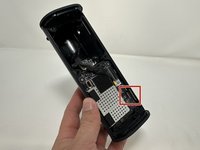
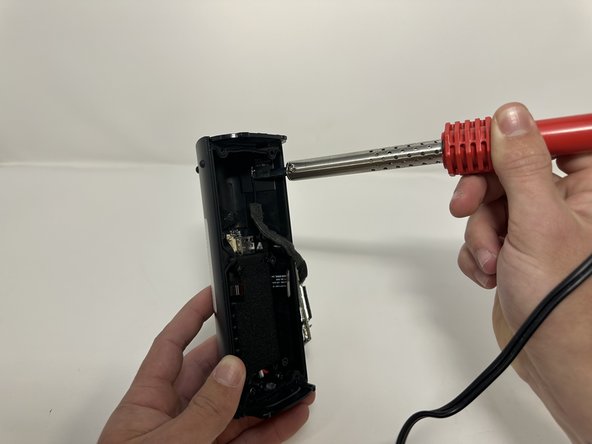
    4. Sonos Roam Battery Replacement: step 11, image 1 of 2 Sonos Roam Battery Replacement: step 11, image 2 of 2
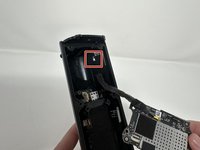
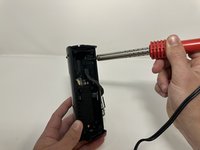
      • Soldering Iron is very hot and can cause injury if not used properly.

      • Use a soldering iron to desolder the outer circuit board from the speaker casing.

      Ask FixBot

      Add Comment

    1. Sonos Roam Battery Replacement, Battery: step 12, image 1 of 2 Sonos Roam Battery Replacement, Battery: step 12, image 2 of 2
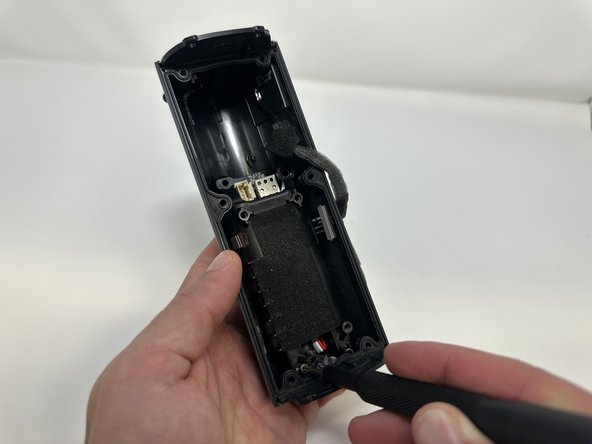
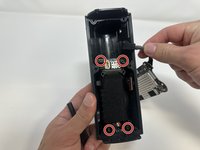
      • Use the TR10 Torx screwdriver to remove the four 7 mm screws.

      Ask FixBot

      Add Comment

    2. Sonos Roam Battery Replacement: step 13, image 1 of 2 Sonos Roam Battery Replacement: step 13, image 2 of 2
      Tool used on this step:
      Tweezers
      $4.99
      Buy
      • Use the tweezers to firmly squeeze the middle of the plug.

      • Pull the plug out to remove it from its socket.

      • Remove the battery from the device.

      Ask FixBot

      Add Comment

    3. Sonos Roam Battery Replacement: step 14, image 1 of 3 Sonos Roam Battery Replacement: step 14, image 2 of 3 Sonos Roam Battery Replacement: step 14, image 3 of 3
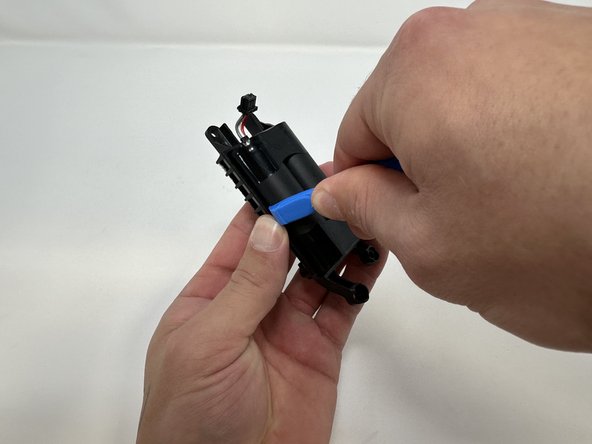
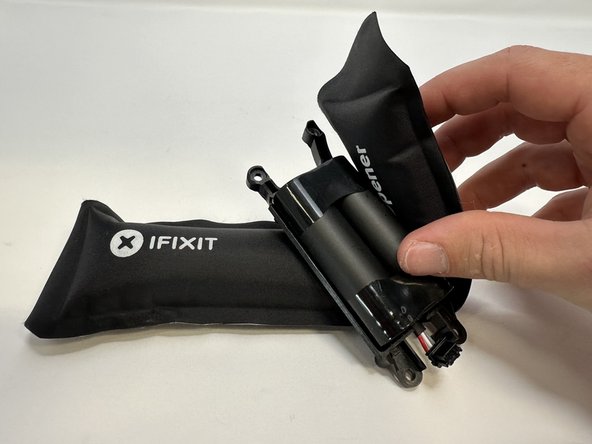
      • Use the iFixit opening tool to pry the battery out of its casing.

      • Use the iOpener, blowdryer, or a similar heating device to loosen the adhesive if having difficulty.

      Ask FixBot

      Add Comment

    4. Sonos Roam Battery Replacement: step 15, image 1 of 1
      • Remove the battery from its casing.

      Ask FixBot

      Add Comment

Conclusion

To reassemble your device, follow these instructions in reverse order.

Cancel: I did not complete this guide.

26 other people completed this guide.

Lauren Young

Member since: 09/20/23

899 Reputation

5 Guides authored

Team

17 Guide Comments

Great guide. Do you have information on the battery needed? I dont see one available from Sonos, so I presume a 3rd party is required?

mt - Reply Share
Mit welchem Kleber befestige ich die Abschlusskappen nach Abschluss des Akkutausch am besten wieder?

DocHofer - Reply Share

Fantastic instructions, saved my roam from being a brick. iOpener is worth every penny! Not a paid advertisement

msdavis4 - Reply Share

The teardown was easy with these instructions, as was the re-assembly. I replaced the battery with one from AMAZON (they have a lot of them) but no joy - the problem appears too be with the PC board or defective switch - so I bought a new Sonos ROAM 2. Oh well - everything eventually obsoletes and Sonos offered no solutions out of warrantee. Next stop - rep[lace a 3TB fusion drive on an iMac.

Richard - Reply Share

Just completed this and speaker back to working - only issue i had was step 11 and the wire became disconnected form the board end, not the case - end. All good though as a resoldered it to the board. Was a little nervous about that as I know some boards can't take the heat from resoldering directly to the board. So far so good - enjoying my Jazz channel right now :)

avro57 - Reply Share

Add Comment

View Statistics:

Past 24 Hours: 24

Past 7 Days: 209

Past 30 Days: 957

All Time: 35,617