
Sol Republic Deck Bluetooth Button Replacement

Jonathan Holtman and 2 other contributors
Last updated on May 26, 2017
Views: 927
View statistics:
- Past 24 Hours:
- 1
- Past 7 Days:
- 17
- Past 30 Days:
- 77
- All Time:
- 927
Comments: 2
2 comments on steps.
Completed: 1 2
1 person has marked this guide "completed." Will you be next?
2 people have marked this guide "completed." Including you — great job!
Favorites: 0 1
No one has favorited (and subscribed to) this guide. Will you be the first?
1 person has favorited (and subscribed to) this guide — and that's you!
Missing Details
Some of this guide's details are missing. Help users by adding tools, difficulty, or time.
Introduction
Go to step 1 ↓This guide will teach you how to replace the Bluetooth button on the Sol Republic Deck.
What you need
Tools
-
Spudger4.9


-
-
-
With plastic spudger wedge in between the top and bottom casings to force sepearation . Exposing the inside components of the Republic Deck.
 Ask FixBot
-
-
-
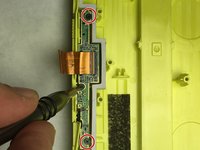
Use the screwdriver to unscrew two 3.6mm Phillips #0 screws securing the plastic plate.
-
-
-
Plug in de-soldering kit and wait 3 minutes for the solder to heat up.
-
Use the tip of your soldering iron to heat the old solder unit and apply until it melts.
-
Remove speaker wires connecting the speaker to the circuit board.
-
-
-
-
Unscrew fifteen 6.2mm Phillips #0 screws and lift the black plastic plate from the case.
-
-
-
Remove the three 3.6mm Phillips #0 screws.
-
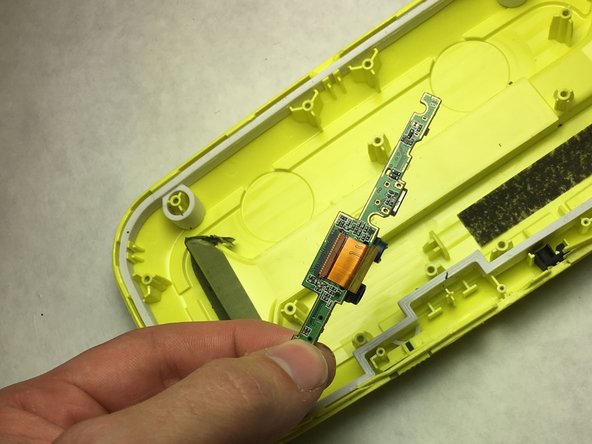
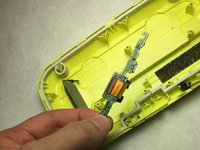
Remove the circuit board containing the BlueTooth button.
-
-


To reassemble your device, follow these instructions in reverse order.
Cancel: I did not complete this guide.
One other person completed this guide.

Team

IUPUI, Team S3-G1, Baechle Spring 2017 Member of IUPUI, Team S3-G1, Baechle Spring 2017
IUPUI-BAECHLE-S17S3G1
3 Members
36 Guides authored
