
ShredLights SL-FX Battery Reattachment

Melissa and one other contributor
Last updated on May 12, 2026
Views: 346
View statistics:
- Past 24 Hours:
- 1
- Past 7 Days:
- 13
- Past 30 Days:
- 68
- All Time:
- 346
Comments: 0
No one has left comments on this guide. Will you be first?
Go to guide commentsCompleted: 0 1
No one has marked this guide "completed." Will you be the first?
1 person has marked this guide "completed." It's you — great job!
Favorites: 0 1
No one has favorited (and subscribed to) this guide. Will you be the first?
1 person has favorited (and subscribed to) this guide — and that's you!
Introduction
Go to step 1 ↓ShredLights rechargeable RGB LED lights mount to your skateboard or longboard to be visible at night. The SL-FX model, the predecessor to the SL-FX+, is not Bluetooth compatible.
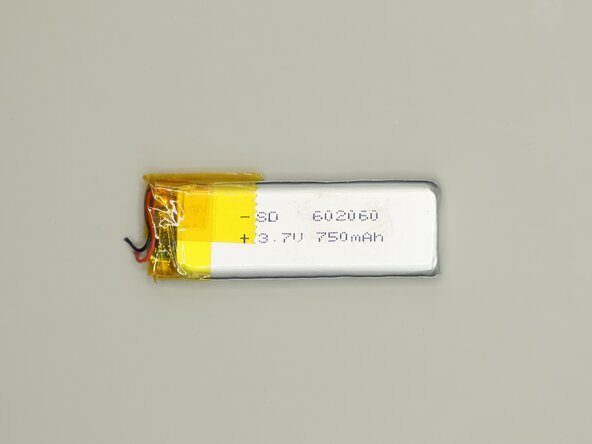
This guide shows how to reconnect the battery wire to the light. In this case the battery adhesive failed, after which the board vibrations caused the wires to fatigue and break off at the PCB interface. This repair requires basic soldering skills.
Below are some tutorials:
What you need
Tools


-
-
-
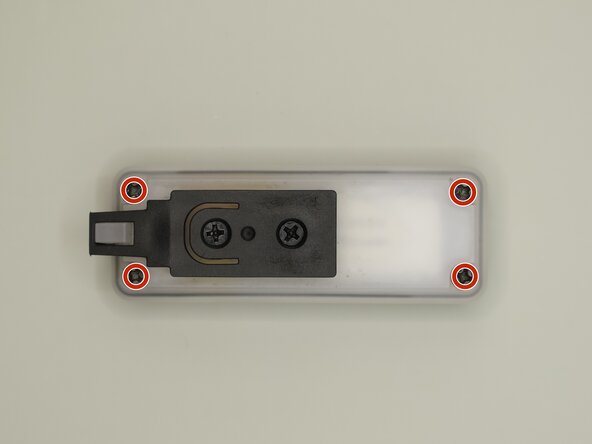
Using a Phillips #2 screwdriver, remove the four corner screws.
-
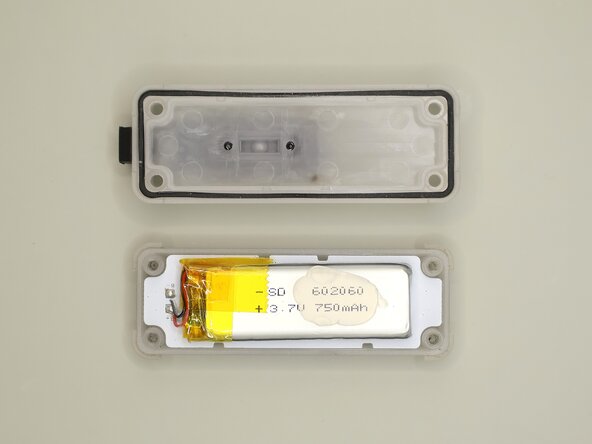
Remove the rear case half.
 Ask FixBot
-
-
-
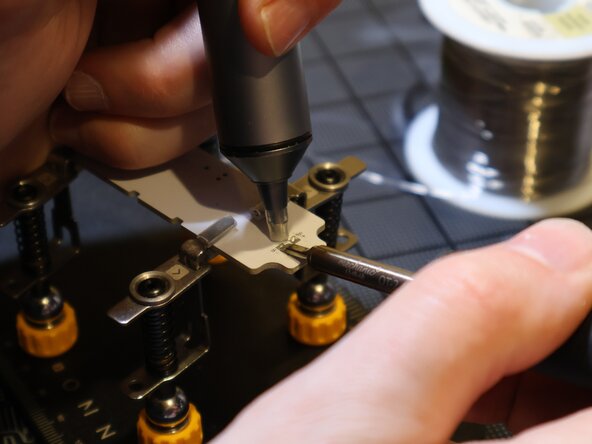
Mount the PCB into a vice or helping hands.
-
De-solder the broken wire ends from the PCB.
-
Remove any solder from the through-hole pads.
-
-
-
Solder the battery wires to the through-hole pads.
-
Clean off the excess flux using isopropanol.
-
-
-
Clean the surface of the battery opposite the PCB using isopropanol.
-
Apply an appropriately sized piece of VHB tape.
-
-
-
Remove the gasket from the rear case half.
-
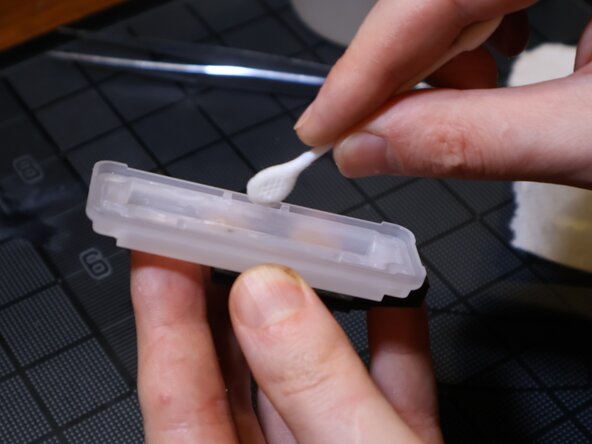
Clean the gasket groove using isopropyl alcohol and a cotton swab.
-
-
-
-
Lightly grease the gasket with silicone grease and re-install into the rear case half.
-
Clean the inside surface of the rear case half using isopropyl alcohol.
-
-
-
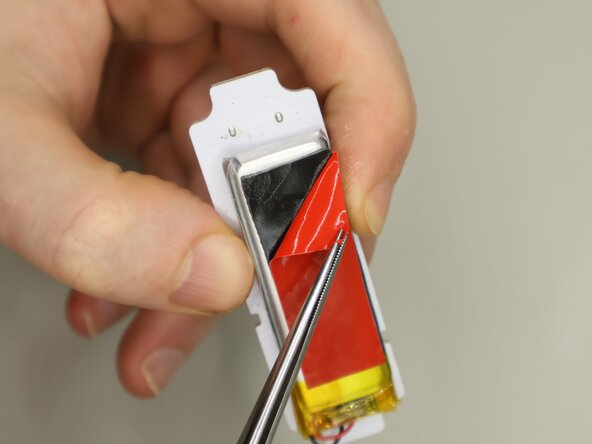
Peel off the backing film from the VHB tape on the battery.
-
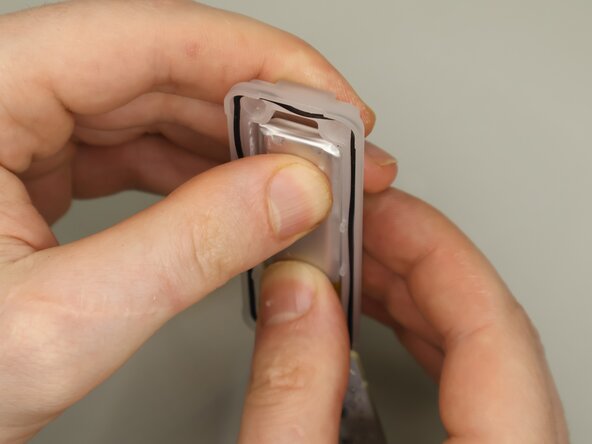
Install PCB into the rear case half with the battery facing inwards, and press together with moderate force.
-
-
-
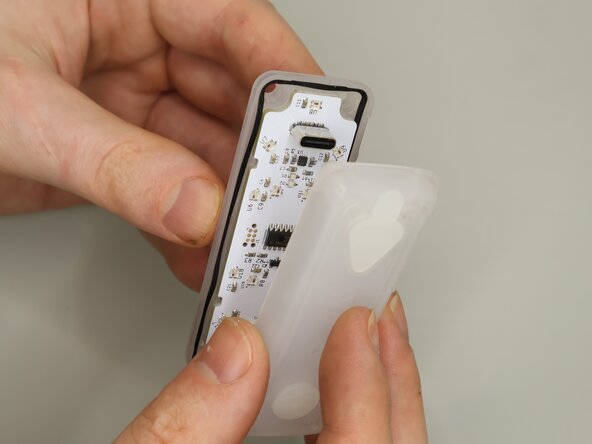
Press the front case half into place, making sure to align the USB-C port with its hole in the front case half.
-
-














Team

York University, Team 3-2, Woodhouse Winter 2026 Member of York University, Team 3-2, Woodhouse Winter 2026
YORK-WOODHOUSE-W26S3G2
2 Members
12 Guides authored
