Free Shipping on Domestic Orders $75+

Sanyo VPC-T850 Lens Replacement

What you need

  1. Sanyo VPC-T850 Lens Replacement, Battery: step 1, image 1 of 1
    • Make sure the camera is powered off by pressing and holding the small, square button embedded in the top rim of the camera.

    Ask FixBot

    Add Comment

  2. Sanyo VPC-T850 Lens Replacement: step 2, image 1 of 1
    • Locate the hatch found on the bottom of the camera.

    • Open the hatch by gripping the small notch and sliding it outwards.

    Ask FixBot

    Add Comment

  3. Sanyo VPC-T850 Lens Replacement: step 3, image 1 of 1
    • Push the small, plastic arm out of the way to free the battery.

    • The battery is spring loaded and will pop out slightly when the arm is moved.

    Ask FixBot

    Add Comment

  4. Sanyo VPC-T850 Lens Replacement: step 4, image 1 of 1
    • Pull the battery out of the camera and close the hatch.

    • To reinsert, there is a triangle on the battery indicating which direction to slide it in.

    Ask FixBot

    Add Comment

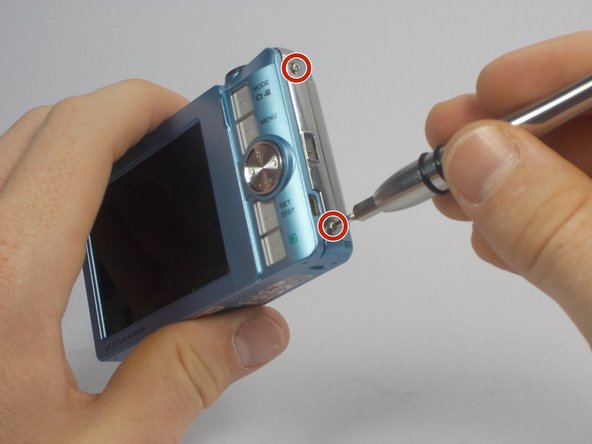
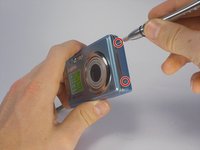
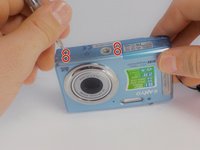
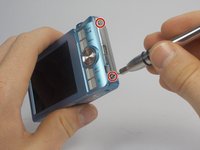
  5. Sanyo VPC-T850 Lens Replacement, Outer Casing: step 5, image 1 of 3 Sanyo VPC-T850 Lens Replacement, Outer Casing: step 5, image 2 of 3 Sanyo VPC-T850 Lens Replacement, Outer Casing: step 5, image 3 of 3
    • Using your Phillips #000 Screwdriver, remove the eight screws located around the sides and bottom of the camera.

    • Be sure to keep track of the side each screw comes from, as they come in different lengths.

    Ask FixBot

    Add Comment

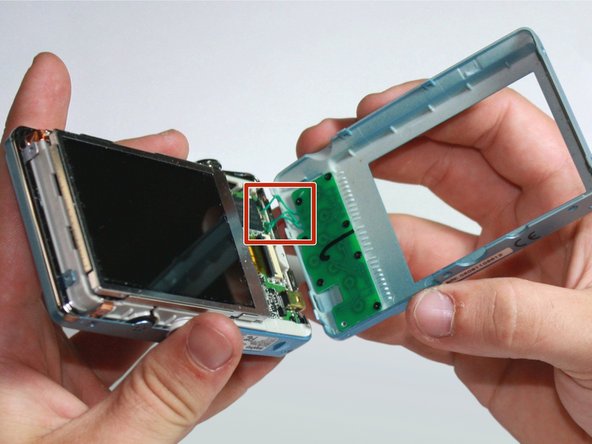
  6. Sanyo VPC-T850 Lens Replacement: step 6, image 1 of 2 Sanyo VPC-T850 Lens Replacement: step 6, image 2 of 2
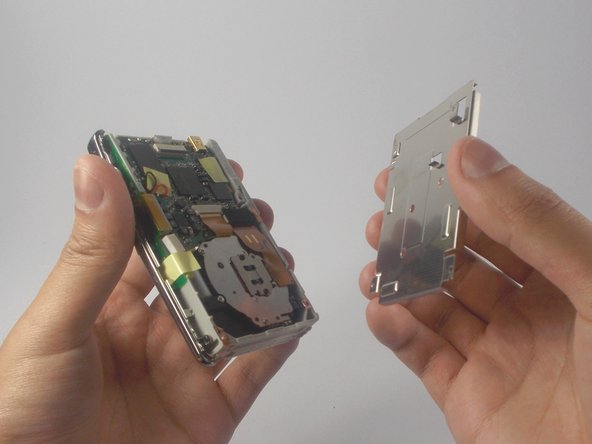
    • Orient the camera so the display is facing up.

    • Gently pull off the rear panel surrounding the display.

    • There are still three green wires connecting the panel to the rest of the camera.

    • Use your prying tool if you have difficulties removing the panel by hand.

    Ask FixBot

    Add Comment

  7. Sanyo VPC-T850 Lens Replacement: step 7, image 1 of 1
    • Remove the eight black screws connecting the keypad circuit board to the rear panel.

    Ask FixBot

    Add Comment

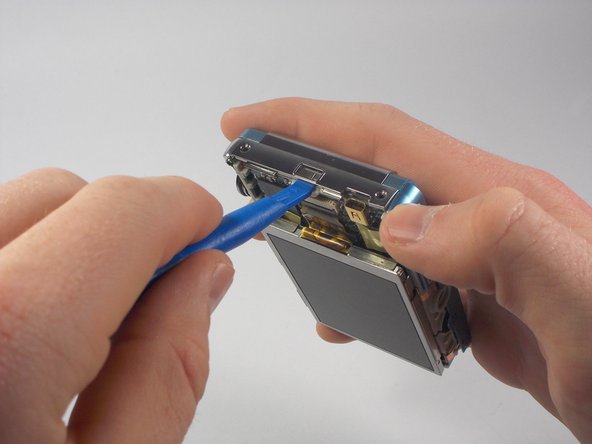
  8. Sanyo VPC-T850 Lens Replacement: step 8, image 1 of 2 Sanyo VPC-T850 Lens Replacement: step 8, image 2 of 2
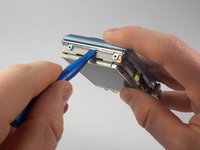
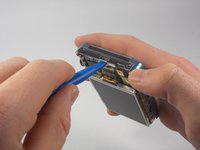
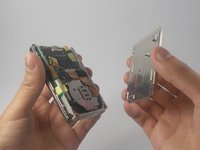
    • With a plastic opening tool, gently remove the chrome framing on the left and right sides of the camera.

    Ask FixBot

    Add Comment

  9. Sanyo VPC-T850 Lens Replacement: step 9, image 1 of 1
    • Flip the camera over so the lens is facing up.

    • Gently lift up the front panel to remove it from the rest of the camera.

    • Use your plastic opening tool if you have difficulties removing the panel by hand.

    Ask FixBot

    Add Comment

  10. Sanyo VPC-T850 Lens Replacement, LCD Display: step 10, image 1 of 1
    • Flip the device over to where the display is located.

    • Using your plastic opening tool, lift the display out of its metal housing.

    Ask FixBot

    Add Comment

  11. Sanyo VPC-T850 Lens Replacement: step 11, image 1 of 1
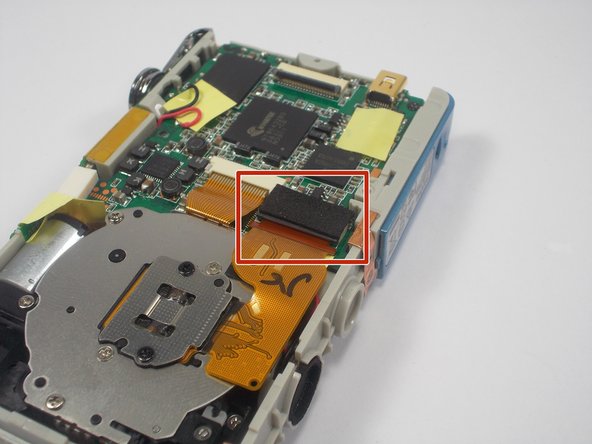
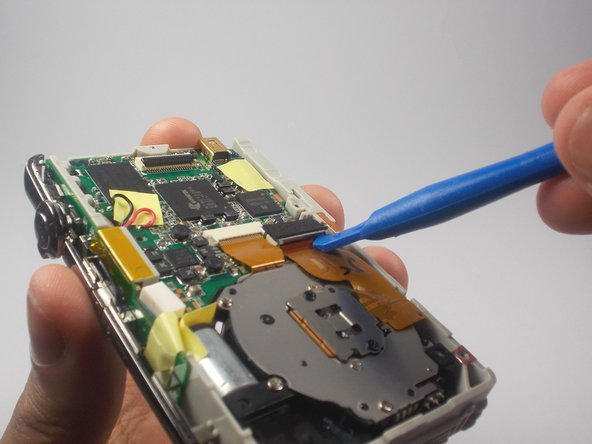
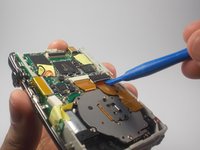
    • Locate the orange ribbon connecting the display to the camera.

    • Using your plastic opening tool, gently lift the black bar holding the orange ribbon to the camera.

    Ask FixBot

    Add Comment

  12. Sanyo VPC-T850 Lens Replacement: step 12, image 1 of 1
    • With two fingers held firmly on the display, gently pull the orange ribbon out of the camera.

    • Pull slowly to avoid severing the orange ribbon from the display.

    Ask FixBot

    Add Comment

  13. Sanyo VPC-T850 Lens Replacement, Lens: step 13, image 1 of 1
    • Orient the camera so the lens is facing up.

    • Locate and remove the two screws connecting the lens to the camera.

    Ask FixBot

    Add Comment

  14. Sanyo VPC-T850 Lens Replacement: step 14, image 1 of 2 Sanyo VPC-T850 Lens Replacement: step 14, image 2 of 2
    • Flip the camera back around to the other side.

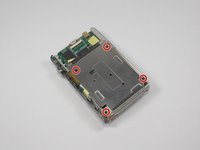
    • Remove the four black screws connecting the metal display holder to the camera.

    • You do not have to remove the three screws located near the center.

    • Gently lift the display holder to reveal the underside of the lens.

    Ask FixBot

    Add Comment

  15. Sanyo VPC-T850 Lens Replacement: step 15, image 1 of 3 Sanyo VPC-T850 Lens Replacement: step 15, image 2 of 3 Sanyo VPC-T850 Lens Replacement: step 15, image 3 of 3
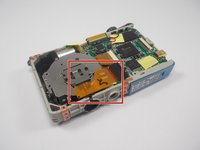
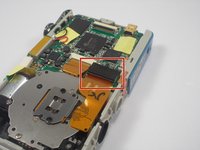
    • Locate where the larger orange ribbon is plugged into the motherboard.

    • There should be a rectangular foam piece covering the part it is plugged into.

    • Using your plastic opening tool, gently lift the edge of the rectangle where the orange ribbon is connected.

    Ask FixBot

    Add Comment

  16. Sanyo VPC-T850 Lens Replacement: step 16, image 1 of 1
    • With two fingers, slowly lift the lens out of its compartment.

    Ask FixBot

    Add Comment

  17. Sanyo VPC-T850 Lens Replacement: step 17, image 1 of 1
    • With the lens between your thumb and index finger, pull to delicately slide the ribbons out of their connections.

    • The lens should be placed back into the compartment before attempting to reconnect the ribbons.

    Ask FixBot

    Add Comment

Conclusion

To reassemble your device, follow these instructions in reverse order.

Cancel: I did not complete this guide.

One other person completed this guide.

James Robinson

Member since: 10/27/15

459 Reputation

4 Guides authored

Team

UMass Dartmouth, Team 5-5, Gulbrandsen Fall 2015 Member of UMass Dartmouth, Team 5-5, Gulbrandsen Fall 2015

UMASSD-GULBRANDSEN-F15S5G5

3 Members

10 Guides authored

0 Guide Comments

Add Comment

View Statistics:

Past 24 Hours: 0

Past 7 Days: 6

Past 30 Days: 44

All Time: 781