
Samsung WB35F Screen Replacement

Sarmad Khan and one other contributor
Last updated on Jun 18, 2015
Views: 1.6K
View statistics:
- Past 24 Hours:
- 1
- Past 7 Days:
- 17
- Past 30 Days:
- 101
- All Time:
- 1,604
Comments: 0
No one has left comments on this guide. Will you be first?
Go to guide commentsCompleted: 0 1
No one has marked this guide "completed." Will you be the first?
1 person has marked this guide "completed." It's you — great job!
Favorites: 0 1
No one has favorited (and subscribed to) this guide. Will you be the first?
1 person has favorited (and subscribed to) this guide — and that's you!
Introduction
Go to step 1 ↓This guide will give user step by step instructions on how to replace damaged or scratched screen of the camera.
What you need
Parts
Tools


-
-
-
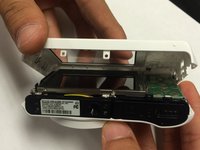
The first thing to do will be unscrew all the screws using Phillips #000 Screwdriver.
 Ask FixBot
-
-
-
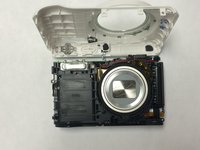
Once you open the camera case, you will be able to work on any part of the camera.
-
-
-
-
-
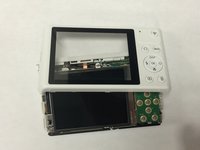
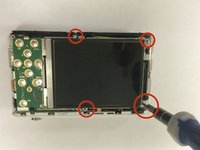
Open all the screws around the screen using Phillips #000 Screwdriver.
-
-
-
-
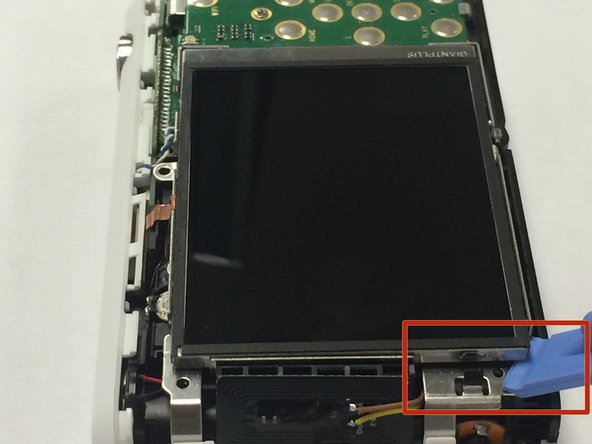
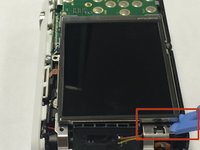
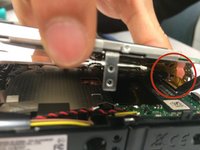
First disconnect the ribbon by using spudger.
-
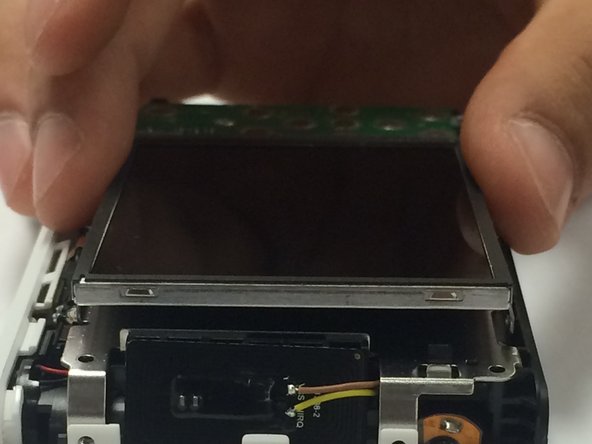
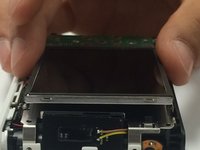
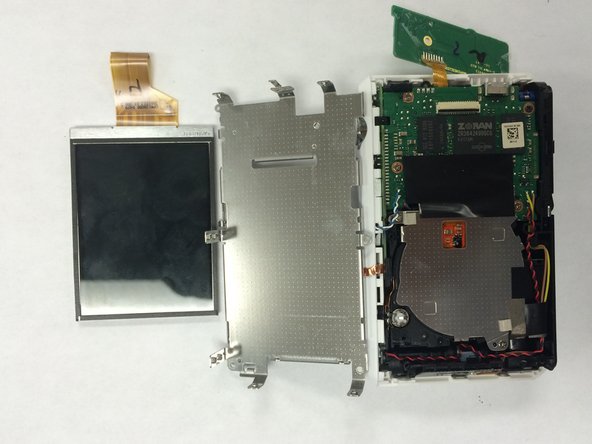
Carefully take out the old screen and replace it with a new screen.
-
-




To reassemble your device, follow these instructions in reverse order.

Team

USF Tampa, Team 1-6, Tanski Winter 2015 Member of USF Tampa, Team 1-6, Tanski Winter 2015
USFT-TANSKI-W15S1G6
4 Members
60 Guides authored
