Free Shipping on Domestic Orders $75+

Samsung WB1100F Motherboard Replacement

Views: 1.9K

View statistics:

Past 24 Hours:
3
Past 7 Days:
17
Past 30 Days:
102
All Time:
1,897
Comments: 1

1 guide comment.

Go to guide comments
Completed: 2

2 people have marked this guide "completed." Will you be next?

Favorites: 0

No one has favorited (and subscribed to) this guide. Will you be the first?

Time Required: 45 minutes
Difficulty: Very difficult
Needs More Images

A few more images would make this guide's procedures crystal clear.

Samsung WB1100F Motherboard Replacement

Introduction

Go to step 1 ↓

This guide will show you how to replace the motherboard on the Samsung WB1100F. It will show you a step by step replacement guide of how to remove all components leading up to and including the motherboard.

What you need

Tools

    1. Samsung WB1100F Motherboard Replacement, LCD Screen Cover: step 1, image 1 of 2 Samsung WB1100F Motherboard Replacement, LCD Screen Cover: step 1, image 2 of 2
      • Remove six 1.2 mm Phillips #00 screws connected to the tripod dock and adjacent screws.

      • Remove six 1.2 mm Phillips #00 screws from the side of the camera.

      Ask FixBot

      Add Comment

    2. Samsung WB1100F Motherboard Replacement: step 2, image 1 of 2 Samsung WB1100F Motherboard Replacement: step 2, image 2 of 2
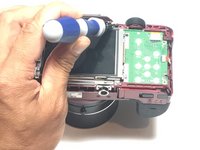
      • Use a plastic opening tool or spudger if available.

      • Using the flat end of a spudger, loosen the connection between the back panel and the device. Remove the back panel using your hands.

      Ask FixBot

      Add Comment

    1. Samsung WB1100F Motherboard Replacement, LCD Screen: step 3, image 1 of 2 Samsung WB1100F Motherboard Replacement, LCD Screen: step 3, image 2 of 2
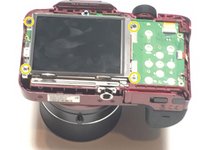
      • Remove four 1.2 mm Phillips #1 screws connected to the LCD screen.

      Ask FixBot

      Add Comment

    2. Samsung WB1100F Motherboard Replacement: step 4, image 1 of 3 Samsung WB1100F Motherboard Replacement: step 4, image 2 of 3 Samsung WB1100F Motherboard Replacement: step 4, image 3 of 3
      Tool used on this step:
      Tweezers
      $4.99
      Buy
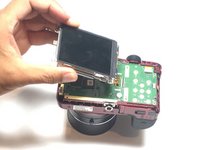
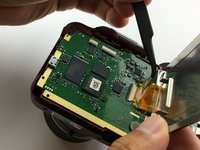
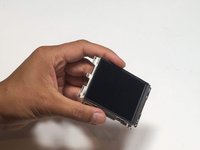
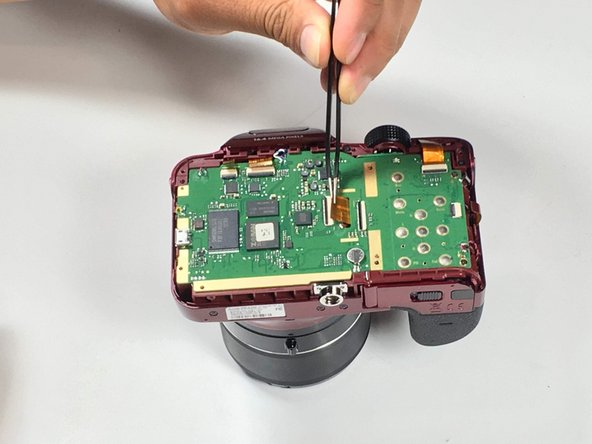
      • Flip the LCD screen over to reveal the display cable.

      • Use the tip of a spudger or your fingernail to flip up the small retaining flap on the display cable ZIF connector.

      • Be sure you are prying up on the hinged retaining flap, not the connector itself.

      • Using a pair of tweezers, remove the ribbon cable from its socket on the motherboard.

      • The white line on this ribbon cable marks the edge of the connection area. To reinstall, insert the cable into the connector up to this line, and then close the retaining flap. If the cable doesn’t insert easily up to (or very near to) this line, it’s probably misaligned and needs to be gently removed and repositioned.

      Ask FixBot

      Add Comment

    1. Samsung WB1100F Motherboard Replacement, Motherboard: step 5, image 1 of 1
      • Remove two 1.2 Phillips #00 screws connected to the motherboard.

      Ask FixBot

      Add Comment

    2. Samsung WB1100F Motherboard Replacement: step 6, image 1 of 1
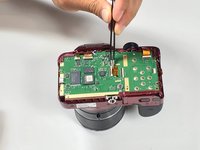
      • Desolder five wires connected to the camera motherboard.

      Ask FixBot

      Add Comment

    3. Samsung WB1100F Motherboard Replacement: step 7, image 1 of 2 Samsung WB1100F Motherboard Replacement: step 7, image 2 of 2
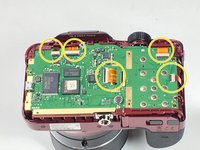
      • Use the tip of a spudger or your fingernail to flip up the small retaining flaps on the five ZIF connectors on the motherboard.

      • Be sure you are prying up on the hinged retaining flap, not the connector itself.

      • Detach the five ribbon cables from the camera motherboard.

      • The white line on the ribbon cables mark the edge of the connection area. To reinstall, insert the cables into the connector up to this line, and then close the retaining flap. If a cable doesn’t insert easily up to (or very near to) this line, it’s probably misaligned and needs to be gently removed and repositioned.

      Ask FixBot

      Add Comment

    4. Samsung WB1100F Motherboard Replacement: step 8, image 1 of 1
      • Gently remove the motherboard.

      Ask FixBot

      Add Comment

Conclusion

To reassemble your device, follow these instructions in reverse order.

Cancel: I did not complete this guide.

2 other people completed this guide.

Jesse Lindsey

Member since: 05/13/16

581 Reputation

5 Guides authored

Team

Metro State, Team 1-1, Carpenter SU 2016 Member of Metro State, Team 1-1, Carpenter SU 2016

MSU-CARPENTER-SU16S1G1

3 Members

60 Guides authored

1 Guide Comment

Great Jesse, I can say the same applies for the WB100, I get one and I already disassembly it to fix humidity condensation in the top buttons, unfortunately the flash stops working..

Congratulation for your post. Enrique

egyr - Reply Share

Add Comment

View Statistics:

Past 24 Hours: 3

Past 7 Days: 17

Past 30 Days: 102

All Time: 1,897