Introduction
This guide will assist users to replace a damaged or nonoperational jog button.
What you need
-
-
-
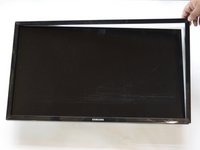
Start by removing the screen bezel.
-
Use a pair of spudgers to pry between the bezel and the rest of the monitor.
-
lay monitor on its back and pull off screen cover.
 Ask FixBot
-
-
-
-
Flip the monitor over so that it is facedown.
-
remove the single screw in the middle using a #2 Phillips screwdriver.
-
Remove the backing to reveal the Jog Button.
-
-
-
Disconnect signal cable to power supply board.
-
Remove and replace jog button.
-
-




To reassemble your device, follow these instructions in reverse order. Ensure the bezel completely snaps in place all around monitor.
Cancel: I did not complete this guide.
3 other people completed this guide.

Team

Cal Poly, Team S11-G1, Banghart Winter 2018 Member of Cal Poly, Team S11-G1, Banghart Winter 2018
CPSU-BANGHART-W18S11G1
4 Members
36 Guides authored
5 Guide Comments
the button on my monitor wasn't working anymore - pressing it didn't do anything. So I decided to follow this great guide. When I removed the top of the button and put it on again, I noticed that it worked again. Seems that there had been just to many dust.
Thanx for this guide!
