Free Shipping on Domestic Orders $75+

Samsung Series 9 NP900X3A RAM Replacement

What you need

  1. Samsung Series 9 NP900X3A RAM Replacement, Back Panel: step 1, image 1 of 1
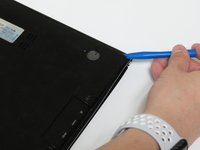
    • Locate the rubber feet at every corner of the laptop back panel. Use the ifixit prying tool, and break the adhesive between the rubber feet, and the case.

    • Screws securing the back panel underneath the adhesive will be exposed.

    • Removing the rubber feet will weaken the adhesive making reassembly difficult. Apply new adhesive if you choose to place the rubber feet back on to the device.

    Ask FixBot

    Add Comment

  2. Samsung Series 9 NP900X3A RAM Replacement: step 2, image 1 of 1
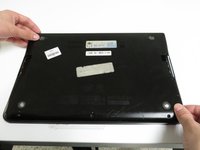
    • Use a Phillips #0 screwdriver to remove the ten 0.2mm screws from the bottom cover.

    • Keep track of the screws and their placement on the laptop. This will help make reassembly easier and more organized.

    Ask FixBot

    Add Comment

  3. Samsung Series 9 NP900X3A RAM Replacement: step 3, image 1 of 3 Samsung Series 9 NP900X3A RAM Replacement: step 3, image 2 of 3 Samsung Series 9 NP900X3A RAM Replacement: step 3, image 3 of 3
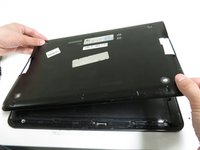
    • Find an opening on the back of the laptop. Use the plastic prying tool to help pry open the back panel of the laptop.

    • Use both hands when removing the back case cover. Too much force will bend the cover making it difficult to reassemble.

    Ask FixBot

    Add Comment

  4. Samsung Series 9 NP900X3A RAM Replacement, RAM: step 4, image 1 of 1
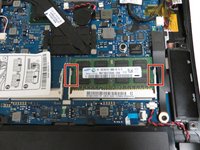
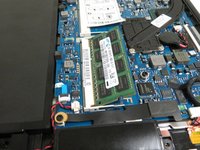
    • Identify RAM slot on the top right side of the battery.

    • Note that there are 2 RAM slots. It is possible to add another RAM unit to increase performance. (Use DDR3 RAM only.)

    Ask FixBot

    Add Comment

  5. Samsung Series 9 NP900X3A RAM Replacement: step 5, image 1 of 2 Samsung Series 9 NP900X3A RAM Replacement: step 5, image 2 of 2
    • Place your fingernail or a pry tool in between the metal retention bars and the RAM unit.

    Ask FixBot

    Add Comment

  6. Samsung Series 9 NP900X3A RAM Replacement: step 6, image 1 of 2 Samsung Series 9 NP900X3A RAM Replacement: step 6, image 2 of 2
    • Use your fingernail or pry tool to pull outward on the retention bars.

    • If done correctly, the RAM unit should pop upward at a 45 degree angle.

    Ask FixBot

    Add Comment

  7. Samsung Series 9 NP900X3A RAM Replacement: step 7, image 1 of 1
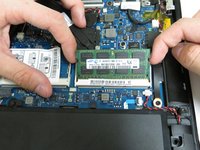
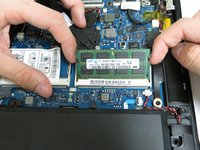
    • Pull up on the RAM unit at a 45 degree angle to release it from the retention bars.

    Ask FixBot

    Add Comment

Conclusion

To insert the replacement RAM unit, follow these instructions in reverse. If RAM unit replacement does not solve your issue, you may have a defective motherboard.

Cancel: I did not complete this guide.

4 other people completed this guide.

1 Guide Comment

Thanks for the steps!

Juan Caba - Reply Share

Add Comment

View Statistics:

Past 24 Hours: 2

Past 7 Days: 10

Past 30 Days: 55

All Time: 6,984