
Samsung S860 Motherboard Replacement

Kando Ogunrinola and 8 other contributors
Last updated on Jul 7, 2025
Views: 10K
View statistics:
- Past 24 Hours:
- 1
- Past 7 Days:
- 14
- Past 30 Days:
- 108
- All Time:
- 10,359
Comments: 0
No one has left comments on this guide. Will you be first?
Go to guide commentsCompleted: 2 3
2 people have marked this guide "completed." Will you be next?
3 people have marked this guide "completed." Including you — great job!
Favorites: 2 3
2 people have favorited (and subscribed to) this guide. Will you be next?
3 people have favorited (and subscribed to) this guide — including you!
Action Shots
Be an action hero! This guide needs images that better demonstrate how to perform specific actions.
Needs Better Images
Better photos will improve this guide. Help out by taking, editing, or uploading new ones!
Missing Steps
Oops! This guide is currently missing one or more important steps.
Mismatched Prerequisites
This guide does not have a proper prerequisite guide. Help match it to its ideal partner by finding it or writing one!
Step Trimmer
This guide has unnecessary steps. Trim them to be more concise!
Better Introduction
Improve this guide by completing or revising its introduction.
Introduction
Go to step 1 ↓The motherboard of your Samsung S860 camera contains all of the main circuits and important components necessary to make the device run efficiently. If the board is old, faulty, or damaged, this may prevent the camera from working properly.
What you need
Tools
-
Tweezers4.9


-
-
-
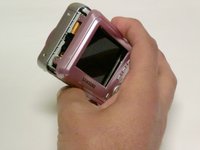
With the camera facing LCD side up, slide the battery compartment lid to the right.
-
Remove the old batteries.
 Ask FixBot
-
-
-
-
-
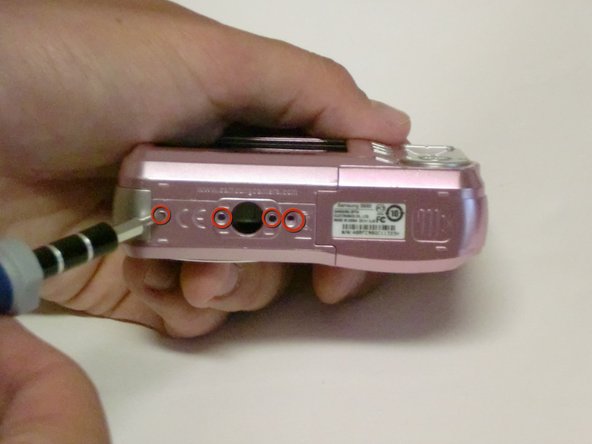
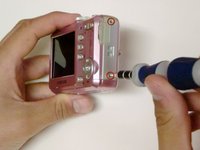
Remove all screws along the edges of the camera, using a #00 Phillips screwdriver.
-
-
-
Slide open the battery compartment cover before removing the exterior covers of the camera.
-
-
-
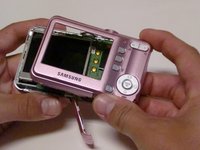
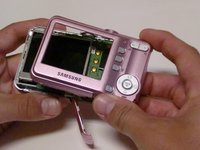
Carefully pull the back case (the side showing the LCD screen) away from the front half.
-
There are clips securing the top of the back case. Do not be afraid to use the proper amount of force to remove the back case.
-
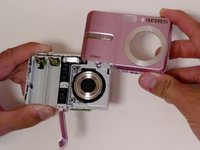
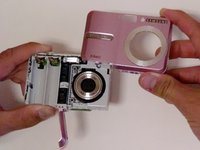
Turn the camera around to the front (the lens side). Carefully remove the front case.
-
There are also clips on the lens' side as well, so do not be afraid to use force.
-
-
-
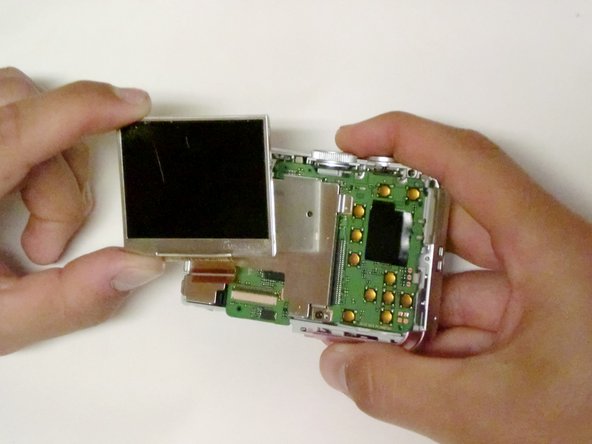
Position the camera so the LCD screen is facing you.
-
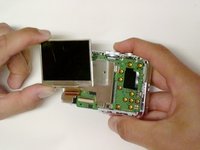
Remove the LCD screen from the screen plate.
-
Replace the broken LCD screen with the functioning LCD screen.
-
-
-
-
-
Using a #00 Phillips screwdriver, remove the six 4.3 mm screws along the edges of the camera.
-
Save them for putting the camera back together.
-
-
-
Turn the bottom edge of the camera towards you.
-
Slide open the battery chamber.
-
This must be done to remove the exterior covers of the camera.
-
-
-
Carefully pull the back of the camera (the LCD screen side) away from the front.
-
Turn the camera to the front (the flash side) and pull the case off.
-
There are clips on both sides of the case that secure it to the camera, so you may need to use a bit of force to remove the case.
-
-
-
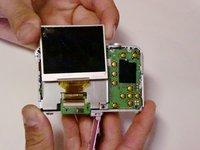
Orient the camera so the LCD screen is facing you.
-
Remove any tape holding the screen down.
-
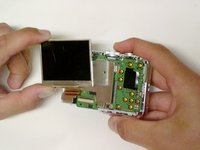
Lift the LCD screen from the screen plate.
-
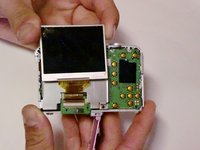
Lift the hinged lip on the camera body where the ribbon cable enters the connector.
-
Remove the ribbon from the logic board by gently pulling it straight out.
-
Try not to kink or crease the cable.
-
-
-
-
Using a #00 Philips screwdriver, remove the two 4.5 mm screws from the screen plate.
-
Separate the screen plate and logic board.
-
-
-
Locate the brown ribbon cable attached to the upper left edge of the logic board.
-
Remove this ribbon by gently pulling in the opposite direction of the logic board.
-
-
-
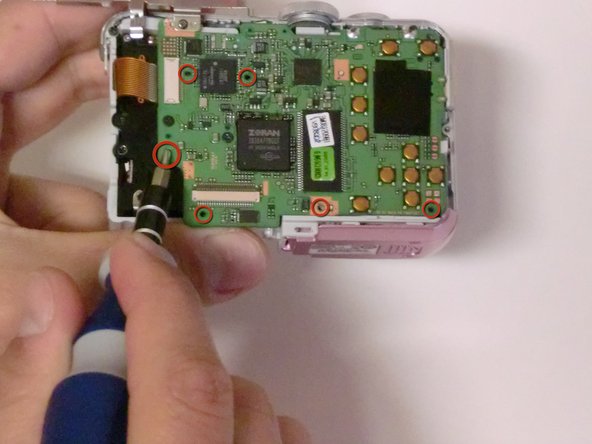
Using a #00 Philips screwdriver, remove the three 3.32 mm screws connecting the logic board to the camera.
-
Separate the logic board and the core of the camera.
-
-
-
Separate the logic board by carefully pulling the logic board away from the camera.
-
Be careful not to damage the battery compartment. The battery sensors are attached to the logic board, so be gentle.
-
The USB connector is going to want to hang up on the housing, but once you have that free, the battery leads will slide out relatively easily.
-
-




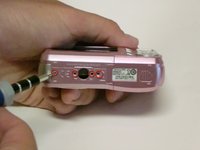


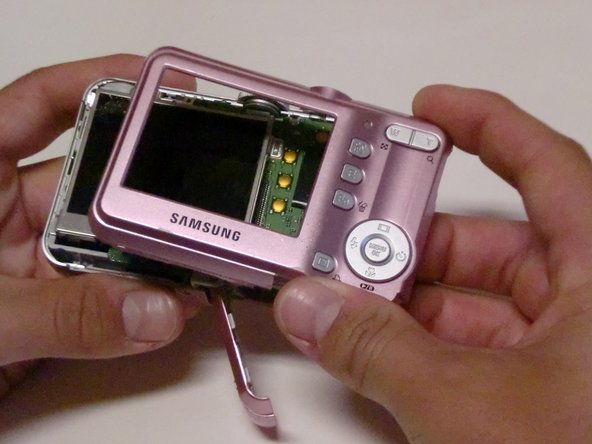
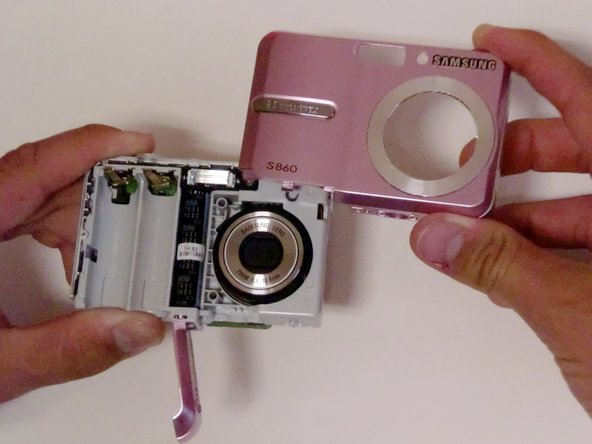
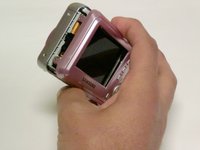





To reassemble your device, follow these instructions in reverse order. Take your e-waste to an R2 or e-Stewards certified recycler.
Cancel: I did not complete this guide.
2 other people completed this guide.

Team

Cal Poly, Team 33-72, Johann Spring 2010 Member of Cal Poly, Team 33-72, Johann Spring 2010
CPSU-JOHANN-S10S33G72
4 Members
36 Guides authored
