Free Shipping on Domestic Orders $75+

Samsung NP305E5A-A03US RAM Replacement

What you need

  1. Samsung NP305E5A-A03US RAM Replacement, Hard Drive: step 1, image 1 of 1
    • Unscrew the 3.5mm screws using a Phillips J0 Screwdriver by rotating the screwdriver in the counter clockwise direction.

    Ask FixBot

    Add Comment

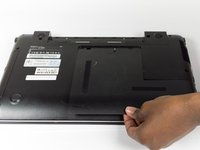
  2. Samsung NP305E5A-A03US RAM Replacement: step 2, image 1 of 1
    • Wedge the plastic opening tool between the L-shaped back panel to slide the panel off.

    • Note this may take force. If you have difficulties using the plastic opening tool, try to use your hands to pull the panel off.

    Ask FixBot

    Add Comment

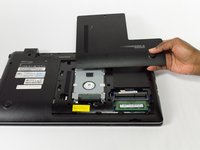
  3. Samsung NP305E5A-A03US RAM Replacement: step 3, image 1 of 2 Samsung NP305E5A-A03US RAM Replacement: step 3, image 2 of 2
    • Pull the panel towards you to remove the panel.

    Ask FixBot

    Add Comment

  4. Samsung NP305E5A-A03US RAM Replacement: step 4, image 1 of 1
    • Unscrew the three 3.5mm screws using a Phillips J0 Screwdriver by rotating the screwdriver in the counter clockwise direction.

    • Unscrew the one 4.45mm screws using a Phillips J0 Screwdriver by rotating the screwdriver in the counter clockwise direction.

    Ask FixBot

    Add Comment

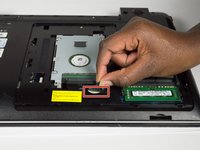
  5. Samsung NP305E5A-A03US RAM Replacement: step 5, image 1 of 2 Samsung NP305E5A-A03US RAM Replacement: step 5, image 2 of 2
    • Pull the cord that connects the Hard Drive to the Motherboard to disconnect it.

    Ask FixBot

    Add Comment

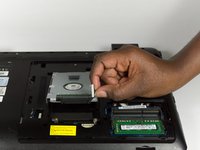
  6. Samsung NP305E5A-A03US RAM Replacement: step 6, image 1 of 1
    • Remove the Hard Drive by lifting it towards you.

    Ask FixBot

    Add Comment

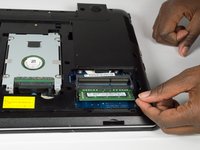
  7. Samsung NP305E5A-A03US RAM Replacement, RAM: step 7, image 1 of 1
    • Place your thumbs on the metal tabs.

    • Push outwards on the metal tabs to release the RAM.

    Ask FixBot

    Add Comment

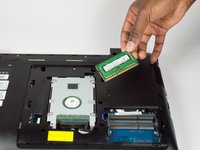
  8. Samsung NP305E5A-A03US RAM Replacement: step 8, image 1 of 2 Samsung NP305E5A-A03US RAM Replacement: step 8, image 2 of 2
    • Pull out the RAM towards you to remove it from the laptop.

    Ask FixBot

    Add Comment

Conclusion

To reassemble your device, follow these instructions in reverse order.

Cancel: I did not complete this guide.

2 other people completed this guide.

Julia Dotter

Member since: 10/31/16

224 Reputation

1 Guide authored

Team

Baylor, Team 5-7, Williams Fall 2016 Member of Baylor, Team 5-7, Williams Fall 2016

BU-WILLIAMS-F16S5G7

3 Members

5 Guides authored

0 Guide Comments

Add Comment

View Statistics:

Past 24 Hours: 1

Past 7 Days: 4

Past 30 Days: 33

All Time: 772