Introduction
If you find that your Samsung ATIV Book 2 has begun to operate slowly or is having issues with blue screens it may be time to replace the RAM. In this guide you will learn to do so.
What you need
-
-
-
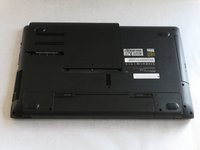
Begin with the laptop lying to its back revealing its underside.
-
Locate the two latches on the bottom of the laptop. Slide the latches inward until a faint click is heard.
 Ask FixBot
-
-
-
-
-
-
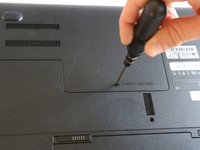
Once the screw holding the cover down has been removed the cover can then be removed by sliding the cover in the direction of the gray arrow on the laptop.
-
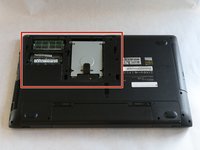
The cover can then be removed to reveal the laptops RAM boards and also the laptops hard drive.
-
-
-
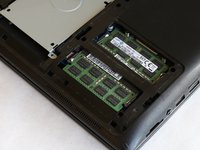
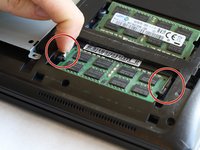
The RAM boards are each held in place by a pair of spring latches (indicated by red circles) which must be disengaged.
-
To disengage the latches you must push them gently outwards until a soft click is heard.
-
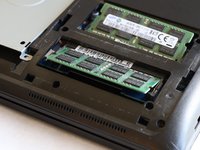
If you are successful in disengaging the latches the RAM board will pop upwards allowing for easy removal.
-
-
-
You can now pull the RAM board from the housing freeing up space for your new replacement RAM board.
-





To reassemble your device, follow these instructions in reverse order.
Cancel: I did not complete this guide.
One other person completed this guide.

Team

UMass Dartmouth, Team S9-G1, Martin Spring 2017 Member of UMass Dartmouth, Team S9-G1, Martin Spring 2017
UMASSD-MARTIN-S17S9G1
3 Members
60 Guides authored
