Free Shipping on Domestic Orders $75+

Samsung NP-NC10-KA02US RAM Replacement

What you need

  1. Samsung NP-NC10-KA02US RAM Replacement, Battery: step 1, image 1 of 2 Samsung NP-NC10-KA02US RAM Replacement, Battery: step 1, image 2 of 2
    • Locate the external battery on the bottom side of the device.

    • Locate the tab on the right side of the battery.

    • Shift the tab to the left.

    Ask FixBot

    Add Comment

  2. Samsung NP-NC10-KA02US RAM Replacement: step 2, image 1 of 1
    • Locate the tab on the left side of the device's battery.

    • Push the left tab to the right.

    Ask FixBot

    Add Comment

  3. Samsung NP-NC10-KA02US RAM Replacement: step 3, image 1 of 1
    • Pull the battery up from the device.

    Ask FixBot

    Add Comment

  4. Samsung NP-NC10-KA02US RAM Replacement, Back Plate: step 4, image 1 of 1
    • Locate the 14, 3.93 mm, screws that need to be removed on the base of the computer.

    Ask FixBot

    Add Comment

  5. Samsung NP-NC10-KA02US RAM Replacement: step 5, image 1 of 1
    • Remove all 14 of the 3.93 mm screws using a PH1 screw bit.

    Ask FixBot

    Add Comment

  6. Samsung NP-NC10-KA02US RAM Replacement: step 6, image 1 of 2 Samsung NP-NC10-KA02US RAM Replacement: step 6, image 2 of 2
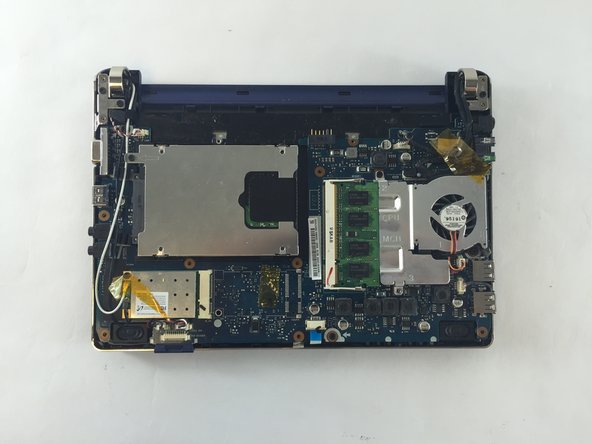
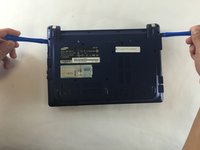
    • Using two plastic opening tools remove the back plate.

    • These plastic opening tools have a flat-head that extends as a wedge which are utilized to separate pressure fit plastic components without causing any damage to them.

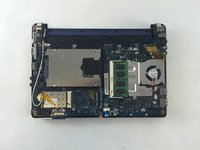
    • The back plate is now removed exposing all of the hardware components.

    Ask FixBot

    Add Comment

  7. Samsung NP-NC10-KA02US RAM Replacement, Fan: step 7, image 1 of 2 Samsung NP-NC10-KA02US RAM Replacement, Fan: step 7, image 2 of 2
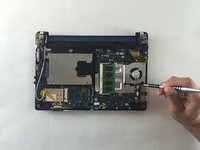
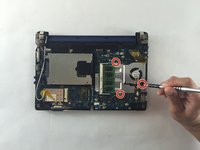
    • Remove the three screws holding the fan using a 3.9mm screwdriver.

    • All three screws need to be removed in order to continue on to next step.

    Ask FixBot

    Add Comment

  8. Samsung NP-NC10-KA02US RAM Replacement: step 8, image 1 of 1
    • Unplug the wires connected to the fan using a plastic opening tool.

    Ask FixBot

    Add Comment

  9. Samsung NP-NC10-KA02US RAM Replacement: step 9, image 1 of 1
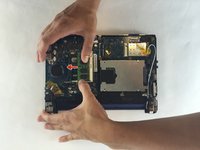
    • You are now able to carefully detach the fan from the base.

    Ask FixBot

    Add Comment

  10. Samsung NP-NC10-KA02US RAM Replacement, RAM: step 10, image 1 of 1
    • After detaching the fan, you are now able to remove the RAM by extending the two side bars out

    • During this process, the computer needs to be shut off. Other components could be damaged and the computer would not be able to recognize the RAM properly.

    Ask FixBot

    Add Comment

  11. Samsung NP-NC10-KA02US RAM Replacement: step 11, image 1 of 2 Samsung NP-NC10-KA02US RAM Replacement: step 11, image 2 of 2
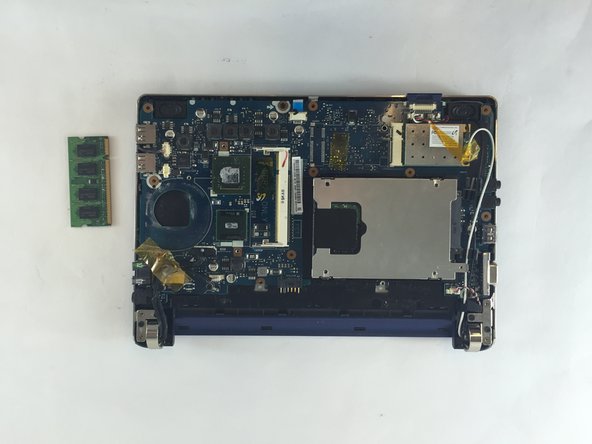
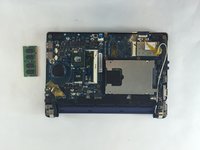
    • With the bars extended, you are now able to slide the RAM off the base.

    Ask FixBot

    Add Comment

Conclusion

To reassemble your device, follow these instructions in reverse order.

Cancel: I did not complete this guide.

3 other people completed this guide.

JHOAN USECHE

Member since: 10/03/16

372 Reputation

2 Guides authored

Team

USF Tampa, Team 1-1, Sullivan Fall 2016 Member of USF Tampa, Team 1-1, Sullivan Fall 2016

USFT-SULLIVAN-F16S1G1

3 Members

6 Guides authored

1 Guide Comment

There is a small lid with one screw for RAM replacement. No need to remove all the bottom part.

D Akimov - Reply Share

Add Comment

View Statistics:

Past 24 Hours: 1

Past 7 Days: 5

Past 30 Days: 21

All Time: 693