Free Shipping on Domestic Orders $75+

Samsung NP-NC10-KA02US Fan Replacement

What you need

    1. Samsung NP-NC10-KA02US Fan Replacement, Battery: step 1, image 1 of 2 Samsung NP-NC10-KA02US Fan Replacement, Battery: step 1, image 2 of 2
      • Locate the external battery on the bottom side of the device.

      • Locate the tab on the right side of the battery.

      • Shift the tab to the left.

      Ask FixBot

      Add Comment

    2. Samsung NP-NC10-KA02US Fan Replacement: step 2, image 1 of 1
      • Locate the tab on the left side of the device's battery.

      • Push the left tab to the right.

      Ask FixBot

      Add Comment

    3. Samsung NP-NC10-KA02US Fan Replacement: step 3, image 1 of 1
      • Pull the battery up from the device.

      Ask FixBot

      Add Comment

    1. Samsung NP-NC10-KA02US Fan Replacement, Back Plate: step 4, image 1 of 1
      • Locate the 14, 3.93 mm, screws that need to be removed on the base of the computer.

      Ask FixBot

      Add Comment

    2. Samsung NP-NC10-KA02US Fan Replacement: step 5, image 1 of 1
      • Remove all 14 of the 3.93 mm screws using a PH1 screw bit.

      Ask FixBot

      Add Comment

    3. Samsung NP-NC10-KA02US Fan Replacement: step 6, image 1 of 2 Samsung NP-NC10-KA02US Fan Replacement: step 6, image 2 of 2
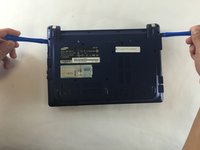
      • Using two plastic opening tools remove the back plate.

      • These plastic opening tools have a flat-head that extends as a wedge which are utilized to separate pressure fit plastic components without causing any damage to them.

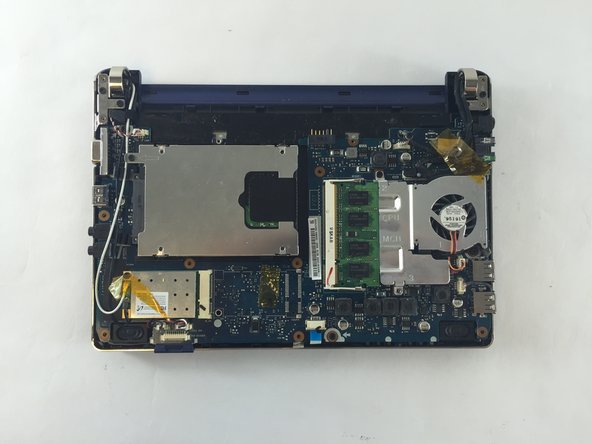
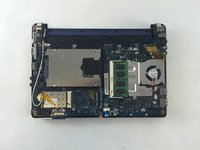
      • The back plate is now removed exposing all of the hardware components.

      Ask FixBot

      Add Comment

    1. Samsung NP-NC10-KA02US Fan Replacement, Fan: step 7, image 1 of 2 Samsung NP-NC10-KA02US Fan Replacement, Fan: step 7, image 2 of 2
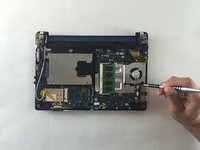
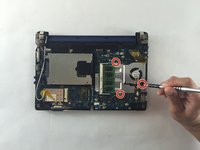
      • Remove the three screws holding the fan using a 3.9mm screwdriver.

      • All three screws need to be removed in order to continue on to next step.

      Ask FixBot

      Add Comment

    2. Samsung NP-NC10-KA02US Fan Replacement: step 8, image 1 of 1
      • Unplug the wires connected to the fan using a plastic opening tool.

      Ask FixBot

      Add Comment

    3. Samsung NP-NC10-KA02US Fan Replacement: step 9, image 1 of 1
      • You are now able to carefully detach the fan from the base.

      Ask FixBot

      Add Comment

Conclusion

To reassemble your device, follow these instructions in reverse order.

Cancel: I did not complete this guide.

2 other people completed this guide.

JHOAN USECHE

Member since: 10/03/16

372 Reputation

2 Guides authored

Team

USF Tampa, Team 1-1, Sullivan Fall 2016 Member of USF Tampa, Team 1-1, Sullivan Fall 2016

USFT-SULLIVAN-F16S1G1

3 Members

72 Guides authored

0 Guide Comments

Add Comment

View Statistics:

Past 24 Hours: 0

Past 7 Days: 7

Past 30 Days: 39

All Time: 1,145