Free Shipping on Domestic Orders $75+

Samsung NP-N210-JA02US Wireless Card Replacement

What you need

  1. Samsung NP-N210-JA02US Wireless Card Replacement, Battery: step 1, image 1 of 2 Samsung NP-N210-JA02US Wireless Card Replacement, Battery: step 1, image 2 of 2
    • Carefully slide both locking pins to the unlocked position.

    Ask FixBot

    Add Comment

  2. Samsung NP-N210-JA02US Wireless Card Replacement: step 2, image 1 of 1
    • Slide the battery out of its housing.

    Ask FixBot

    Add Comment

  3. Samsung NP-N210-JA02US Wireless Card Replacement, Battery Removal: step 3, image 1 of 1
    • Remove the following 14 screws:

    • Thirteen 5 mm Phillips #1 screws

    • One 3.5 mm Philips #001 screw

    Ask FixBot

    Add Comment

  4. Samsung NP-N210-JA02US Wireless Card Replacement: step 4, image 1 of 1
    • Carefully insert the plastic opening tool in the seam between the lower casing and the chrome bezel.

    Ask FixBot

    Add Comment

  5. Samsung NP-N210-JA02US Wireless Card Replacement: step 5, image 1 of 1
    • Slide the opening tool across all sides of the lower case, and lift it up to remove the case and reveal the internal components.

    Ask FixBot

    Add Comment

  6. Samsung NP-N210-JA02US Wireless Card Replacement: step 6, image 1 of 1
    • Locate the wireless card.

    Ask FixBot

    Add Comment

  7. Samsung NP-N210-JA02US Wireless Card Replacement: step 7, image 1 of 1
    • Remove the 3.5 mm Philips #1 screw.

    Ask FixBot

    Add Comment

  8. Samsung NP-N210-JA02US Wireless Card Replacement: step 8, image 1 of 2 Samsung NP-N210-JA02US Wireless Card Replacement: step 8, image 2 of 2
    Tool used on this step:
    Tweezers
    $4.99
    Buy
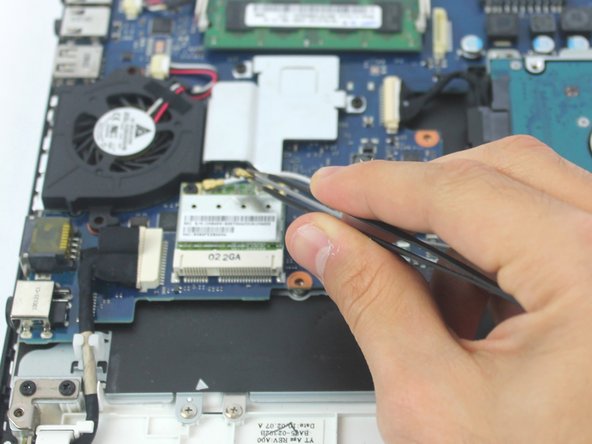
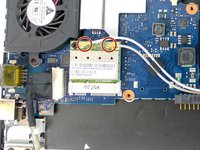
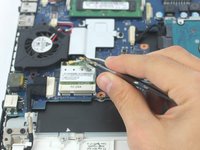
    • Carefully with tweezers, lift both connectors to disconnect them from the wireless card.

    Ask FixBot

    Add Comment

  9. Samsung NP-N210-JA02US Wireless Card Replacement: step 9, image 1 of 1
    • Gently remove the wireless card from its socket.

    Ask FixBot

    Add Comment

Conclusion

To reassemble your device, follow these instructions in reverse order.

Cancel: I did not complete this guide.

3 other people completed this guide.

Afif Chehabaldeen

Member since: 10/04/16

401 Reputation

4 Guides authored

0 Guide Comments

Add Comment

View Statistics:

Past 24 Hours: 1

Past 7 Days: 9

Past 30 Days: 25

All Time: 637