
Samsung NP-130-JA01US Keyboard Replacement

Alejandro Guerra Piol and 2 other contributors
Last updated on Dec 24, 2016
Views: 846
View statistics:
- Past 24 Hours:
- 3
- Past 7 Days:
- 32
- Past 30 Days:
- 105
- All Time:
- 846
Comments: 0
No one has left comments on this guide. Will you be first?
Go to guide commentsCompleted: 1 2
1 person has marked this guide "completed." Will you be next?
2 people have marked this guide "completed." Including you — great job!
Favorites: 0 1
No one has favorited (and subscribed to) this guide. Will you be the first?
1 person has favorited (and subscribed to) this guide — and that's you!
Introduction
Go to step 1 ↓An unresponsive keyboard is a common problem with computers. When problems arise you will need to either replace the keyboard, or attempt to fix the hardware. Either way, the keyboard must be removed from the device.
What you need
Tools


-
-
-
Turn off the computer.
-
Disconnect the charger cable from the computer.
-
Flip the computer over so the underside is facing up.
 Ask FixBot
-
-
-
-
-
-
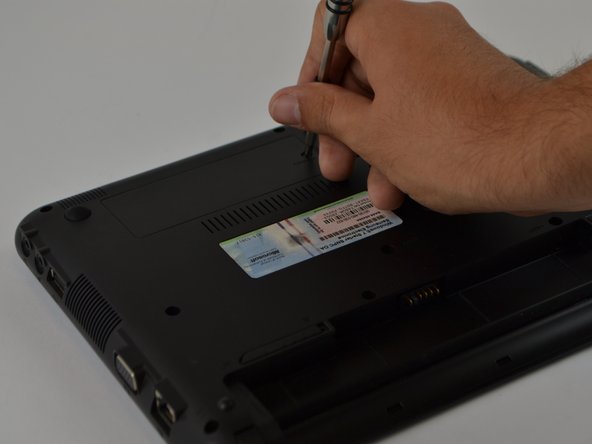
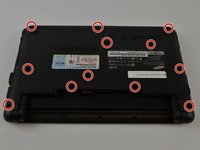
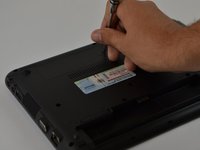
Using a Phillips 1 screwdriver carefully remove all 12 screws of the back cover.
-
-
-
Flip the computer and open the front cover so that the screen is looking at you.
-
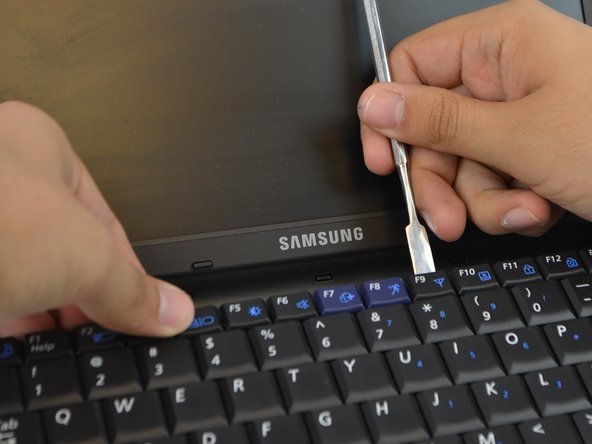
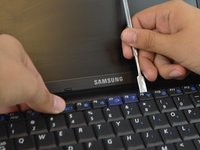
Using a Metal Spudger and your dominant hand, carefully separate the keyboard from the computer frame.
-
-
-
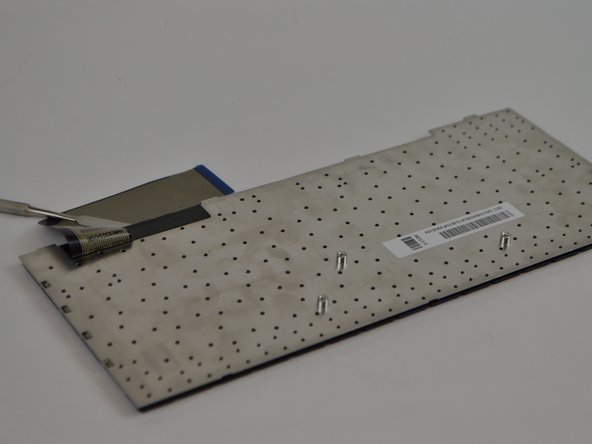
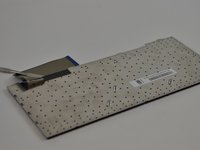
Flip the keyboard over.
-
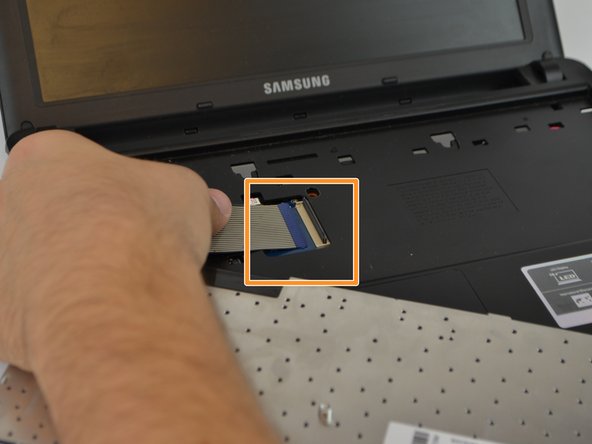
With your fingers, flip the mechanism over before pulling the cables out.
-
Carefully pull the cables out of the computer.
-
-



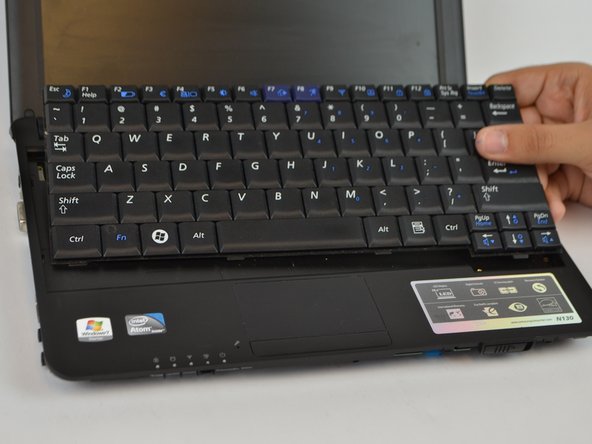

To reassemble your device, follow these instructions in reverse order.
Cancel: I did not complete this guide.
One other person completed this guide.

Team

USF Tampa, Team 9-6, Lacy Fall 2016 Member of USF Tampa, Team 9-6, Lacy Fall 2016
USFT-LACY-F16S9G6
3 Members
60 Guides authored
