
Samsung NP-130-JA01US Fan Replacement

Alejandro Guerra Piol and 2 other contributors
Last updated on Dec 24, 2016
Views: 763
View statistics:
- Past 24 Hours:
- 1
- Past 7 Days:
- 22
- Past 30 Days:
- 94
- All Time:
- 763
Comments: 0
No one has left comments on this guide. Will you be first?
Go to guide commentsCompleted: 1 2
1 person has marked this guide "completed." Will you be next?
2 people have marked this guide "completed." Including you — great job!
Favorites: 0 1
No one has favorited (and subscribed to) this guide. Will you be the first?
1 person has favorited (and subscribed to) this guide — and that's you!
Incorrect Tools
Help make this guide better by using the correct tools in images and/or text.
Introduction
Go to step 1 ↓An overheating laptop is a common problem when the internal fan of the computer is either blocked or not working properly.
Excessive heat in your computer will cause it to turn off, and might lead to performance problems in the future. Cleaning or replacing the fan is a cheap way of solving the problem.
What you need
Tools


-
-
-
Turn off the computer.
-
Disconnect the charger cable from the computer.
-
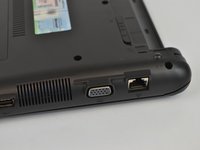
Flip the computer over so the underside is facing up.
 Ask FixBot
-
-
-
-
-
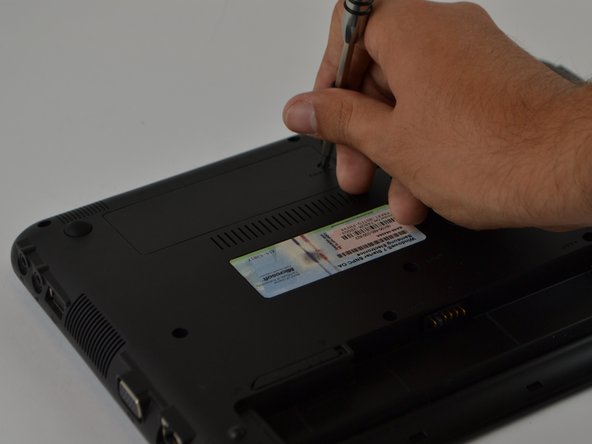
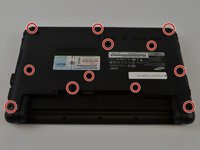
Using a Phillips 1 screwdriver, carefully remove all 12 screws of the back cover.
-
-
-
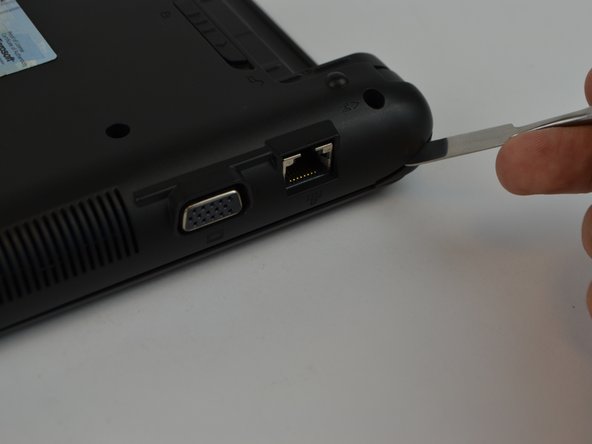
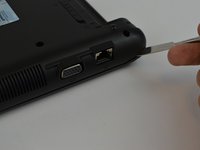
With the plastic opening tool, carefully separate the back cover from the computer frame.
-
Starting at one of the corners of the computer, work your way around the edge until you reach the other corner.
-
As you go around the sides of the computer, free the inside latches with the plastic opening tool.
-
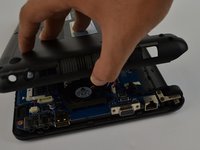
Once you have an opening, carefully use your hands to separate the back cover.
-
-
-
-
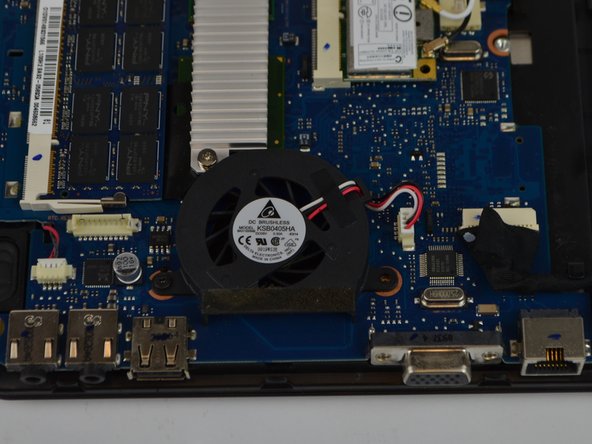
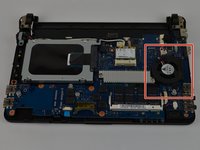
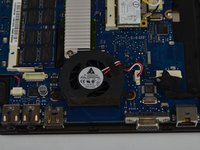
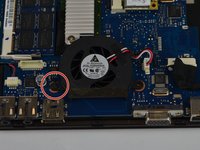
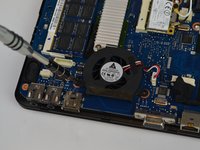
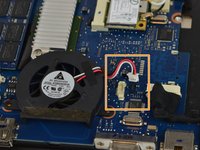
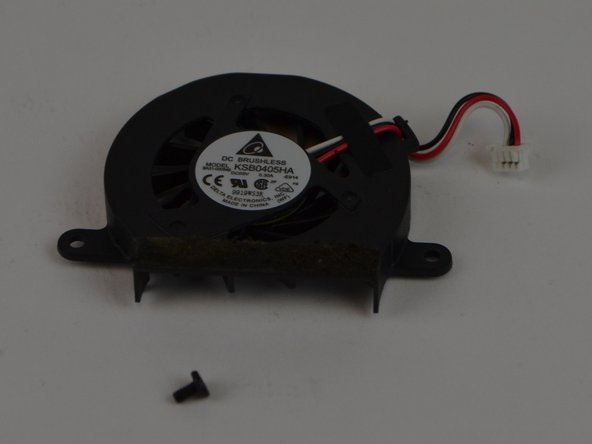
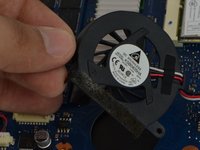
Using a Phillips 1 screwdriver, remove the screw marked in a red circle.
-
Using your hands, carefully unplug the cords marked in a green square.
-
-








To reassemble your device, follow these instructions in reverse order.
Cancel: I did not complete this guide.
One other person completed this guide.

Team

USF Tampa, Team 9-6, Lacy Fall 2016 Member of USF Tampa, Team 9-6, Lacy Fall 2016
USFT-LACY-F16S9G6
3 Members
60 Guides authored
