
Samsung Gusto 2 Camera Replacement

Marc Carreira and 2 other contributors
Last updated on May 7, 2024
Views: 1K
View statistics:
- Past 24 Hours:
- 2
- Past 7 Days:
- 14
- Past 30 Days:
- 83
- All Time:
- 1,035
Comments: 0
No one has left comments on this guide. Will you be first?
Go to guide commentsCompleted: 1 2
1 person has marked this guide "completed." Will you be next?
2 people have marked this guide "completed." Including you — great job!
Favorites: 0 1
No one has favorited (and subscribed to) this guide. Will you be the first?
1 person has favorited (and subscribed to) this guide — and that's you!
Markup Mishap
This guide needs better markups. Help out by correcting or making some markup annotations.
Slice and Dice
The steps in this guide should be split up and made into a series of prerequisite guides.
Better Introduction
Improve this guide by completing or revising its introduction.
What you need
Tools
-
Spudger4.9
-


-
-
-
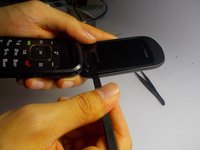
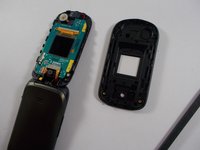
Use a spudger to remove the front cover of the phone.
-
Insert the spudger as shown and move slowly around the length of the edge to remove the cover.
-
Then, close the phone so that the front is showing.
-
-
Tool used on this step:Tweezers$4.99
-
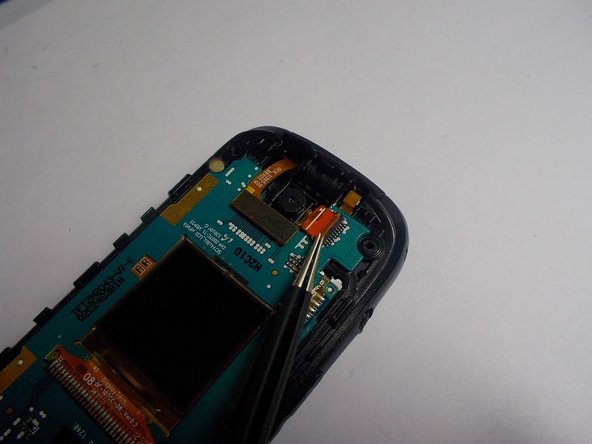
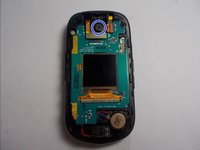
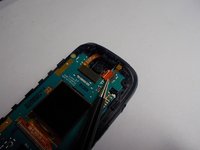
Look at the first image to identify the location of the camera.
-
Use tweezers to remove the orange flap keeping the camera in place.
-
-

 Ask FixBot




To reassemble your device, follow these instructions in reverse order.
Cancel: I did not complete this guide.
One other person completed this guide.

Team

UMass Dartmouth, Team 2-5, Shastany Spring 2015 Member of UMass Dartmouth, Team 2-5, Shastany Spring 2015
UMASSD-SHASTANY-S15S2G5
3 Members
60 Guides authored
