
Samsung Galaxy Watch Active2 Back Cover Replacement

Last updated on Jul 1, 2021
Views: 46K
View statistics:
- Past 24 Hours:
- 8
- Past 7 Days:
- 46
- Past 30 Days:
- 277
- All Time:
- 45,960
Comments: 21
15 comments on steps, 6 guide comments.
Go to guide commentsCompleted: 14 15
14 people have marked this guide "completed." Will you be next?
15 people have marked this guide "completed." Including you — great job!
Favorites: 1 2
1 person has favorited (and subscribed to) this guide. Will you be next?
2 people have favorited (and subscribed to) this guide — including you!
Introduction
Go to step 1 ↓Use this guide to replace a defective back cover of your Samsung Galaxy Watch Active2. You can also use this guide to open your smartwatch for any other repair.
What you need
Tools
-
-
-
Spudger4.9


-
-
-
Turn off the Galaxy Watch Active2 by pushing and holding the bottom button for approximately 3 seconds. You should feel a short vibration.
-
When the "Power off" symbol appears, tap the center of the screen to make it shut down. You should feel a longer vibration for confirmation.
 Ask FixBot
-
-
-
Use a Tri-point Y00 screwdriver to remove the four 4 mm-long screws on the back of the watch.
-
-
-
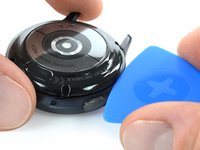
Use an opening pick and place it between the plastic back cover and the metal housing near the buttons.
-
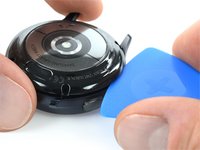
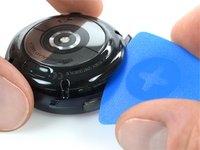
Push the opening pick into the gap to separate the back cover from the housing.
-
-
-
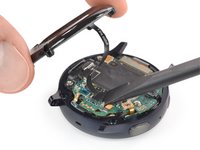
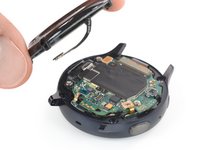
Carefully lift the back cover to access the sensor array connector.
-
Use a spudger to disconnect the sensor array from the motherboard.
-
-
-





To reassemble your device, follow these instructions in reverse order.
Repair didn’t go as planned? Try some basic troubleshooting, or ask our Answers community for help.
Cancel: I did not complete this guide.
14 other people completed this guide.

Team

Tobias Isakeit - Repairability Engineer Member of Tobias Isakeit - Repairability Engineer
Business
1 Member
2,268 Guides authored
6 Guide Comments
What kind of glue would you use if the plastic of the back cover fell off?
This happened to me as well. I opted to replace the entire adhesive-attached back cover. You can find kits that include a new back with a new adhesive gasket already attached. You just need to take off the old one and make sure it's clean before putting on the new one. I bought this one on ebay: https://www.ebay.com/itm/164638316825
Hello. Where can i get the back cover with adhesive as a replacement or just the adhesvie? I noticed it is a weird rubbery glue and i cannot source this anywhere.
What kind of glue would you use if the plastic of the back cover fell off
Why would you use glue? The back is fixed with screws.
If there is a loose part on the back cover you might want to try a glue like the E6000, B7000 or T9000 (there are different combinations out there)
