
Samsung Galaxy View Battery Replacement

Roger Pena and 4 other contributors
Last updated on Mar 12, 2018
Views: 28K
View statistics:
- Past 24 Hours:
- 5
- Past 7 Days:
- 38
- Past 30 Days:
- 174
- All Time:
- 28,173
Comments: 32
3 comments on steps, 29 guide comments.
Go to guide commentsCompleted: 40 41
40 people have marked this guide "completed." Will you be next?
41 people have marked this guide "completed." Including you — great job!
Favorites: 0 1
No one has favorited (and subscribed to) this guide. Will you be the first?
1 person has favorited (and subscribed to) this guide — and that's you!
Introduction
Go to step 1 ↓This guide will first require the removal of the kickstand in order to access the battery. Removal of the back panel will require some force, and the help of a friend may be necessary. While removing the back panel there will be loud popping noises. This sound is the magnetized latches snapping off and is not doing damage to the device.
What you need
Parts
Tools


-
-
-
Place the device on a hard flat surface with its screen facing downwards.
-
Rotate the the kickstand so that the handle grip hole is up in the air and not touching the back of the tablet.
 Ask FixBot
-
-
-
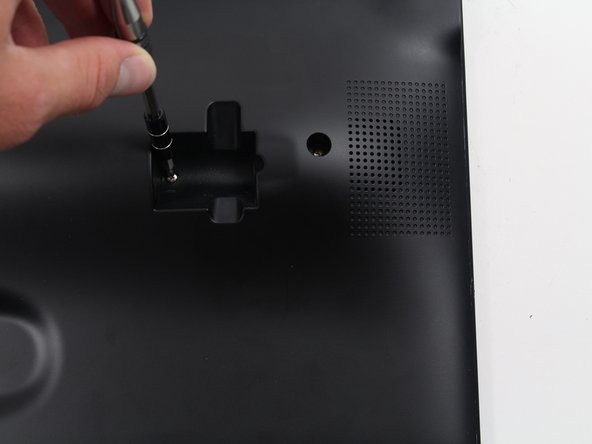
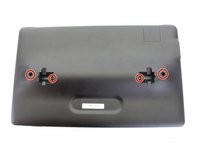
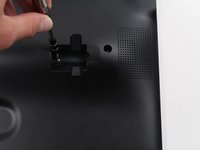
Stick the pointy end of the spudger into the circular opening of the leftmost metallic latch.
-
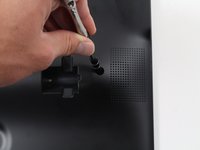
With the spudger still inserted, pry the spudger to the right pushing the latch opening along with it.
-
Once the latch is moved to the right, pull up on the left side of the kickstand, releasing it from the back of the tablet.
-
Repeat the previous steps for the rightmost latch, and then lift the kickstand off the back of the tablet.
-
-
-
-
-
Check the device is completely turned off.
-
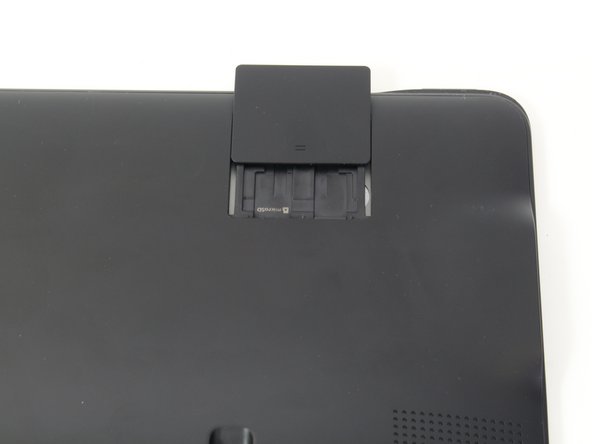
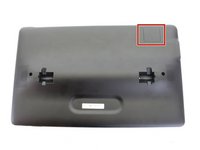
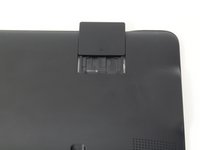
Slide open the SD compartment tab, and remove the SD card to ensure all data is saved.
-
-
-
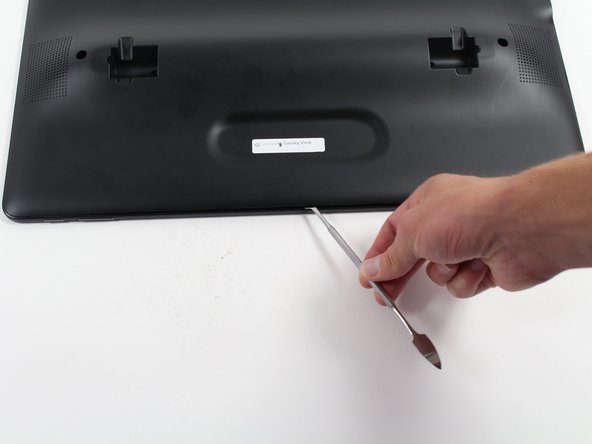
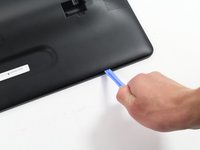
Insert the plastic opening tool between the seam of the back panel and the front casing to create an initial opening.
-
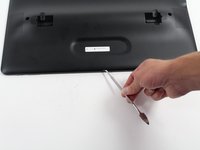
Insert the metal spudger within the opening.
-
Move the metal spudger down the seam, prying the back panel open as you go.
-
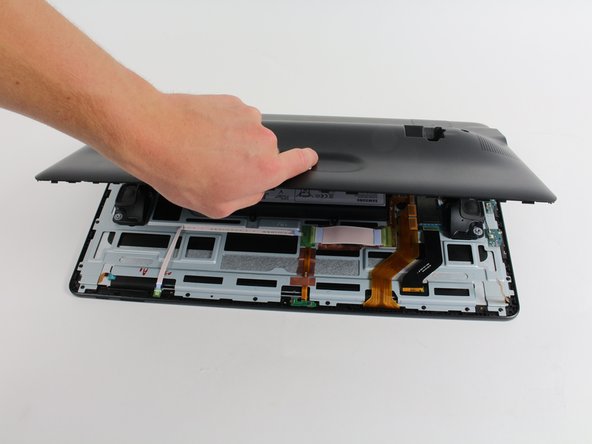
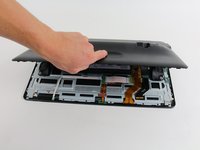
Once a large enough opening is made, pry the entire back panel off with your hand.
-
-
-
-
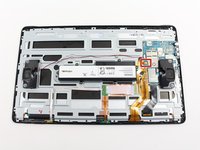
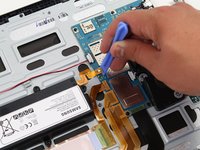
Using the plastic opening tool, lift off the orange press-fit connector (marked with a white arrow-head) where it attaches to the motherboard.
-
-
-
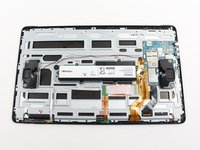
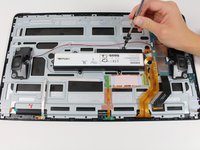
Remove the 6 screws (4 mm in length) using the Phillips #0 screwdriver.
-
Remove the battery from the device.
-
-









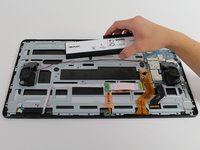
To reassemble your device, follow these instructions in reverse order.
Cancel: I did not complete this guide.
40 other people completed this guide.

Team

Cal Poly, Team 4-5, Livingston Fall 2016 Member of Cal Poly, Team 4-5, Livingston Fall 2016
CPSU-LIVINGSTON-F16S4G5
4 Members
72 Guides authored
29 Guide Comments
What size is the battery that fits into the SAMSUNG TAB VIEW?
I can't find Lithium ION 11.3 V 5700mAh battery for my Samsung Galaxy 18.4View Tablet, does anyone know where to get one?
What's difference between a 5700mAh battery and 5900mAh battery
Where can I find battery replacement for galaxy view
