Free Shipping on Domestic Orders $75+

Samsung Galaxy S24 Screen Replacement

What you need

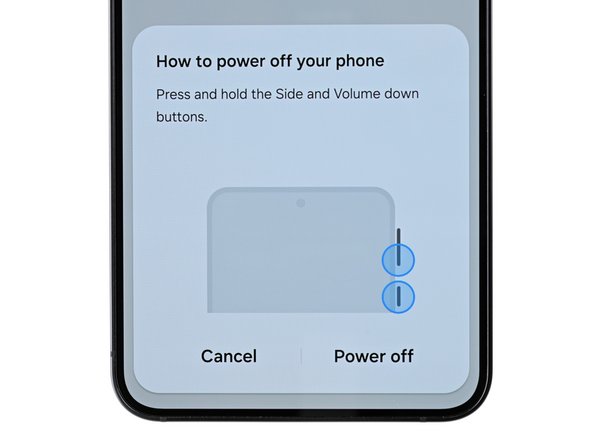
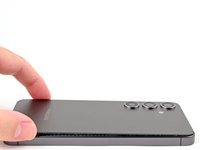
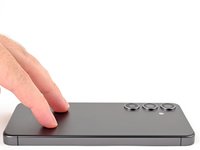
  1. Samsung Galaxy S24 Screen Replacement, Prepare your phone for disassembly: step 1, image 1 of 2 Samsung Galaxy S24 Screen Replacement, Prepare your phone for disassembly: step 1, image 2 of 2
    • Let your phone's battery drain below 25% before starting this repair. A charged lithium-ion battery may catch fire if damaged.

    • Completely power off your phone and unplug all cables.

  2. Samsung Galaxy S24 Screen Replacement, Heat the right edge: step 2, image 1 of 1
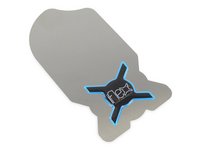
    • Heat an iOpener and apply it to the right edge of the back cover for two minutes.

    • You can use also use a hair dryer or heat gun to heat the right edge of the back glass until it's hot to the touch.

    • Be careful not to heat the phone hotter than this—the battery is susceptible to heat damage.

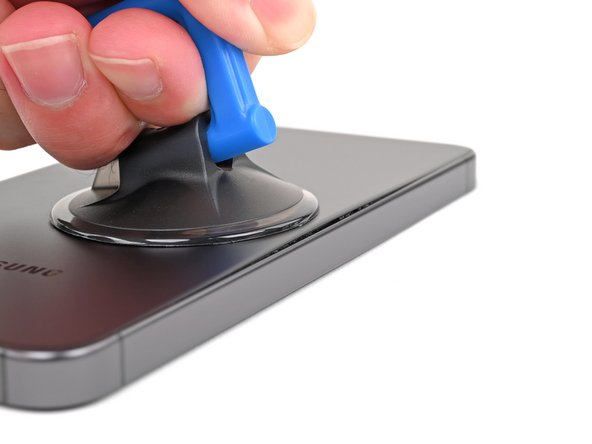
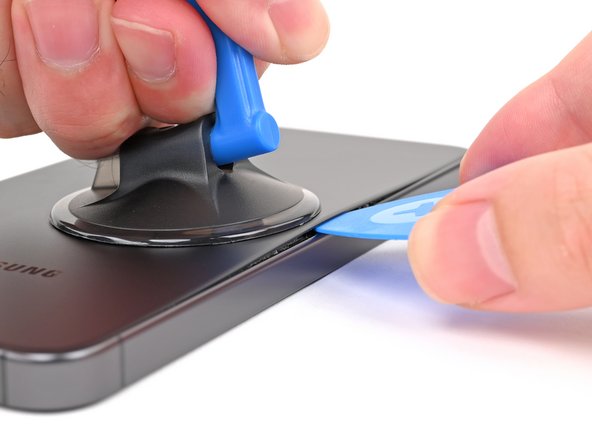
  3. Samsung Galaxy S24 Screen Replacement, Insert an opening pick: step 3, image 1 of 3 Samsung Galaxy S24 Screen Replacement, Insert an opening pick: step 3, image 2 of 3 Samsung Galaxy S24 Screen Replacement, Insert an opening pick: step 3, image 3 of 3
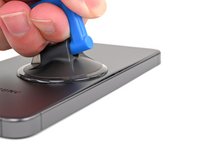
    • Apply a suction handle to the back cover, as close to the center of the right edge as possible.

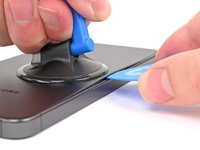
    • Pull up on the suction handle with strong, steady force to create a gap between the cover and the frame.

    • If you have trouble, apply more heat to further soften the adhesive.

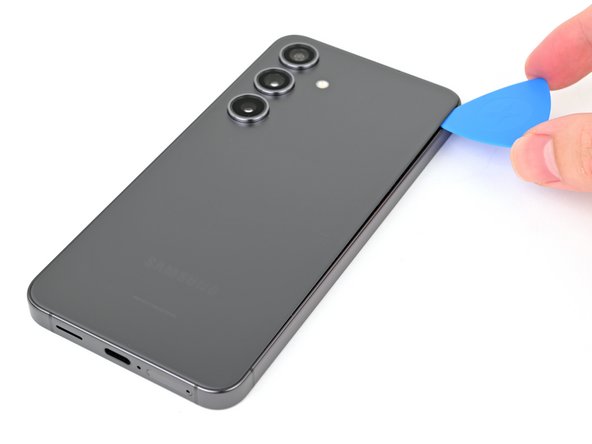
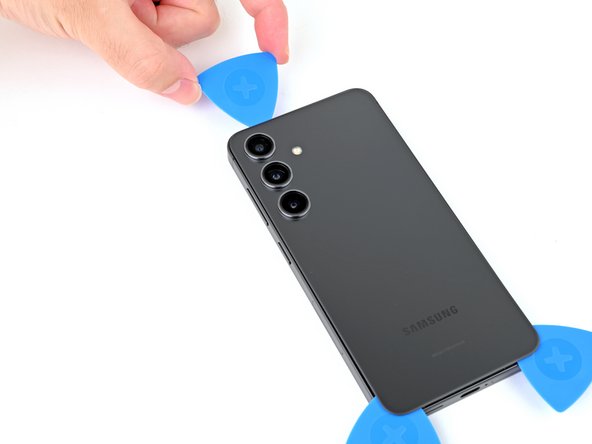
    • Insert an opening pick into the gap.

  4. Samsung Galaxy S24 Screen Replacement, Separate the right adhesive: step 4, image 1 of 3 Samsung Galaxy S24 Screen Replacement, Separate the right adhesive: step 4, image 2 of 3 Samsung Galaxy S24 Screen Replacement, Separate the right adhesive: step 4, image 3 of 3
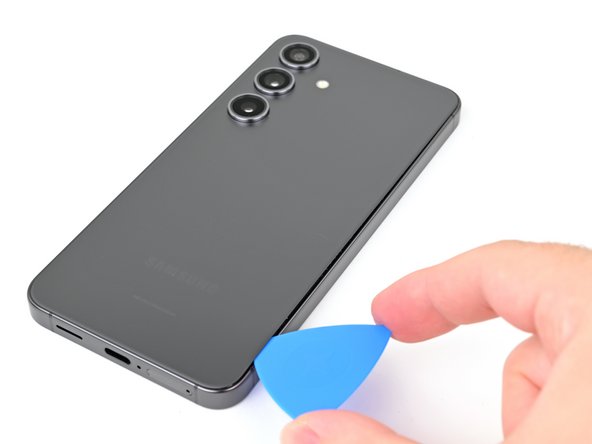
    • Slide your opening pick along the right edge between the back cover and the frame to slice through the adhesive.

    • Leave your opening pick in the bottom right corner to keep the adhesive from resealing.

  5. Samsung Galaxy S24 Screen Replacement, Heat the bottom edge: step 5, image 1 of 1
    • Reheat your iOpener and apply it to the bottom of the back cover for two minutes.

  6. Samsung Galaxy S24 Screen Replacement, Separate the corner adhesive: step 6, image 1 of 2 Samsung Galaxy S24 Screen Replacement, Separate the corner adhesive: step 6, image 2 of 2
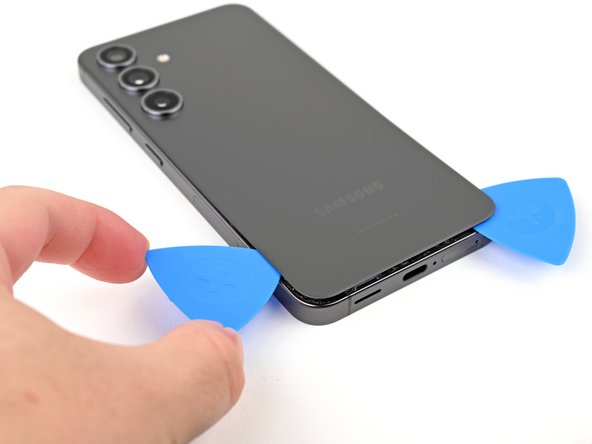
    • Rotate the opening pick around the bottom right corner to separate the adhesive.

  7. Samsung Galaxy S24 Screen Replacement, Separate the bottom adhesive: step 7, image 1 of 2 Samsung Galaxy S24 Screen Replacement, Separate the bottom adhesive: step 7, image 2 of 2
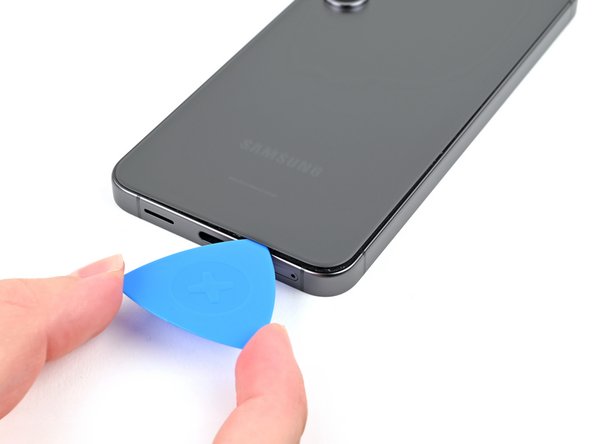
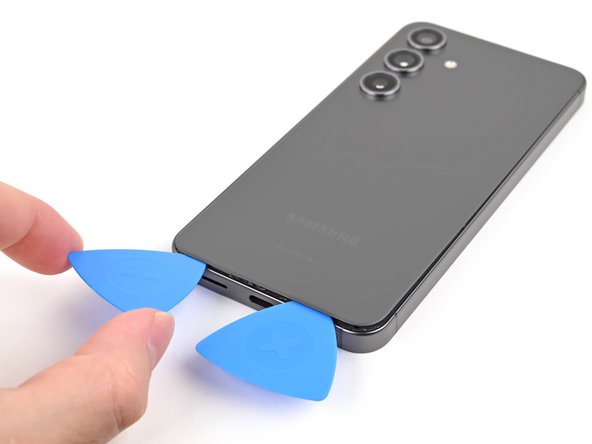
    • Insert a second opening pick to the left of the first one and slide it along the bottom edge to slice through the adhesive.

    • Leave your opening pick in the bottom left edge to prevent the adhesive from resealing.

  8. Samsung Galaxy S24 Screen Replacement, Heat the left edge: step 8, image 1 of 1
    • Reheat your iOpener and apply it to the left side of the back cover for two minutes.

  9. Samsung Galaxy S24 Screen Replacement, Separate the corner adhesive: step 9, image 1 of 2 Samsung Galaxy S24 Screen Replacement, Separate the corner adhesive: step 9, image 2 of 2
    • Rotate the opening pick around the bottom left corner to separate the adhesive.

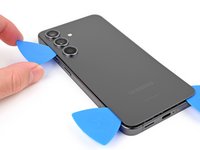
  10. Samsung Galaxy S24 Screen Replacement, Separate the left adhesive: step 10, image 1 of 2 Samsung Galaxy S24 Screen Replacement, Separate the left adhesive: step 10, image 2 of 2
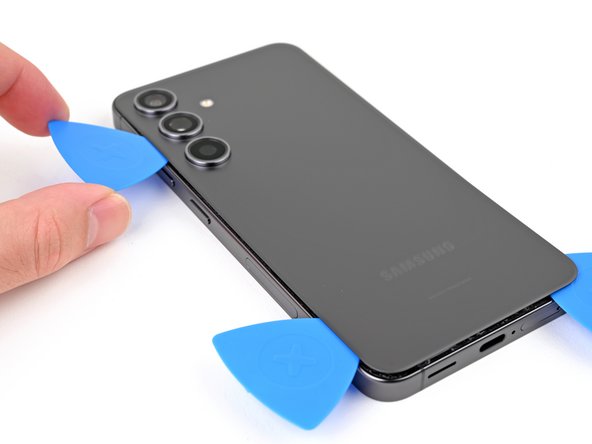
    • Insert a third opening pick above the last one and slide it along the left edge to slice through the adhesive.

    • Only insert your pick up to 4 mm deep to avoid damaging the rear cameras or flash.

    • Leave your opening pick in the top left corner to prevent the adhesive from resealing.

  11. Samsung Galaxy S24 Screen Replacement, Heat the top edge: step 11, image 1 of 1
    • Reheat your iOpener and apply it to the top of the back cover for two minutes.

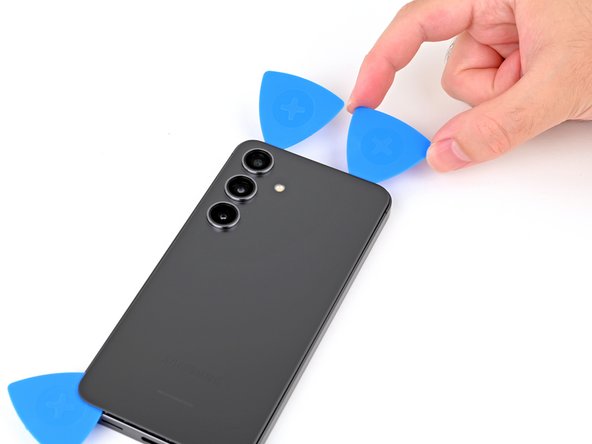
  12. Samsung Galaxy S24 Screen Replacement, Separate the corner adhesive: step 12, image 1 of 2 Samsung Galaxy S24 Screen Replacement, Separate the corner adhesive: step 12, image 2 of 2
    • Rotate the opening pick around the top left corner to separate the adhesive.

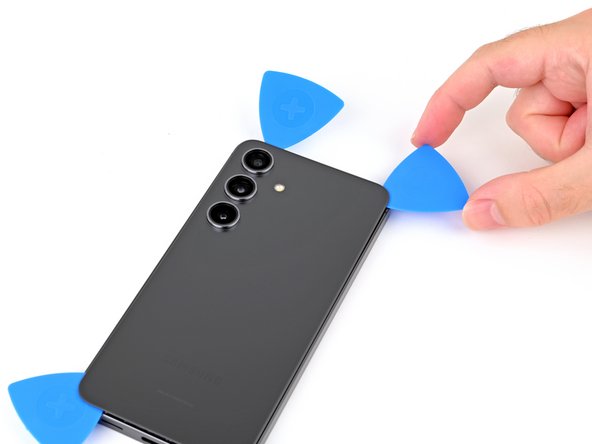
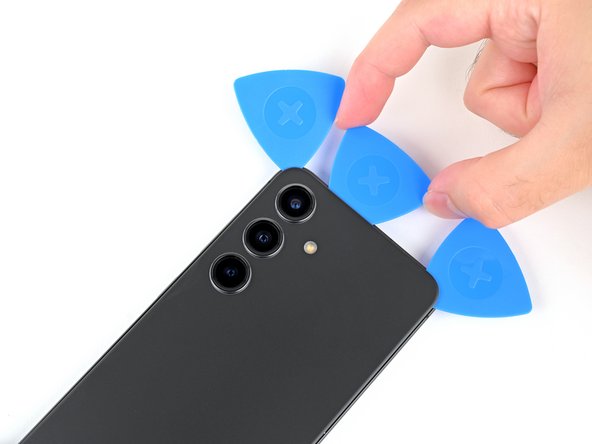
  13. Samsung Galaxy S24 Screen Replacement, Separate the top adhesive: step 13, image 1 of 3 Samsung Galaxy S24 Screen Replacement, Separate the top adhesive: step 13, image 2 of 3 Samsung Galaxy S24 Screen Replacement, Separate the top adhesive: step 13, image 3 of 3
    • Insert a fourth opening pick in the top left corner at the same depth and slide it along the top edge and around the top right corner to slice through the adhesive.

  14. Samsung Galaxy S24 Screen Replacement, Separate the flash adhesive: step 14, image 1 of 2 Samsung Galaxy S24 Screen Replacement, Separate the flash adhesive: step 14, image 2 of 2
    • Insert a fifth opening pick directly above the camera flash cutout.

    • Insert the opening pick under the top of the back cover until you feel it start to snag on the flash adhesive.

    • Insert the pick deeper into the phone until you feel the adhesive completely separate from the back cover.

    • Don't insert the pick any deeper than its center point to avoid damaging the rear cameras.

  15. Samsung Galaxy S24 Screen Replacement, Remove the back cover: step 15, image 1 of 2 Samsung Galaxy S24 Screen Replacement, Remove the back cover: step 15, image 2 of 2
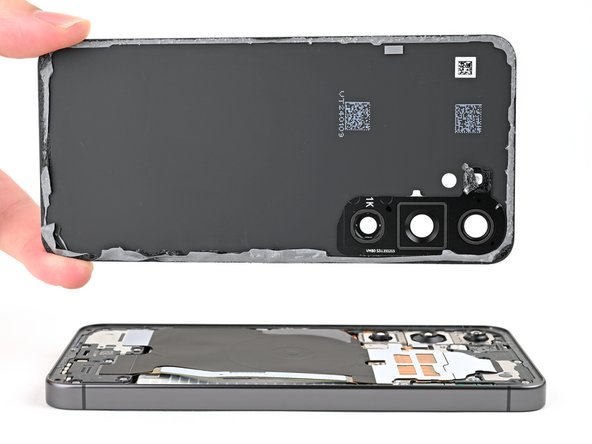
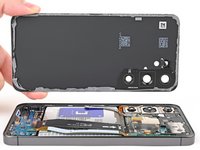
    • Pick up the back cover by its edges and remove it from the phone.

    • If your cover is still sticking to the frame, slide the tip of an opening pick around the perimeter until the cover completely separates.

    • During reassembly:

    • This is a good point to power on your phone and test all functions before sealing it up. Be sure to power your phone back down completely before you continue working.

    • Remove any adhesive chunks with a pair of tweezers or your fingers. Apply heat and isopropyl alcohol (90% or greater) if you're having trouble removing the adhesive.

    • If you're using custom-cut adhesives, follow this guide.

    • If you're using double-sided tape, follow this guide.

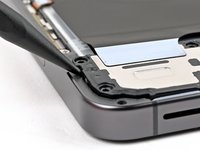
  16. Samsung Galaxy S24 Screen Replacement, Disconnect the wireless charging coil: step 16, image 1 of 2 Samsung Galaxy S24 Screen Replacement, Disconnect the wireless charging coil: step 16, image 2 of 2
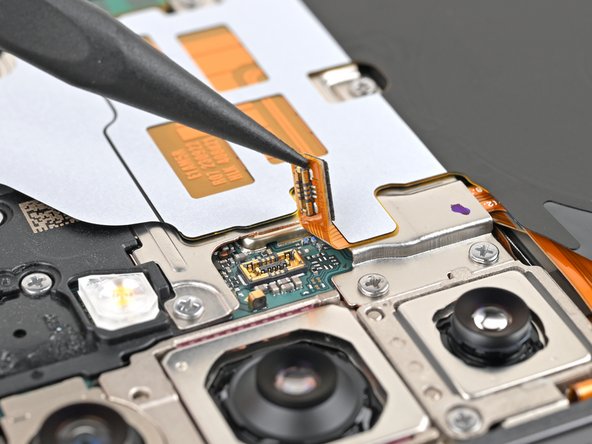
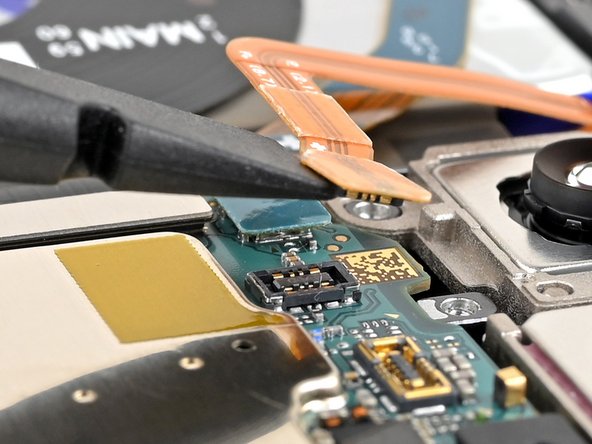
    • Use the point of your spudger to pry up and disconnect the wireless charging coil press connector from the motherboard.

    • To re-attach press connectors, align the connector carefully over its socket and press down with your fingertip—first on one side, then the other—until it clicks into place. Don't try to force the connector into place. If you're having trouble, reposition it and try again.

  17. Samsung Galaxy S24 Screen Replacement, Remove the wireless charging coil and loudspeaker screws: step 17, image 1 of 3 Samsung Galaxy S24 Screen Replacement, Remove the wireless charging coil and loudspeaker screws: step 17, image 2 of 3 Samsung Galaxy S24 Screen Replacement, Remove the wireless charging coil and loudspeaker screws: step 17, image 3 of 3
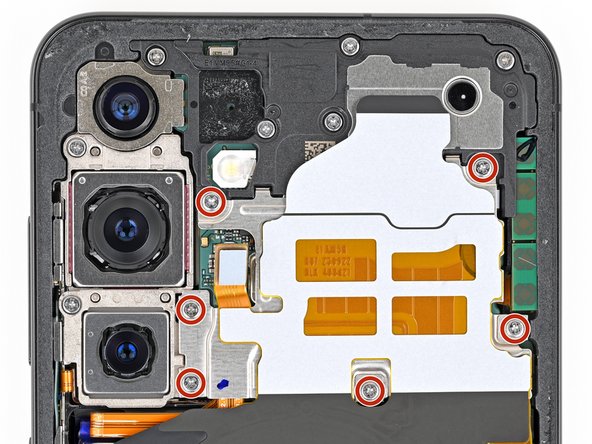
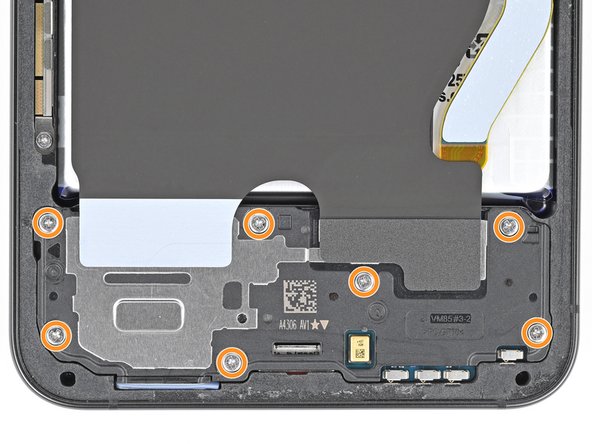
    • Use a Phillips screwdriver to remove the thirteen 3.5 mm‑long screws securing the wireless charging coil and the loudspeaker:

    • Six screws securing the wireless charging coil

    • Seven screws securing the loudspeaker

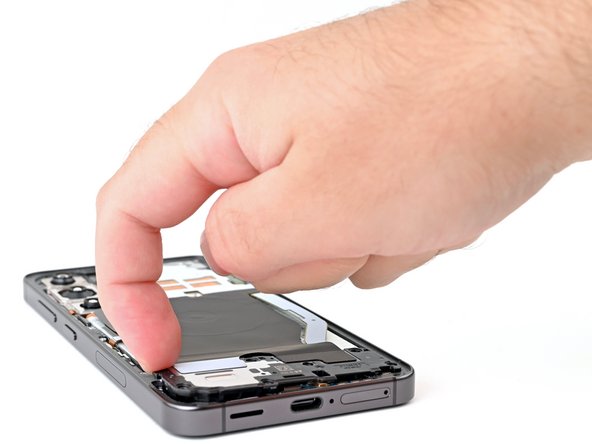
  18. Samsung Galaxy S24 Screen Replacement, Remove the wireless charging coil and loudspeaker: step 18, image 1 of 2 Samsung Galaxy S24 Screen Replacement, Remove the wireless charging coil and loudspeaker: step 18, image 2 of 2
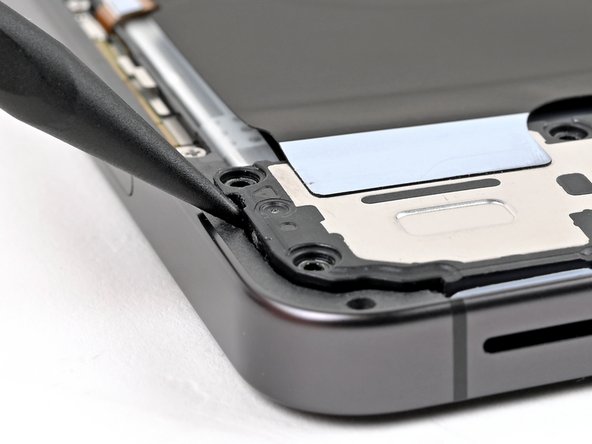
    • Insert the point of a spudger in the notch located on the left edge of the loudspeaker assembly.

    • Pry up the loudspeaker to release its clips.

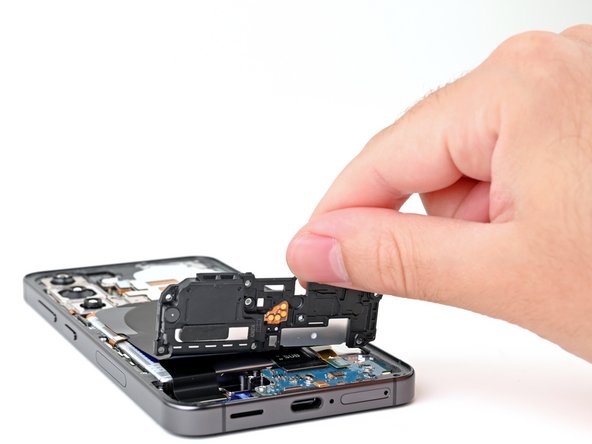
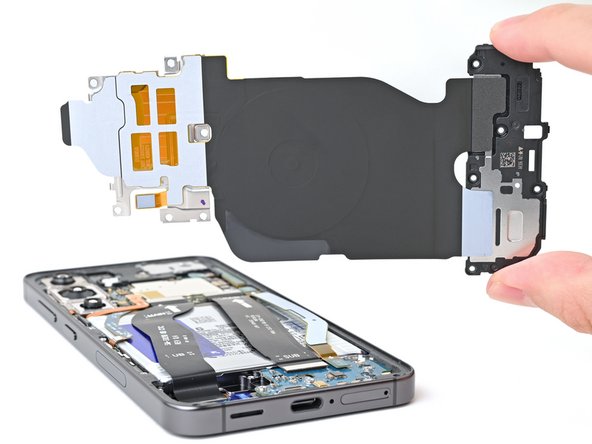
  19. Samsung Galaxy S24 Screen Replacement: step 19, image 1 of 3 Samsung Galaxy S24 Screen Replacement: step 19, image 2 of 3 Samsung Galaxy S24 Screen Replacement: step 19, image 3 of 3
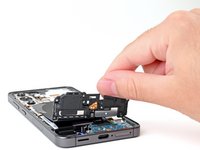
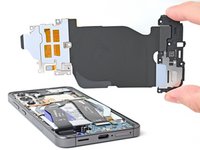
    • Use your fingernail or the flat end of a spudger to pry up the wireless charging coil and loudspeaker assembly away from the frame.

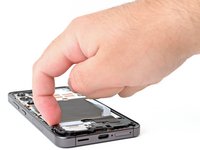
    • Remove the wireless charging coil and loudspeaker from your phone.

    • During reassembly, press around the edges of the loudspeaker to clip it to the frame before reinserting the screws.

  20. Samsung Galaxy S24 Screen Replacement, Disconnect the battery: step 20, image 1 of 2 Samsung Galaxy S24 Screen Replacement, Disconnect the battery: step 20, image 2 of 2
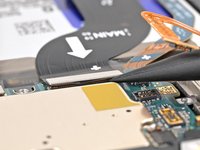
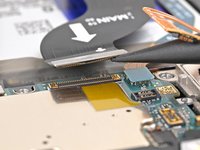
    • Insert the flat end of a spudger under the battery cable press connector (located on the motherboard) and pry up to disconnect it.

  21. Samsung Galaxy S24 Screen Replacement, Disconnect the screen cable: step 21, image 1 of 2 Samsung Galaxy S24 Screen Replacement, Disconnect the screen cable: step 21, image 2 of 2
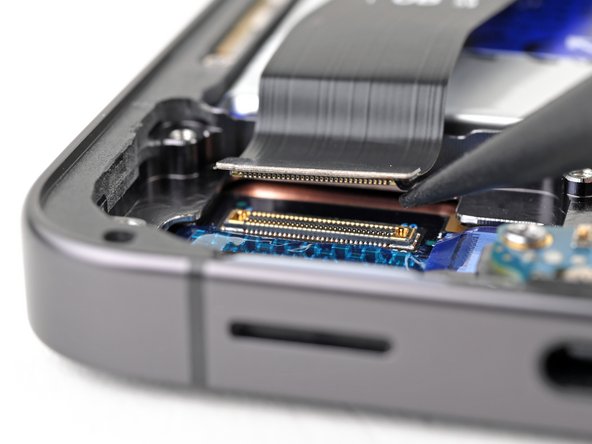
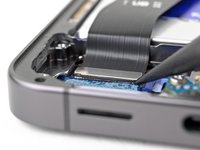
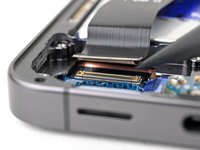
    • Insert the point of a spudger under the screen cable press connector at the bottom left corner of the phone and pry up to disconnect it.

  22. Samsung Galaxy S24 Screen Replacement: step 22, image 1 of 2 Samsung Galaxy S24 Screen Replacement: step 22, image 2 of 2
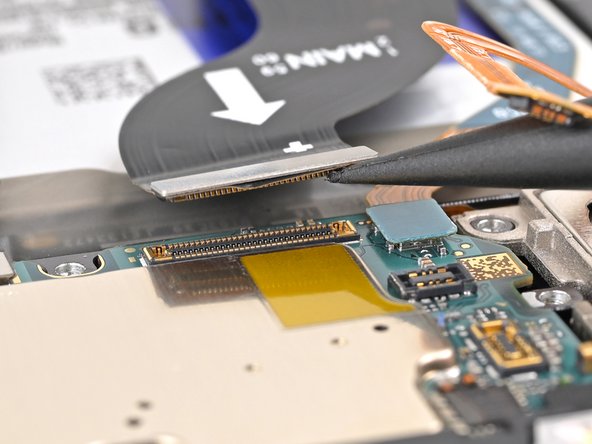
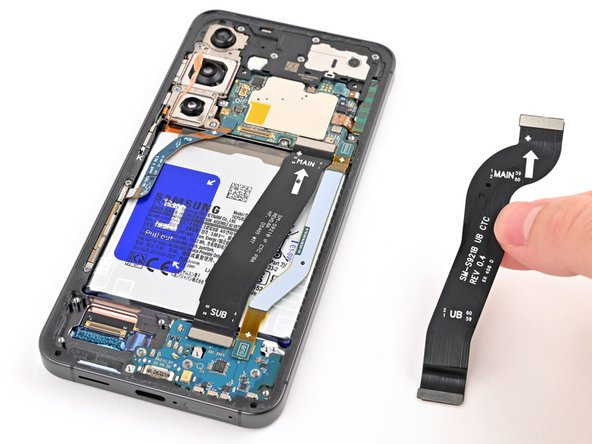
    • Repeat this process for the other end of the cable located on the motherboard.

  23. Samsung Galaxy S24 Screen Replacement, Remove the screen cable: step 23, image 1 of 2 Samsung Galaxy S24 Screen Replacement, Remove the screen cable: step 23, image 2 of 2
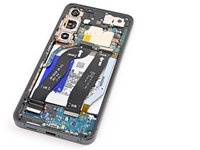
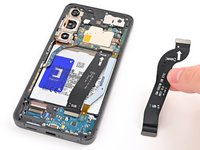
    • Remove the screen cable from the phone.

  24. Samsung Galaxy S24 Screen Replacement, Replace the back cover: step 24, image 1 of 3 Samsung Galaxy S24 Screen Replacement, Replace the back cover: step 24, image 2 of 3 Samsung Galaxy S24 Screen Replacement, Replace the back cover: step 24, image 3 of 3
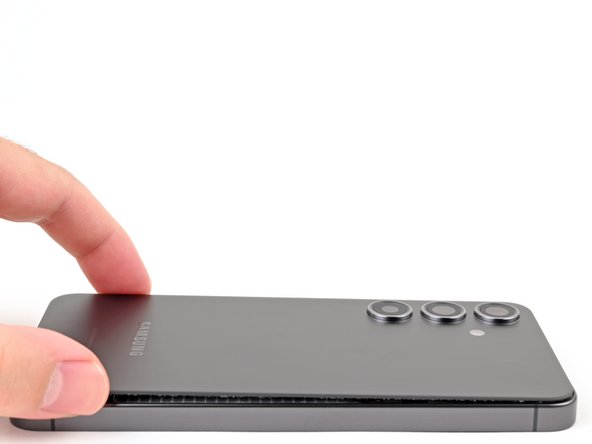
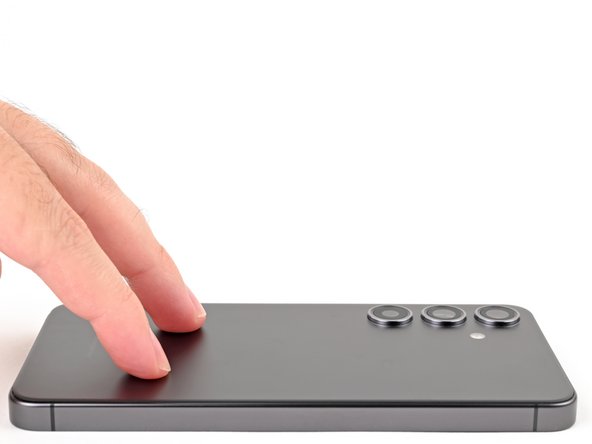
    • Align the back cover with the frame and press down evenly with your fingers to lightly adhere it to the phone.

    • Don't apply new adhesive at this step, as you'll need to remove the back cover again to finish reassembly. The old adhesive will be enough to keep the back cover in place while you replace the screen.

    • If you have already removed the adhesive, hold it in place while flipping your phone over, being careful not to drop or bend the back cover.

    • Flip the phone over so the screen is facing up.

  25. Samsung Galaxy S24 Screen Replacement: step 25, image 1 of 1
    • If your screen is badly cracked, lay overlapping strips of packing tape over the glass to protect yourself and make disassembly easier.

    • Make sure there's a smooth area near the top edge big enough for your suction cup to stick to.

  26. Samsung Galaxy S24 Screen Replacement, Tool and safety information: step 26, image 1 of 3 Samsung Galaxy S24 Screen Replacement, Tool and safety information: step 26, image 2 of 3 Samsung Galaxy S24 Screen Replacement, Tool and safety information: step 26, image 3 of 3
    Tool used on this step:
    iFlex Opening Tool
    $11.99
    Buy
    • The gap between the front glass and frame is very small. You'll need a thin, rigid tool such as an iFlex to create an initial gap.

    • Take the following safety precautions while removing the front glass during the next steps:

    • Don't grip the iFlex or similar metal tools by the edges—they're very sharp.

    • The front glass may shatter and spread shards of glass around your workspace. Consider wearing gloves and safety glasses to protect yourself.

  27. Samsung Galaxy S24 Screen Replacement, Heat the screen: step 27, image 1 of 1
    • Use a hair dryer or heat gun to heat the top edge of the screen until it's almost too hot to touch.

    • Be careful not to heat the phone hotter than this—the battery is susceptible to heat damage.

  28. Samsung Galaxy S24 Screen Replacement, Insert the iFlex: step 28, image 1 of 3 Samsung Galaxy S24 Screen Replacement, Insert the iFlex: step 28, image 2 of 3 Samsung Galaxy S24 Screen Replacement, Insert the iFlex: step 28, image 3 of 3
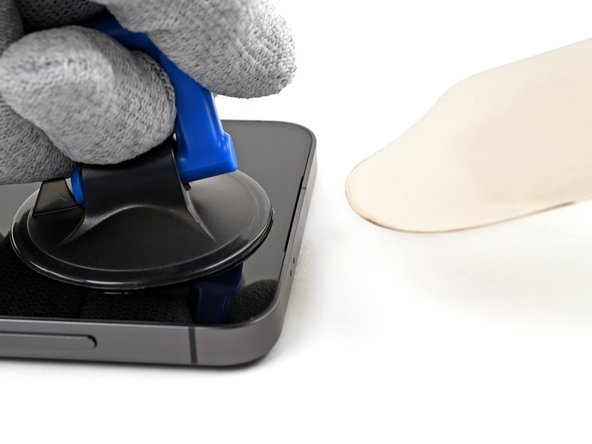
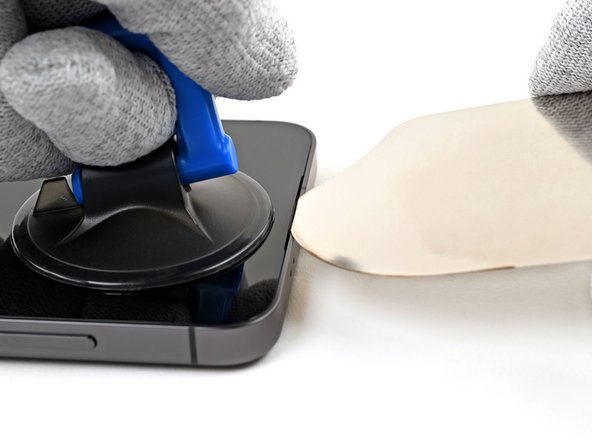
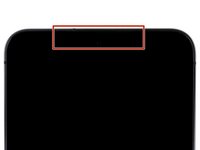
    • Apply a suction handle to the center of the screen's top edge, as close to the edge as possible.

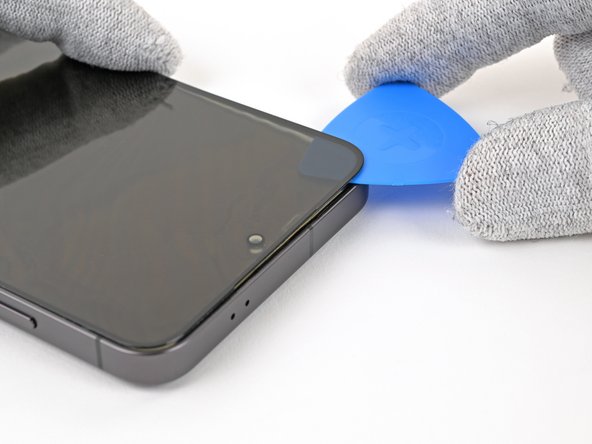
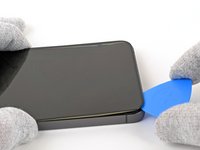
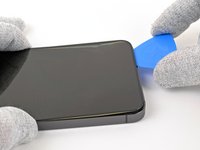
    • Insert the iFlex at a downward angle in the gap between the top edge of the front glass and the frame.

    • Lift the suction handle with strong, steady force and lower the iFlex so it slides under the front glass. A large portion of the front glass may separate—that's fine.

    • The iFlex only needs to be inserted just enough to separate the front glass and create an initial gap. If inserted too far, it may damage the front-facing camera.

  29. Samsung Galaxy S24 Screen Replacement, Insert an opening pick: step 29, image 1 of 2 Samsung Galaxy S24 Screen Replacement, Insert an opening pick: step 29, image 2 of 2
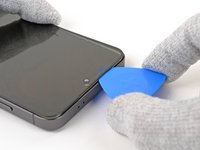
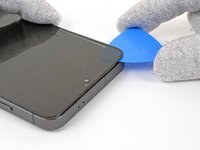
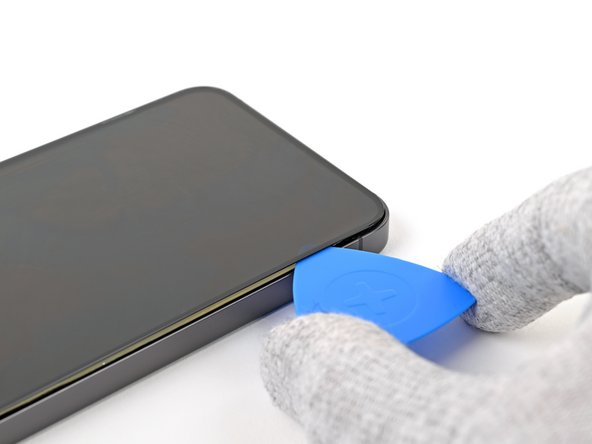
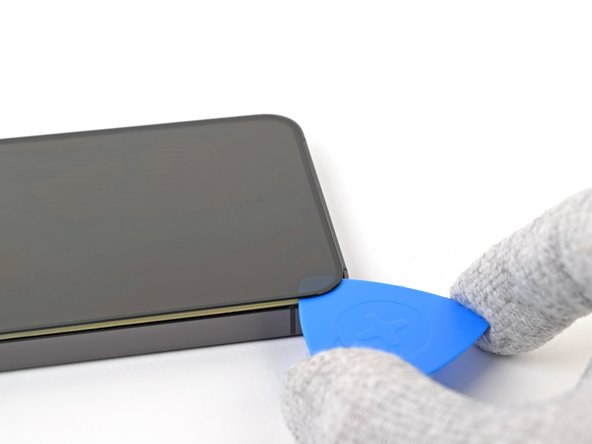
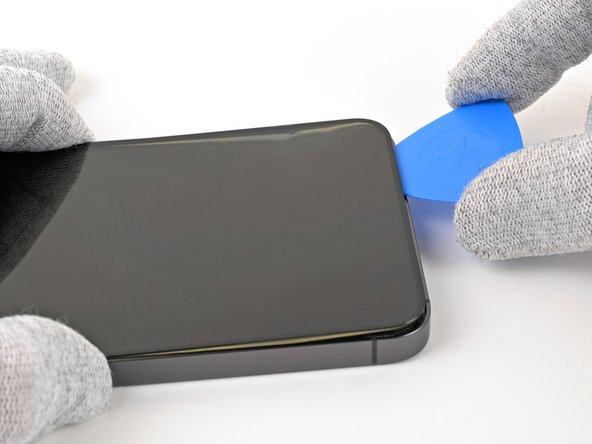
    • Replace the iFlex with an opening pick.

    • Slide the opening pick around the top left corner of the phone, separating the glass from the display itself.

  30. Samsung Galaxy S24 Screen Replacement, Separate the front glass: step 30, image 1 of 3 Samsung Galaxy S24 Screen Replacement, Separate the front glass: step 30, image 2 of 3 Samsung Galaxy S24 Screen Replacement, Separate the front glass: step 30, image 3 of 3
    • Slide the opening pick down the left edge of the display to separate the glass from the display.

  31. Samsung Galaxy S24 Screen Replacement: step 31, image 1 of 2 Samsung Galaxy S24 Screen Replacement: step 31, image 2 of 2
    • Slide your opening pick across the bottom edge, under both the glass and display panel to separate them from the frame.

    • If you're having trouble separating the display from the frame, heat the bottom edge of the screen with a hair dryer or heat gun until it's almost too hot to touch to soften the adhesive.

  32. Samsung Galaxy S24 Screen Replacement, Lift the glass: step 32, image 1 of 3 Samsung Galaxy S24 Screen Replacement, Lift the glass: step 32, image 2 of 3 Samsung Galaxy S24 Screen Replacement, Lift the glass: step 32, image 3 of 3
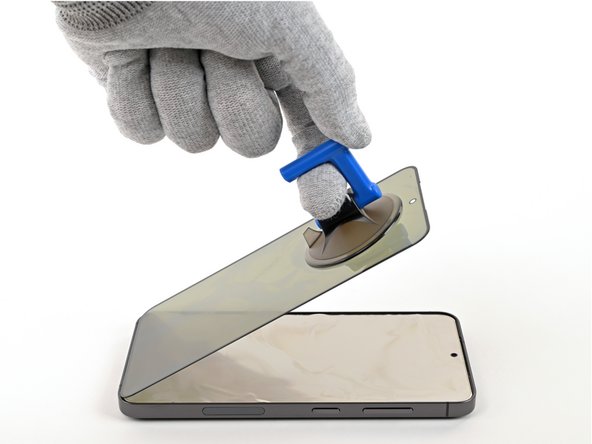
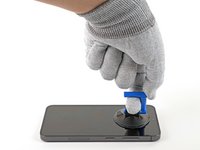
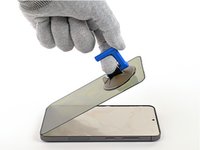
    • Apply a suction handle to the center of the screen's top edge.

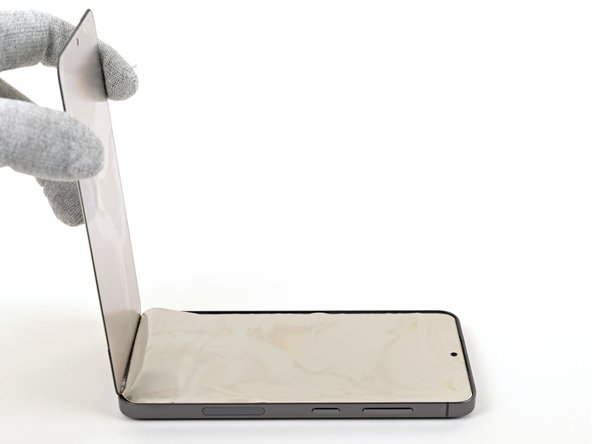
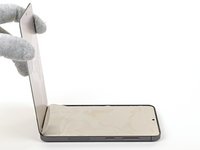
    • Pull up on the glass until it is perpendicular to your phone.

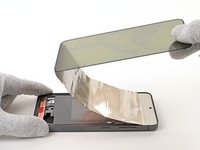
  33. Samsung Galaxy S24 Screen Replacement, Peel up the layers: step 33, image 1 of 2 Samsung Galaxy S24 Screen Replacement, Peel up the layers: step 33, image 2 of 2
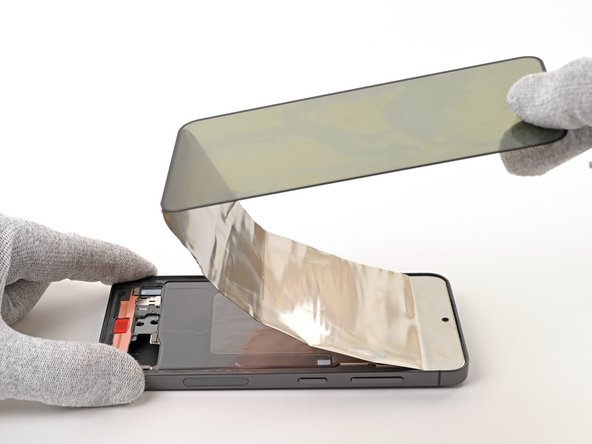
    • Lift the glass and display layer together towards the top of your phone to separate the adhesive securing them to the phone.

    • If you're having difficulty, heat the display until it's almost too hot to touch.

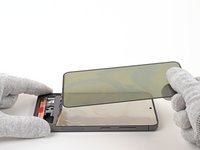
  34. Samsung Galaxy S24 Screen Replacement, Remove the display: step 34, image 1 of 1
    • Remove the glass and display from the phone.

Conclusion

Compare your new replacement part to the original part—be sure to transfer remaining components and remove adhesive backings from the new part before installing.

To reassemble your device, follow these instructions in reverse order.

Take your e-waste to an R2 or e-Stewards certified recycler.

Repair didn’t go as planned? Try some basic troubleshooting, or ask our Samsung Galaxy S24 Answers Community for troubleshooting help.

6 other people completed this guide.

Nick Schultz

Member since: 03/24/24

50,488 Reputation

288 Guides authored

Team

iFixit Member of iFixit

Staff

124 Members

25,226 Guides authored

1 Guide Comment

Author should add instructions on replacement adhesive positioning and best practices.

Matthew R - Reply Share
Add Comment

View Statistics:

Past 24 Hours: 31

Past 7 Days: 237

Past 30 Days: 1,008

All Time: 15,562