Free Shipping on Domestic Orders $75+

Samsung Galaxy S10e Screen Replacement

What you need

  1. Samsung Galaxy S10e Screen Replacement, Heat the back cover: step 1, image 1 of 1
    • Opening your phone will compromise its waterproof seals. Have replacement adhesive ready before you proceed, or take care to avoid liquid exposure if you reassemble your phone without replacing the adhesive.

    • Turn your phone off completely before you begin this repair.

    • Prepare an iOpener and heat the back of the phone along the right edge for about two minutes. This will help soften the adhesive securing the back cover.

    • You may need to reheat and reapply the iOpener several times to get the phone warm enough. Follow the iOpener instructions to avoid overheating.

    • A hair dryer, heat gun, or hot plate may also be used, but be careful not to overheat the phone—the OLED display and internal battery are both susceptible to heat damage.

    Ask FixBot

    Add Comment

  2. Samsung Galaxy S10e Screen Replacement, Prepare to slice the adhesive: step 2, image 1 of 2 Samsung Galaxy S10e Screen Replacement, Prepare to slice the adhesive: step 2, image 2 of 2
    • In the following steps, you'll be cutting through the adhesive securing the back cover.

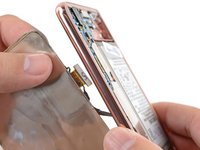
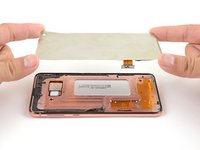
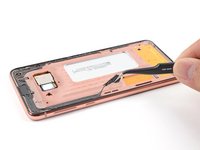
    • The adhesive is laid out as seen in the first image, which shows the inside of the cover after it has been removed.

    • As seen from the outside of the phone, you'll be slicing through the adhesive in the highlighted areas.

    • The adhesive is the thinnest on the right side of the phone, just below the Bixby button.

    Ask FixBot

    Add Comment

  3. Samsung Galaxy S10e Screen Replacement, Secure a suction cup: step 3, image 1 of 2 Samsung Galaxy S10e Screen Replacement, Secure a suction cup: step 3, image 2 of 2
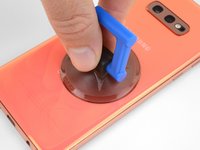
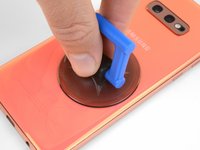
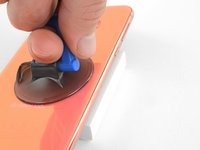
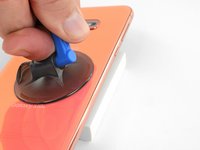
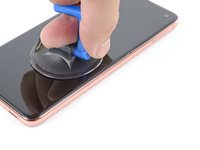
    • Secure a suction cup to the back cover, as close to the heated edge as possible, just under the Bixby button where the adhesive is thinnest.

    • The suction cup will not make a good seal on the curved portion of the glass, so avoid putting it on the very edge.

    • If the phone's back cover is cracked, the suction cup may not stick. Try lifting it with strong tape, or superglue the suction cup in place and allow it to cure so you can proceed.

    Ask FixBot

    Add Comment

  4. Samsung Galaxy S10e Screen Replacement, Create an opening gap: step 4, image 1 of 3 Samsung Galaxy S10e Screen Replacement, Create an opening gap: step 4, image 2 of 3 Samsung Galaxy S10e Screen Replacement, Create an opening gap: step 4, image 3 of 3
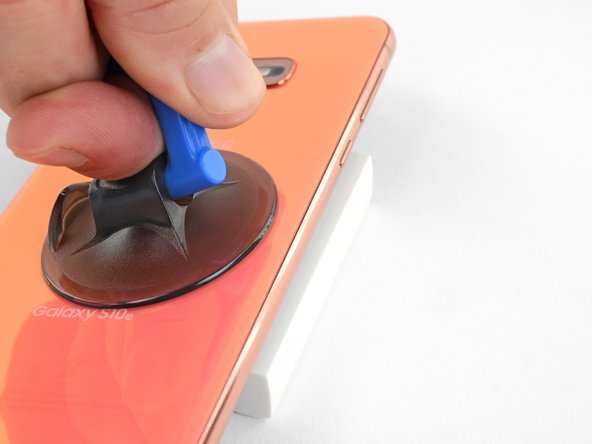
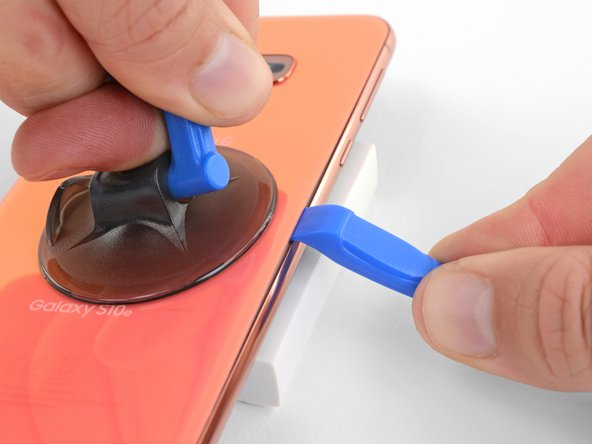
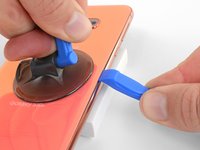
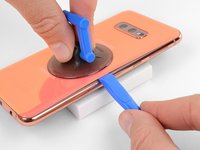
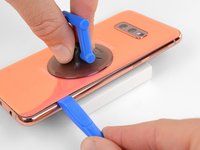
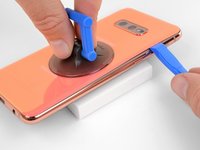
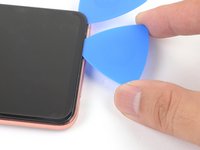
    • Prop up the heated edge of the phone on something that is about 0.5 inches (13 mm) thick. This will angle the phone so that the opening tool is easier to insert.

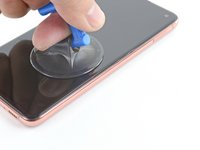
    • Lift the back cover's right edge with your suction cup, opening a slight gap between the back cover and the frame.

    • This may require a significant amount of force. If you have trouble, apply more heat to further soften the adhesive, and try again. The adhesive cools very fast, so you may need to heat it repeatedly.

    • If you're using an iOpener, follow the heating instructions to avoid overheating it, or the gel pack may burst.

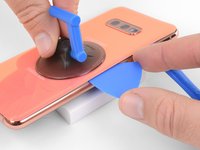
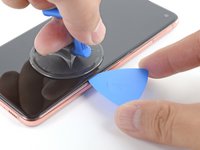
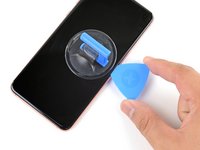
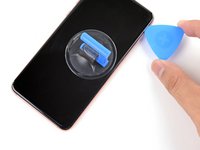
    • Press the edge of an opening tool into the gap.

    • The rear glass can break if you use too much force or attempt to pry with metal tools.

    Ask FixBot

    Add Comment

  5. Samsung Galaxy S10e Screen Replacement: step 5, image 1 of 3 Samsung Galaxy S10e Screen Replacement: step 5, image 2 of 3 Samsung Galaxy S10e Screen Replacement: step 5, image 3 of 3
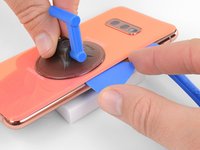
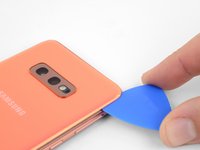
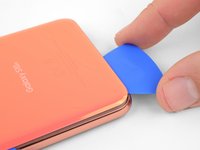
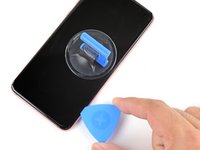
    • Slide the opening tool along the right edge of the phone to slice through the adhesive securing the back cover.

    Ask FixBot

    Add Comment

  6. Samsung Galaxy S10e Screen Replacement: step 6, image 1 of 2 Samsung Galaxy S10e Screen Replacement: step 6, image 2 of 2
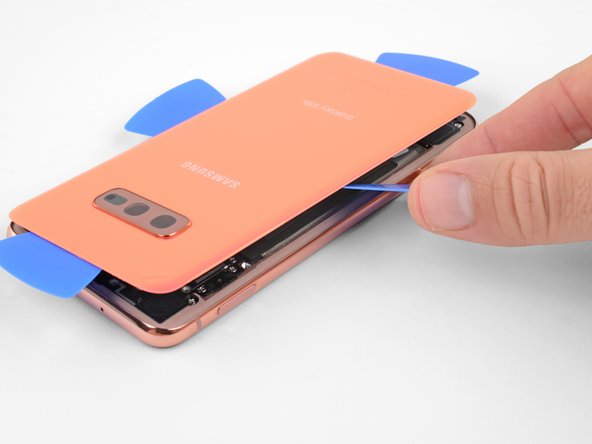
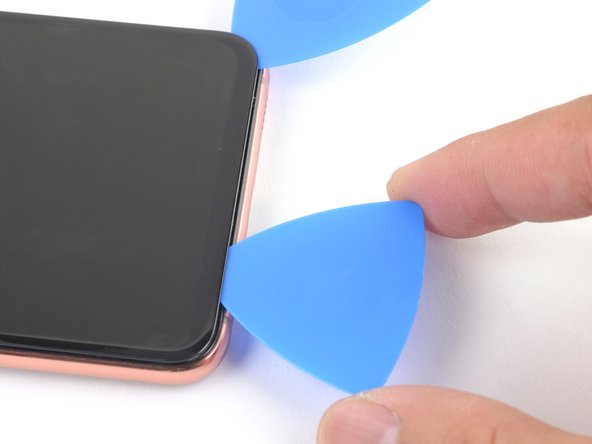
    • Insert an opening pick into the edge next to the opening tool. Leave the pick here to prevent the separated glue from re-adhering.

    Ask FixBot

    Add Comment

  7. Samsung Galaxy S10e Screen Replacement: step 7, image 1 of 1
    • Apply a heated iOpener to the top edge of the phone for two minutes.

    Ask FixBot

    Add Comment

  8. Samsung Galaxy S10e Screen Replacement: step 8, image 1 of 3 Samsung Galaxy S10e Screen Replacement: step 8, image 2 of 3 Samsung Galaxy S10e Screen Replacement: step 8, image 3 of 3
    • Insert an opening pick near the top right corner of the phone and slide it around the corner and across the top edge of the phone.

    • The glued area is larger here, so you'll need to insert your pick farther into the phone to separate it.

    • Leave the opening pick in place to prevent the adhesive from re-adhering.

    Ask FixBot

    Add Comment

  9. Samsung Galaxy S10e Screen Replacement: step 9, image 1 of 1
    • Apply a heated iOpener to the left edge of the phone for two minutes.

    Ask FixBot

    Add Comment

  10. Samsung Galaxy S10e Screen Replacement: step 10, image 1 of 3 Samsung Galaxy S10e Screen Replacement: step 10, image 2 of 3 Samsung Galaxy S10e Screen Replacement: step 10, image 3 of 3
    • Insert a new opening pick near the top left corner and slide it along the left edge of the phone.

    • Again, leave the opening pick in place in the left edge of the phone to prevent the adhesive from resealing.

    Ask FixBot

    Add Comment

  11. Samsung Galaxy S10e Screen Replacement: step 11, image 1 of 1
    • Apply a heated iOpener to the bottom edge of the phone for two minutes.

    Ask FixBot

    Add Comment

  12. Samsung Galaxy S10e Screen Replacement: step 12, image 1 of 3 Samsung Galaxy S10e Screen Replacement: step 12, image 2 of 3 Samsung Galaxy S10e Screen Replacement: step 12, image 3 of 3
    • Insert an opening pick near a bottom corner of the phone, and slide it along the bottom edge of the phone to separate the adhesive there.

    • The glued area is larger here, so you'll need to insert your pick farther into the phone to fully separate it.

    Ask FixBot

    Add Comment

  13. Samsung Galaxy S10e Screen Replacement: step 13, image 1 of 3 Samsung Galaxy S10e Screen Replacement: step 13, image 2 of 3 Samsung Galaxy S10e Screen Replacement: step 13, image 3 of 3
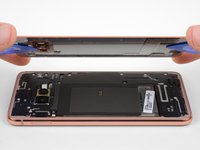
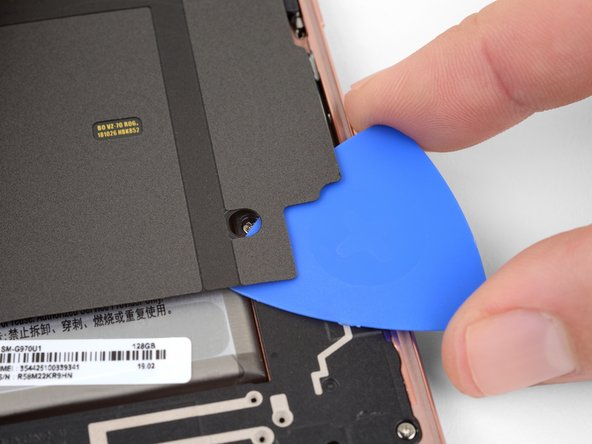
    • Use the opening picks to very carefully pry up the back cover.

    • If you encounter any resistance, stop prying and use an opening pick to cut any remaining adhesive.

    • Remove the back cover.

    Ask FixBot

    Add Comment

  14. Samsung Galaxy S10e Screen Replacement: step 14, image 1 of 1
    • Follow this guide to reinstall the back cover and replace the adhesive.

    • Be sure to turn on your phone and test your repair before installing new adhesive and resealing the phone.

    • If desired, you may reinstall the back cover without replacing the adhesive. Remove any large chunks of adhesive that might prevent the back cover from sitting down flush. After installation, heat the back cover and apply pressure to secure it. It won't be waterproof, but the leftover adhesive is usually more than strong enough to hold.

    Ask FixBot

    Add Comment

  15. Samsung Galaxy S10e Screen Replacement, Remove the midframe: step 15, image 1 of 1
    • Remove the eight 3.9 mm Phillips screws securing the upper midframe to the phone.

    Ask FixBot

    Add Comment

  16. Samsung Galaxy S10e Screen Replacement: step 16, image 1 of 2 Samsung Galaxy S10e Screen Replacement: step 16, image 2 of 2
    • Slide an opening pick under the bottom right corner of the upper midframe to separate the adhesive holding it to the lower midframe.

    Ask FixBot

    Add Comment

  17. Samsung Galaxy S10e Screen Replacement: step 17, image 1 of 2 Samsung Galaxy S10e Screen Replacement: step 17, image 2 of 2
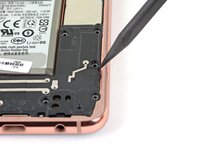
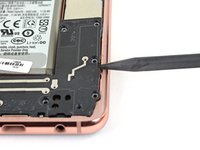
    • Insert the point of a spudger in the small cutout on the right edge of the plastic part of the upper midframe, near the Bixby button.

    • Use the point of the spudger to pry the midframe up from the phone chassis.

    Ask FixBot

    Add Comment

  18. Samsung Galaxy S10e Screen Replacement: step 18, image 1 of 1
    • Lift the midframe by the plastic section and remove it from the phone.

    • To reinstall, first insert the top edge of the assembly into the phone's frame, and then gently press down on the rest of the assembly to snap it into place.

    Ask FixBot

    Add Comment

  19. Samsung Galaxy S10e Screen Replacement, Disconnect the battery: step 19, image 1 of 2 Samsung Galaxy S10e Screen Replacement, Disconnect the battery: step 19, image 2 of 2
    • Use the flat end of a spudger to pry the battery connector straight up from its socket and disconnect it.

    Ask FixBot

    Add Comment

  20. Samsung Galaxy S10e Screen Replacement, Remove the loudspeaker: step 20, image 1 of 1
    • Use a Phillips driver to remove the seven 3.9 mm screws securing the loudspeaker.

    Ask FixBot

    Add Comment

  21. Samsung Galaxy S10e Screen Replacement: step 21, image 1 of 2 Samsung Galaxy S10e Screen Replacement: step 21, image 2 of 2
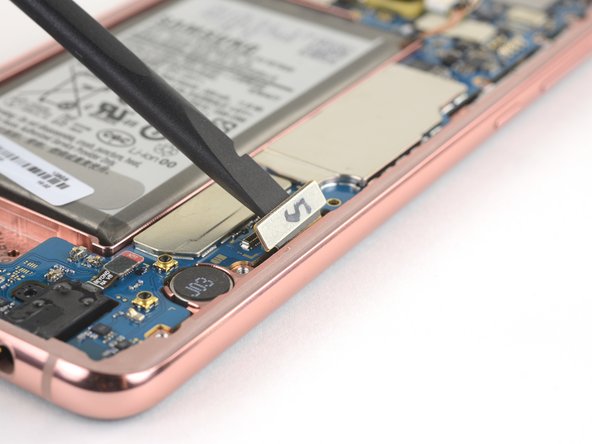
    • Insert the point of a spudger into the notch on the right edge of the loudspeaker.

    • Pry up with the spudger to loosen the loudspeaker.

    Ask FixBot

    Add Comment

  22. Samsung Galaxy S10e Screen Replacement: step 22, image 1 of 3 Samsung Galaxy S10e Screen Replacement: step 22, image 2 of 3 Samsung Galaxy S10e Screen Replacement: step 22, image 3 of 3
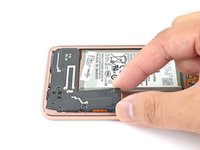
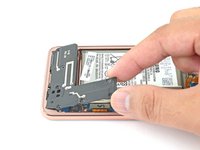
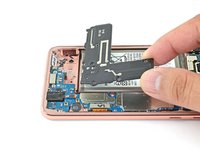
    • Lift the loudspeaker up and remove it.

    • To reassemble, press the loudspeaker edges until it snaps into place.

    Ask FixBot

    Add Comment

  23. Samsung Galaxy S10e Screen Replacement, Disconnect the screen: step 23, image 1 of 2 Samsung Galaxy S10e Screen Replacement, Disconnect the screen: step 23, image 2 of 2
    • Use the flat end of a spudger to pry up and disconnect the screen connector from its motherboard socket.

    • To re-attach press connectors like this one, carefully align and press down on one side until it clicks into place, then repeat on the other side. Do not press down on the middle. If the connector is misaligned, the pins can bend, causing permanent damage.

    Ask FixBot

    Add Comment

  24. Samsung Galaxy S10e Screen Replacement, Slice through the screen adhesive: step 24, image 1 of 3 Samsung Galaxy S10e Screen Replacement, Slice through the screen adhesive: step 24, image 2 of 3 Samsung Galaxy S10e Screen Replacement, Slice through the screen adhesive: step 24, image 3 of 3
    • Flip the phone over so that the display is facing up.

    • Apply a heated iOpener to the right edge of the screen for two minutes.

    • A hair dryer, heat gun, or hot plate may also be used, but be careful not to overheat the phone—the internal battery is susceptible to heat damage.

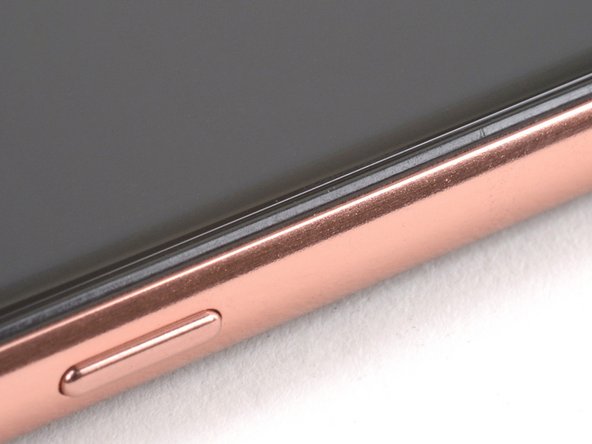
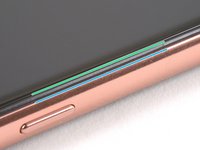
    • As you wait, note the following seams:

    • Display seam—this seam sits above the thin plastic bezel. You need to pry along this seam to separate the display.

    • Frame seam—this seam sits below the thin plastic bezel. Do not pry along this seam or you will damage the plastic bezel.

    Ask FixBot

    Add Comment

  25. Samsung Galaxy S10e Screen Replacement: step 25, image 1 of 3 Samsung Galaxy S10e Screen Replacement: step 25, image 2 of 3 Samsung Galaxy S10e Screen Replacement: step 25, image 3 of 3
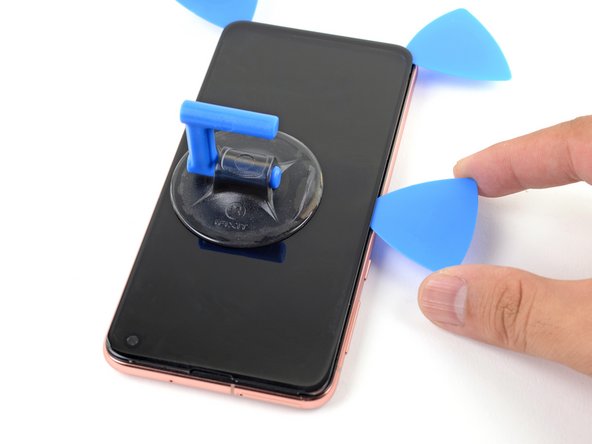
    • Apply a suction cup to the heated edge of the display.

    • Pull up on the suction up with strong, steady force to create a gap.

    • Depending on the age of your device, this may be difficult. If you have trouble, apply more heat and try again.

    • Insert the point of an opening pick into the display seam gap.

    • Make sure to insert the opening pick into the seam above the plastic bezel.

    Ask FixBot

    Add Comment

  26. Samsung Galaxy S10e Screen Replacement: step 26, image 1 of 3 Samsung Galaxy S10e Screen Replacement: step 26, image 2 of 3 Samsung Galaxy S10e Screen Replacement: step 26, image 3 of 3
    • Slide the opening pick along the right edge to slice through the adhesive.

    • Leave the opening pick in the corner to prevent the adhesive from resealing.

    Ask FixBot

    Add Comment

  27. Samsung Galaxy S10e Screen Replacement: step 27, image 1 of 1
    • Apply a heated iOpener to the bottom edge of the display for one minute.

    Ask FixBot

    Add Comment

  28. Samsung Galaxy S10e Screen Replacement: step 28, image 1 of 2 Samsung Galaxy S10e Screen Replacement: step 28, image 2 of 2
    • Slide an opening pick along the bottom edge to slice through the adhesive.

    • Leave the opening pick in the corner to prevent the adhesive from resealing.

    Ask FixBot

    Add Comment

  29. Samsung Galaxy S10e Screen Replacement: step 29, image 1 of 3 Samsung Galaxy S10e Screen Replacement: step 29, image 2 of 3 Samsung Galaxy S10e Screen Replacement: step 29, image 3 of 3
    • Repeat the heating and slicing procedure for the remaining display sides.

    Ask FixBot

    Add Comment

  30. Samsung Galaxy S10e Screen Replacement, Remove the display glass: step 30, image 1 of 2 Samsung Galaxy S10e Screen Replacement, Remove the display glass: step 30, image 2 of 2
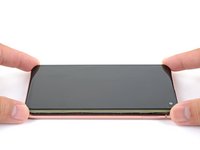
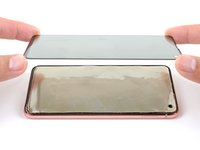
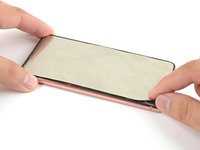
    • Lift up and remove the display glass.

    • The OLED panel is normally sealed against this glass panel. Once it's exposed to air, the panel will no longer work.

    Ask FixBot

    Add Comment

  31. Samsung Galaxy S10e Screen Replacement, Remove the display panel: step 31, image 1 of 1
    • Apply a heated iOpener to the OLED panel for a minute to soften up the panel adhesive.

    Ask FixBot

    Add Comment

  32. Samsung Galaxy S10e Screen Replacement: step 32, image 1 of 2 Samsung Galaxy S10e Screen Replacement: step 32, image 2 of 2
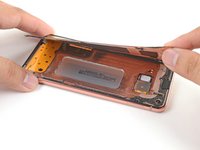
    • Lift the display panel from the right edge and peel it away from the frame.

    Ask FixBot

    Add Comment

  33. Samsung Galaxy S10e Screen Replacement: step 33, image 1 of 2 Samsung Galaxy S10e Screen Replacement: step 33, image 2 of 2
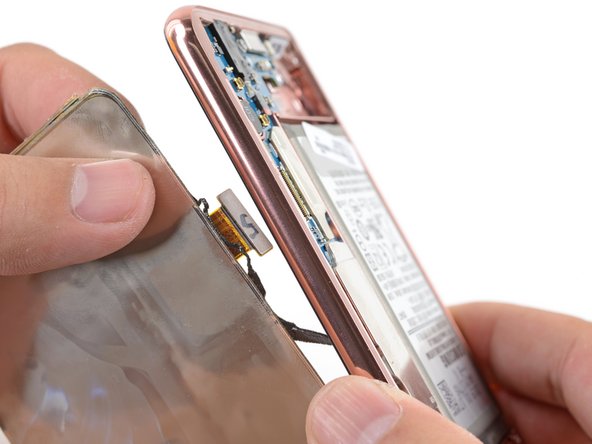
    • Thread the display panel connector through the frame.

    • If you are having trouble, you can choose to cut the display panel cable in order to remove the display.

    Ask FixBot

    Add Comment

  34. Samsung Galaxy S10e Screen Replacement: step 34, image 1 of 2 Samsung Galaxy S10e Screen Replacement: step 34, image 2 of 2
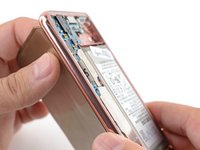
    • Remove the display panel.

    • If you are using a custom-cut adhesive, follow this guide for instructions on how to remove the old adhesive and attach the replacement screen.

    • If you are using Tesa tape to reattach the screen, follow this guide.

    Ask FixBot

    Add Comment

Conclusion

To reassemble your device, follow these instructions in reverse order.

Take your e-waste to an R2 or e-Stewards certified recycler.

After you've completed the repair, follow this guide to test your repair.

Repair didn’t go as planned? Try some basic troubleshooting, or ask our Answers community for help.

Cancel: I did not complete this guide.

17 other people completed this guide.

Arthur Shi

Member since: 01/03/18

338,110 Reputation

851 Guides authored

Team

iFixit Member of iFixit

Staff

122 Members

26,593 Guides authored

2 Guide Comments

Can I use S10e Exynos screen on a snapdragon one?

Ahmad - Reply Share

what's the 2nd large rectangular piece in the full kit? The first is the screen. The 2nd is gray and blue, looks plastic?

Richard Ness - Reply Share

Add Comment

View Statistics:

Past 24 Hours: 13

Past 7 Days: 82

Past 30 Days: 415

All Time: 50,741