Free Shipping on Domestic Orders $75+

Samsung Galaxy S10e Bixby Button Remap

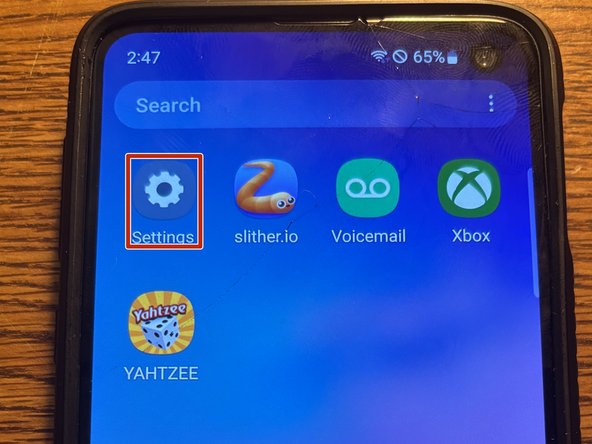
  1. Samsung Galaxy S10e Bixby Button Remap, Samsung Galaxy S10e Bixby Button Remap: step 1, image 1 of 1
    • Go to the settings app.

  2. Samsung Galaxy S10e Bixby Button Remap: step 2, image 1 of 1
    • Find the "Advanced Features" tab.

  3. Samsung Galaxy S10e Bixby Button Remap: step 3, image 1 of 1
    • Click on Bixby key.

  4. Samsung Galaxy S10e Bixby Button Remap: step 4, image 1 of 1
    • Using the "Single press to open Bixby" option, turn on "Use double press" and click on the text.

  5. Samsung Galaxy S10e Bixby Button Remap: step 5, image 1 of 1
    • Now select "Open App".

  6. Samsung Galaxy S10e Bixby Button Remap: step 6, image 1 of 1
    • Tap on "Flashlight" or any other function that interests you.

Conclusion

Enjoy the added functionality of your phone!

3 other people completed this guide.

CubicBuilder9

Member since: 11/03/24

566 Reputation

4 Guides authored

0 Guide Comments

Add Comment

View Statistics:

Past 24 Hours: 5

Past 7 Days: 16

Past 30 Days: 99

All Time: 859