Free Shipping on Domestic Orders $75+

Samsung Galaxy S III microSD Card Replacement

What you need

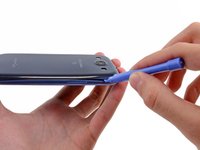
  1. Samsung Galaxy S III microSD Card Replacement, Rear Case: step 1, image 1 of 2 Samsung Galaxy S III microSD Card Replacement, Rear Case: step 1, image 2 of 2
    • The following four steps can be accomplished without a plastic opening tool. However, it's recommended to use a tool to best avoid breaking any clips along the perimeter of the rear case.

    • Insert a plastic opening tool or fingernail into the notch in the gap between the rear case and the rest of the phone, located at the top of the device.

    • Gently twist the opening tool to disconnect the clips securing the top of the rear case.

    Ask FixBot

    Add Comment

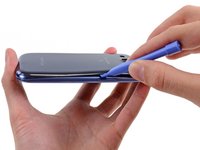
  2. Samsung Galaxy S III microSD Card Replacement: step 2, image 1 of 2 Samsung Galaxy S III microSD Card Replacement: step 2, image 2 of 2
    • Slide the plastic opening tool left along the top edge and repeat the twisting motion to widen the gap between the rear case and the phone.

    Ask FixBot

    Add Comment

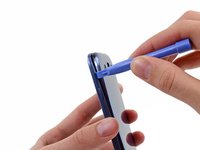
  3. Samsung Galaxy S III microSD Card Replacement: step 3, image 1 of 2 Samsung Galaxy S III microSD Card Replacement: step 3, image 2 of 2
    • Continue to move the plastic opening tool around the perimeter of the top left corner, gently prying up along the rear case.

    Ask FixBot

    Add Comment

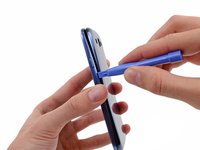
  4. Samsung Galaxy S III microSD Card Replacement: step 4, image 1 of 2 Samsung Galaxy S III microSD Card Replacement: step 4, image 2 of 2
    • Pry along the top right side, and continue prying down the right side of the rear case.

    Ask FixBot

    Add Comment

  5. Samsung Galaxy S III microSD Card Replacement: step 5, image 1 of 2 Samsung Galaxy S III microSD Card Replacement: step 5, image 2 of 2
    • Lift up and remove the rear case from the phone.

    • You may need to peel the case up to separate it from any clips still holding it to the bottom of the phone.

    Ask FixBot

    Add Comment

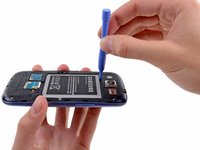
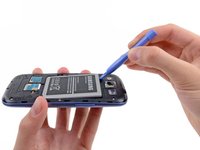
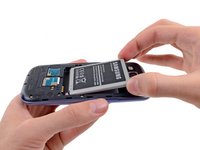
  6. Samsung Galaxy S III microSD Card Replacement, Battery: step 6, image 1 of 2 Samsung Galaxy S III microSD Card Replacement, Battery: step 6, image 2 of 2
    • This step can be accomplished without the need of a plastic opening tool. Just use your finger if you want to.

    • Wedge a plastic opening tool into the small notch above the battery.

    • Pry the battery up out of its recess.

    Ask FixBot

    Add Comment

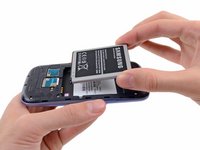
  7. Samsung Galaxy S III microSD Card Replacement: step 7, image 1 of 2 Samsung Galaxy S III microSD Card Replacement: step 7, image 2 of 2
    • Remove the battery.

    Ask FixBot

    Add Comment

  8. Samsung Galaxy S III microSD Card Replacement, microSD Card: step 8, image 1 of 3 Samsung Galaxy S III microSD Card Replacement, microSD Card: step 8, image 2 of 3 Samsung Galaxy S III microSD Card Replacement, microSD Card: step 8, image 3 of 3
    • Using your fingernail, push the microSD card slightly deeper into its slot, until you hear a click.

    • After the click, release the card and it will pop out of its slot.

    • For reassembly, push the microSD card into the slot until it clicks in place.

    Ask FixBot

    Add Comment

  9. Samsung Galaxy S III microSD Card Replacement: step 9, image 1 of 2 Samsung Galaxy S III microSD Card Replacement: step 9, image 2 of 2
    • Use your thumb to slide the microSD card out of the slot.

    • Remove the microSD card from the phone.

    Ask FixBot

    Add Comment

Conclusion

To reassemble your device, follow these instructions in reverse order.

Cancel: I did not complete this guide.

28 other people completed this guide.

0 Guide Comments

Add Comment

View Statistics:

Past 24 Hours: 4

Past 7 Days: 12

Past 30 Days: 54

All Time: 16,330