Free Shipping on Domestic Orders $75+

Samsung Galaxy Note5 Volume Button Replacement

What you need

  1. Samsung Galaxy Note5 Volume Button Replacement, SIM Card Tray: step 1, image 1 of 1
    • Insert a SIM Ejector Tool into the small hole on the left side of the top edge of the device.

    • Press down until the SIM Card Tray begins to protrude out of the device.

    Ask FixBot

    Add Comment

  2. Samsung Galaxy Note5 Volume Button Replacement: step 2, image 1 of 1
    • Remove the SIM Card Tray from the slot.

    Ask FixBot

    Add Comment

  3. Samsung Galaxy Note5 Volume Button Replacement, Power Button: step 3, image 1 of 1
    • Heat the back of the device with a heat gun for 2 minutes

    Ask FixBot

    Add Comment

  4. Samsung Galaxy Note5 Volume Button Replacement: step 4, image 1 of 1
    • Once the device is heated, place a suction cup near the bottom of the back of the device Make sure it is placed on the flat part of the glass

    • Be careful holding the device after heating the back, it may burn!

    • Gently pull upwards on the suction cup to separate the rear glass from the body of the phone.

    • While pulling upwards, insert a pick under the rear glass

    Ask FixBot

    Add Comment

  5. Samsung Galaxy Note5 Volume Button Replacement: step 5, image 1 of 1
    • Keeping the pick under the rear glass, move the pick along the bottom edge of the device to cut the adhesive.

    Ask FixBot

    Add Comment

  6. Samsung Galaxy Note5 Volume Button Replacement: step 6, image 1 of 1
    • Repeat the previous heating and cutting procedure for the remaining three sides of the phone.

    • Leave a pick on each side as you continue to the next to prevent the adhesive from resealing.

    Ask FixBot

    Add Comment

  7. Samsung Galaxy Note5 Volume Button Replacement: step 7, image 1 of 1
    • Once all adhesive has been cut, gently lift up the rear glass to remove it.

    Ask FixBot

    Add Comment

  8. Samsung Galaxy Note5 Volume Button Replacement: step 8, image 1 of 1
    • Remove the S-Pen from the bottom of the device

    Ask FixBot

    Add Comment

  9. Samsung Galaxy Note5 Volume Button Replacement: step 9, image 1 of 2 Samsung Galaxy Note5 Volume Button Replacement: step 9, image 2 of 2
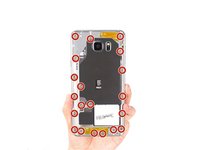
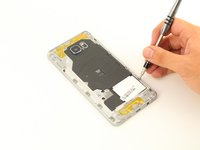
    • Remove 20 5mm screws with a Phillips #1 Screwdriver.

    Ask FixBot

    Add Comment

  10. Samsung Galaxy Note5 Volume Button Replacement: step 10, image 1 of 2 Samsung Galaxy Note5 Volume Button Replacement: step 10, image 2 of 2
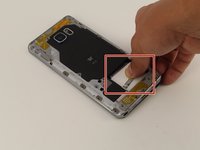
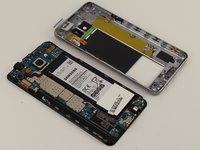
    • Grip the back of the device and press down on the white square to remove the middle housing.

    Ask FixBot

    Add Comment

  11. Samsung Galaxy Note5 Volume Button Replacement: step 11, image 1 of 2 Samsung Galaxy Note5 Volume Button Replacement: step 11, image 2 of 2
    Tool used on this step:
    Tweezers
    $4.99
    Buy
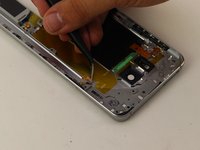
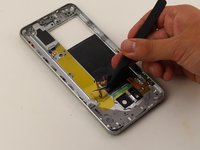
    • Loosen the power button flex adhesive by holding it with the tweezers.

    • With the tweezers, pry up and remove the power button flex

    Ask FixBot

    Add Comment

  12. Samsung Galaxy Note5 Volume Button Replacement: step 12, image 1 of 1
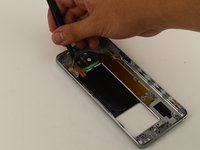
    • Push out the power button with the tip of the tweezers.

    Ask FixBot

    Add Comment

  13. Samsung Galaxy Note5 Volume Button Replacement, Volume Button: step 13, image 1 of 2 Samsung Galaxy Note5 Volume Button Replacement, Volume Button: step 13, image 2 of 2
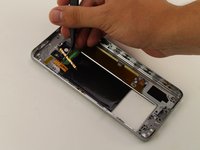
    • Loosen the volume flex adhesive.

    • Pry up and remove the volume button flex.

    Ask FixBot

    Add Comment

  14. Samsung Galaxy Note5 Volume Button Replacement: step 14, image 1 of 1
    • Push out the volume button and remove it from the device.

    Ask FixBot

    Add Comment

Conclusion

To reassemble your device, follow these instructions in reverse order.

Cancel: I did not complete this guide.

3 other people completed this guide.

Bernice Nunez

Member since: 04/19/18

388 Reputation

2 Guides authored

Team

Cal Poly, Team S25-G17, Maness Spring 2018 Member of Cal Poly, Team S25-G17, Maness Spring 2018

CPSU-MANESS-S18S25G17

4 Members

6 Guides authored

0 Guide Comments

Add Comment

View Statistics:

Past 24 Hours: 0

Past 7 Days: 9

Past 30 Days: 32

All Time: 1,665