
Samsung Galaxy Note Edge Ear Speaker/Power Button Replacement

Duc Huynh and 3 other contributors
Last updated on Jun 19, 2018
Views: 1K
View statistics:
- Past 24 Hours:
- 1
- Past 7 Days:
- 19
- Past 30 Days:
- 64
- All Time:
- 1,031
Comments: 0
No one has left comments on this guide. Will you be first?
Go to guide commentsCompleted: 1 2
1 person has marked this guide "completed." Will you be next?
2 people have marked this guide "completed." Including you — great job!
Favorites: 0 1
No one has favorited (and subscribed to) this guide. Will you be the first?
1 person has favorited (and subscribed to) this guide — and that's you!
Needs More Images
A few more images would make this guide's procedures crystal clear.
Missing Steps
Oops! This guide is currently missing one or more important steps.
Introduction
Go to step 1 ↓The Power Button and Ear Speaker of the phone are part of one component, and thus must be replaced together. The Power Button is responsible for turning the phone on/off, as well as resetting the phone. The speaker is responsible for sound during phone calls.
What you need
Tools
-
Spudger4.9


-
-
-
Power down your device and make sure that it is turned off.
-
Place the phone with the screen facing down on a clean flat surface.
 Ask FixBot
-
-
-
Use your Supdger to remove the back cover of the phone using notch located in the top left corner of the phone.
-
Remove battery by using your Supdger on the notch located directly underneath battery location.
-
-
-
-
-
Remove the SIM Card from the SIM Card holder by gently sliding the SIM Card horizontally.
-
Remove the stylus from the stylus holder.
-
-
-
-
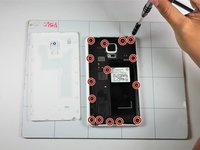
Using a Phillips #000 Screwdriver, remove the fifteen 4mm screws that secure the rear chassis.
-
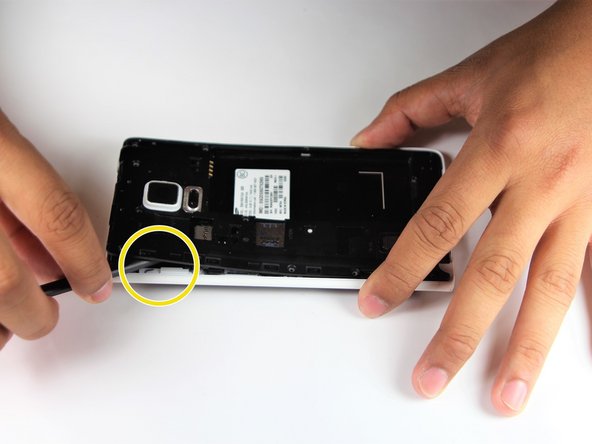
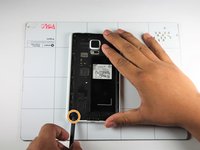
Insert your spudger into the stylus socket and pry the midframe from the phone.
-
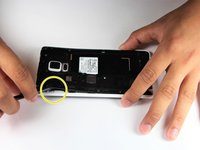
Move the spudger around edge of phone, carefully prying the midframe from the phone until midframe is entirely separated.
-
-
-
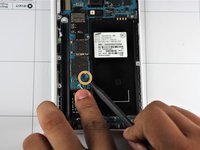
With the pointed end of your spudger, disconnect the two wires (pink and white) located near the bottom of the phone.
-
Using pointed end of your dpudger, disconnect the finger print scanner cable- it is located directly above the pink and white cables.
-
-
-
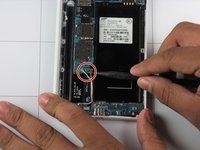
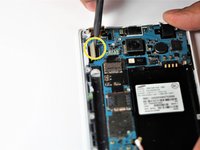
Using your Spudger's pointed end, pry off the following leads that connect these parts to the logic board in the top left hand corner:
-
Front Facing Camera
-
AMOLED Display Screen
-
AMOLED Capacitive Screen
-
-
-
At the top end, gently insert pointed end of spudger underneath the motherboard.
-
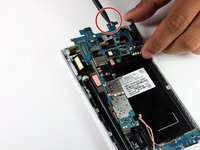
Lift the motherboard up gently. Disconnect the cable connecting the daughter board. It is attached to the underside of the motherboard.
-
Remove the motherboard from the device.
-
-
-
-
-
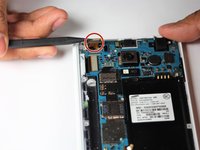
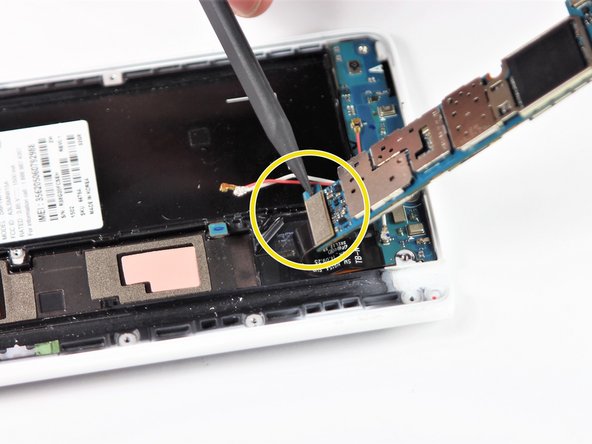
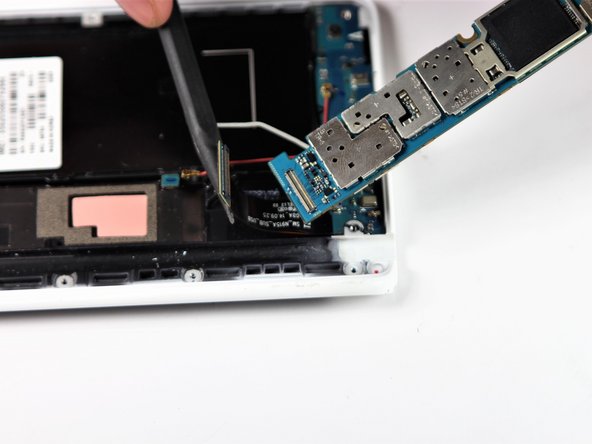
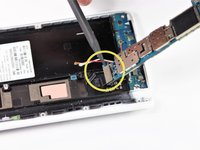
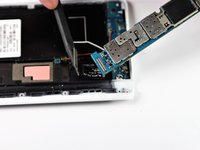
Gently insert the pointed end of your spudger under the gold ribbon connecting the speaker and power button.
-
Lift the ribbon to disconnect it from the frame.
-
-
-
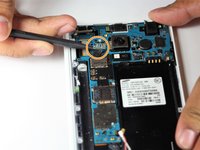
Insert the pointed end of spudger under an edge on the left side of the phones speaker.
-
Gently pry the speaker and power button from its home.
-
Carefully remove the power button from the device.
-
-









To reassemble your device, follow these instructions in reverse order.
Cancel: I did not complete this guide.
One other person completed this guide.

Team

Cal Poly, Team S22-G6, Maness Spring 2018 Member of Cal Poly, Team S22-G6, Maness Spring 2018
CPSU-MANESS-S18S22G6
4 Members
60 Guides authored
