Introduction
Use this guide to replace the screen on your Galaxy Book Pro 360 15" laptop.
For your safety, discharge the battery below 25% before disassembling your device. This reduces the risk of a thermal event if the battery is accidentally damaged during the repair. If your battery is swollen, take appropriate precautions.
What you need
-
-
-
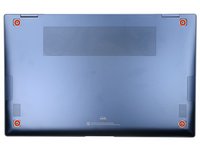
Close the screen and lay your laptop down with the rear case facing up to access the four rubber feet.
 Ask FixBot
-
-
Tool used on this step:Tweezers$4.99
-
Insert an opening pick between the rear case and the rubber foot.
-
Pry up with the pick and dislodge the foot from the rear case.
-
Use tweezers or your fingers to remove the rubber foot.
-
Repeat this process on the remaining rubber feet.
-
-
-
-
Tool used on this step:Magnetic Project Mat$19.95
-
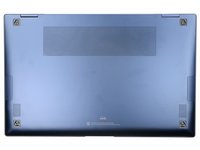
Use a Phillips screwdriver to remove the four 4.5 mm screws securing the rear case.
-
-
-
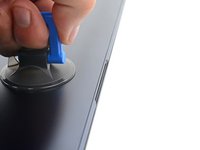
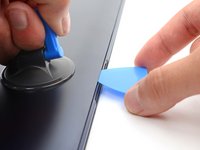
Apply a suction handle to the middle of the rear case's bottom edge, as close to the edge as possible.
-
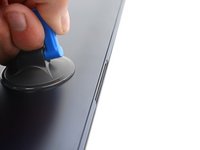
Pull up on the handle with a strong, steady force to create a small gap between the rear case and the frame.
-
Insert an opening pick into the gap you created.
-
-
-
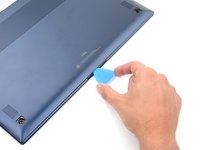
Slide the opening pick along the bottom edge to release the clips securing the rear case.
-
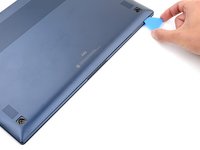
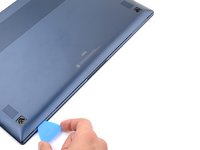
Continue sliding the pick along the perimeter of the laptop until all the clips securing the rear case have been released.
-
-
-
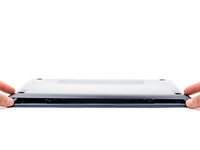
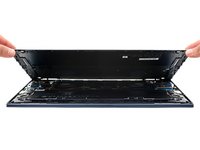
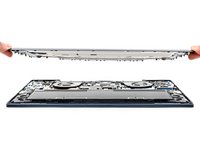
Lift the rear case up and away from the laptop and remove it.
-
-
-
-
-
Tool used on this step:Tweezers$4.99
-
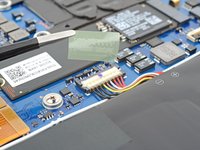
Use tweezers or your fingers to peel up and remove the tape covering the battery connector.
-
-
-
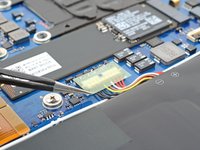
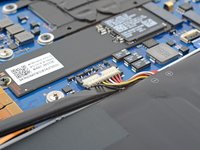
Insert the flat end of a spudger under the battery cables, as close to the connector as possible.
-
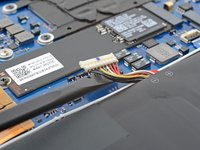
Gently pry up and disconnect the battery connector from its socket.
-
-
-
-
-
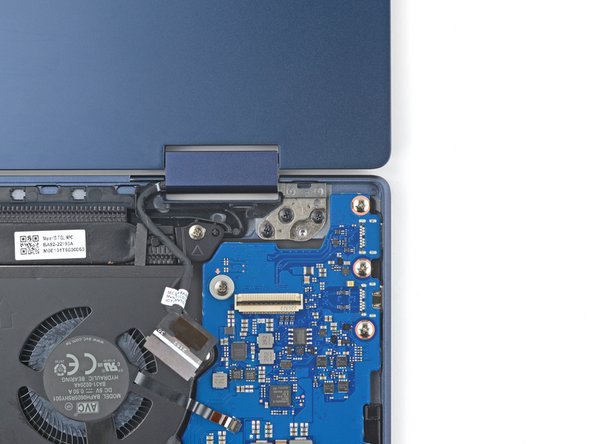
Use the flat end of a spudger to pry up the locking flap on the right display cable's ZIF connector.
-
-
Tool used on this step:Tweezers$4.99
-
Use tweezers or your fingers to grip the display cable's pull tab and gently pull the cable out of its socket on the motherboard.
-
-
-
Slowly pull the right display cable out of its recess.
-
-
-
Repeat the disconnection and removal procedure on the left display cable.
-
-
-
Open the laptop until it's completely flat and lay it down with the display and keyboard facing down.
-
-
-
Use a Phillips screwdriver to remove the three 3.6 mm screws securing the right screen hinge.
-
-
-
Use a Phillips screwdriver to remove the three 3.6 mm screws securing the left screen hinge.
-
-
-
Lift the screen up and away from the laptop and remove it.
-
-
















To reassemble your device, follow the instructions in reverse order.
Take your e-waste to an R2 or e-Stewards certified recycler.
Repair didn’t go as planned? Check out our Answers community for troubleshooting help.
Cancel: I did not complete this guide.
4 other people completed this guide.


4 Guide Comments
This is the display assembly. How do you replace the screen?
