Free Shipping on Domestic Orders $75+

Samsung Galaxy Book Pro 15" Touchpad Replacement

What you need

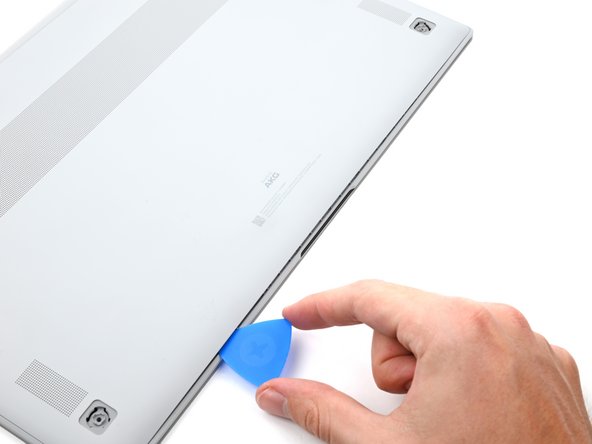
  1. Samsung Galaxy Book Pro 15" Touchpad Replacement, Remove the rubber feet: step 1, image 1 of 3 Samsung Galaxy Book Pro 15" Touchpad Replacement, Remove the rubber feet: step 1, image 2 of 3 Samsung Galaxy Book Pro 15" Touchpad Replacement, Remove the rubber feet: step 1, image 3 of 3
    • Before you begin, power down your laptop and unplug it.

    • There are two kinds of rubber feet along the top and bottom of the rear case. Keep track of their position as you remove them.

    • Insert an opening pick between the rubber foot and the rear case.

    • Pry up with the opening pick to release the clips securing the foot.

    • Remove the foot.

    • Repeat this procedure for the three remaining feet.

    • During reassembly, press the feet into their correct slot to reinsert them. Mismatched feet won't fit correctly.

    Ask FixBot

    Add Comment

  2. Samsung Galaxy Book Pro 15" Touchpad Replacement, Unfasten the rear case: step 2, image 1 of 2 Samsung Galaxy Book Pro 15" Touchpad Replacement, Unfasten the rear case: step 2, image 2 of 2
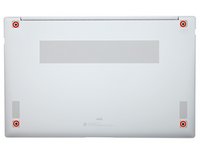
    • Use a Phillips screwdriver to remove the four 4.5 mm-long screws securing the rear case.

    Ask FixBot

    Add Comment

  3. Samsung Galaxy Book Pro 15" Touchpad Replacement, Insert an opening pick: step 3, image 1 of 3 Samsung Galaxy Book Pro 15" Touchpad Replacement, Insert an opening pick: step 3, image 2 of 3 Samsung Galaxy Book Pro 15" Touchpad Replacement, Insert an opening pick: step 3, image 3 of 3
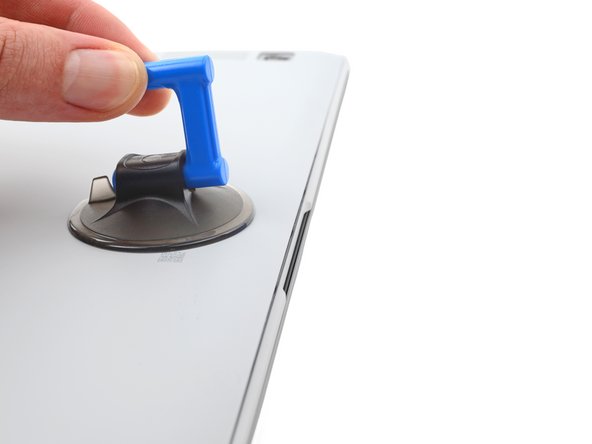
    • Apply a suction cup to the rear case, as close to the center of the bottom edge as possible.

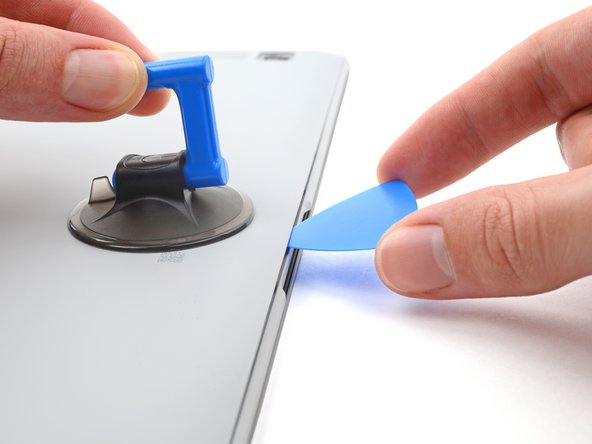
    • Pull up on the suction cup with strong, steady force to create a gap between the rear case and the frame.

    • Insert an opening pick into the gap.

    Ask FixBot

    Add Comment

  4. Samsung Galaxy Book Pro 15" Touchpad Replacement, Release the clips: step 4, image 1 of 3 Samsung Galaxy Book Pro 15" Touchpad Replacement, Release the clips: step 4, image 2 of 3 Samsung Galaxy Book Pro 15" Touchpad Replacement, Release the clips: step 4, image 3 of 3
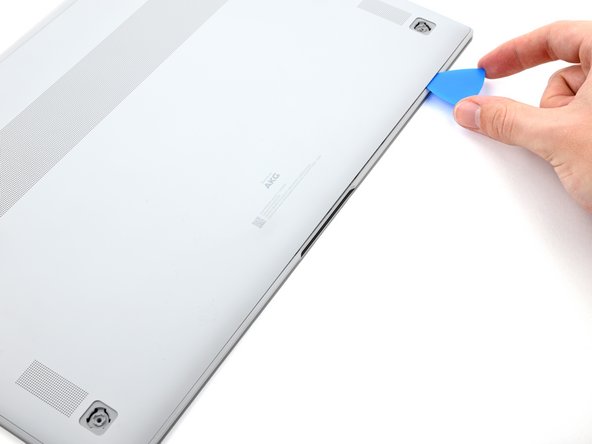
    • Slide the pick along the bottom edge of the rear case to release its plastic clips.

    • Repeat this process for the left and right edges, but stop before reaching the top edge.

    Ask FixBot

    Add Comment

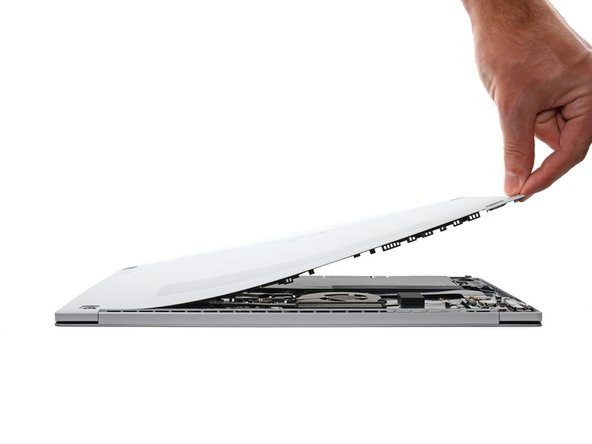
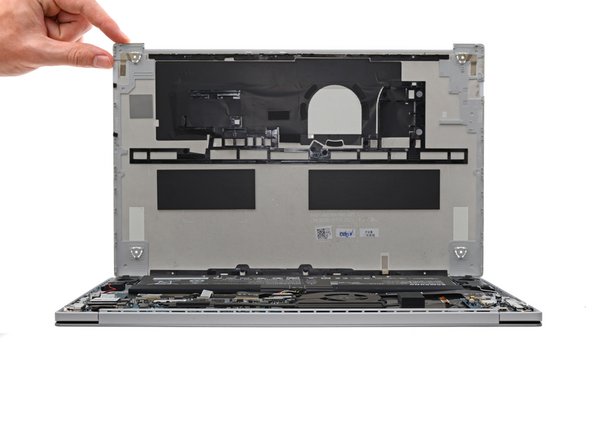
  5. Samsung Galaxy Book Pro 15" Touchpad Replacement, Remove the rear case: step 5, image 1 of 3 Samsung Galaxy Book Pro 15" Touchpad Replacement, Remove the rear case: step 5, image 2 of 3 Samsung Galaxy Book Pro 15" Touchpad Replacement, Remove the rear case: step 5, image 3 of 3
    • The top edge of the rear case is lightly adhered to the frame.

    • Pull the top of the rear case away from the frame to separate the adhesive and release the remaining clips.

    • If you're having trouble separating the adhesive, use an iOpener, hair dryer, or heat gun to soften it.

    • Remove the rear case.

    • During reassembly, perform the following:

    • If you're using a using a genuine Samsung replacement rear case, be sure to peel off any adhesive liners from the rear case before securing the top edge's clips.

    • If you're reusing your rear case, you can use some pre-cut adhesive to re-adhere the top edge if your existing adhesive is no longer sticky.

    • This is a good point to power on your laptop and test all functions before sealing it up. Be sure to power your laptop back down completely before you continue working.

    Ask FixBot

    Add Comment

  6. Samsung Galaxy Book Pro 15" Touchpad Replacement, Disconnect the battery: step 6, image 1 of 2 Samsung Galaxy Book Pro 15" Touchpad Replacement, Disconnect the battery: step 6, image 2 of 2
    • Insert a spudger between the frame and the bottom of the battery cable connector.

    • Pry up and disconnect the battery cable connector.

    Ask FixBot

    Add Comment

  7. Samsung Galaxy Book Pro 15" Touchpad Replacement, Unfasten the battery: step 7, image 1 of 2 Samsung Galaxy Book Pro 15" Touchpad Replacement, Unfasten the battery: step 7, image 2 of 2
    • Use a Phillips screwdriver to remove the four 4.5 mm-long screws securing the battery.

    • Take care not to puncture the battery with your screwdriver—a punctured battery may leak dangerous chemicals or cause a fire.

    Ask FixBot

    Add Comment

  8. Samsung Galaxy Book Pro 15" Touchpad Replacement, Remove the battery: step 8, image 1 of 3 Samsung Galaxy Book Pro 15" Touchpad Replacement, Remove the battery: step 8, image 2 of 3 Samsung Galaxy Book Pro 15" Touchpad Replacement, Remove the battery: step 8, image 3 of 3
    • Lift the battery straight out of the frame and remove it.

    Ask FixBot

    Add Comment

  9. Samsung Galaxy Book Pro 15" Touchpad Replacement, Remove the tape: step 9, image 1 of 2 Samsung Galaxy Book Pro 15" Touchpad Replacement, Remove the tape: step 9, image 2 of 2
    Tool used on this step:
    Tweezers
    $4.99
    Buy
    • Use tweezers, or your fingers, to peel back and remove the yellow tape covering the touchpad's cable connector.

    Ask FixBot

    Add Comment

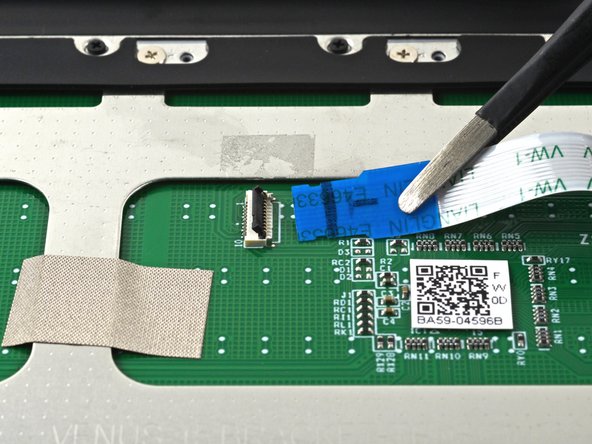
  10. Samsung Galaxy Book Pro 15" Touchpad Replacement, Disconnect the touchpad: step 10, image 1 of 2 Samsung Galaxy Book Pro 15" Touchpad Replacement, Disconnect the touchpad: step 10, image 2 of 2
    • Use a spudger to gently pry up the locking flap on the ZIF connector for the touchpad cable.

    Ask FixBot

    Add Comment

  11. Samsung Galaxy Book Pro 15" Touchpad Replacement: step 11, image 1 of 2 Samsung Galaxy Book Pro 15" Touchpad Replacement: step 11, image 2 of 2
    • Disconnect the touchpad cable by sliding it out from its socket on the touchpad.

    Ask FixBot

    Add Comment

  12. Samsung Galaxy Book Pro 15" Touchpad Replacement, Reposition the cable: step 12, image 1 of 2 Samsung Galaxy Book Pro 15" Touchpad Replacement, Reposition the cable: step 12, image 2 of 2
    • The touchpad cable is lightly adhered to the touchpad.

    • Use your fingers, or tweezers, to peel the touchpad cable away from the touchpad and separate its adhesive.

    Ask FixBot

    Add Comment

  13. Samsung Galaxy Book Pro 15" Touchpad Replacement, Unfasten the touchpad: step 13, image 1 of 2 Samsung Galaxy Book Pro 15" Touchpad Replacement, Unfasten the touchpad: step 13, image 2 of 2
    • Use a Phillips #00 screwdriver to remove the five 1.7 mm screws securing the touchpad.

    Ask FixBot

    Add Comment

  14. Samsung Galaxy Book Pro 15" Touchpad Replacement, Remove the touchpad: step 14, image 1 of 3 Samsung Galaxy Book Pro 15" Touchpad Replacement, Remove the touchpad: step 14, image 2 of 3 Samsung Galaxy Book Pro 15" Touchpad Replacement, Remove the touchpad: step 14, image 3 of 3
    • Swing the display open slightly, but keep the laptop upside-down.

    • Tilt the touchpad upwards and away from the frame.

    • Pull the touchpad towards the top of the laptop to separate it from its recess in the frame.

    • Remove the touchpad.

    Ask FixBot

    Add Comment

  15. Samsung Galaxy Book Pro 15" Touchpad Replacement, Remove the tape: step 15, image 1 of 2 Samsung Galaxy Book Pro 15" Touchpad Replacement, Remove the tape: step 15, image 2 of 2
    • Use tweezers to peel off and remove the conductive tape on the touchpad.

    • Set the tape aside. You'll reuse it during reassembly.

    Ask FixBot

    Add Comment

Conclusion

To reassemble your device, follow the instructions in reverse order.

Take your e-waste to an R2 or e-Stewards certified recycler.

Repair didn’t go as planned? Check out our Answers community for troubleshooting help.

Cancel: I did not complete this guide.

Alex Diaz-Kokaisl

Member since: 01/16/22

241,121 Reputation

1,180 Guides authored

Team

iFixit Member of iFixit

Staff

122 Members

26,593 Guides authored

0 Guide Comments

Add Comment

View Statistics:

Past 24 Hours: 2

Past 7 Days: 13

Past 30 Days: 55

All Time: 1,865